15.2 Following Your Inquiries and Conversations
When you send an inquiry while signed in, it is saved to your account. You can see every inquiry you have sent, read replies and write back.
Opening your inquiries
Sign in and click My Inquiries in the side menu. If your account also receives inquiries, click Inquiries, then the My Inquiries tab.
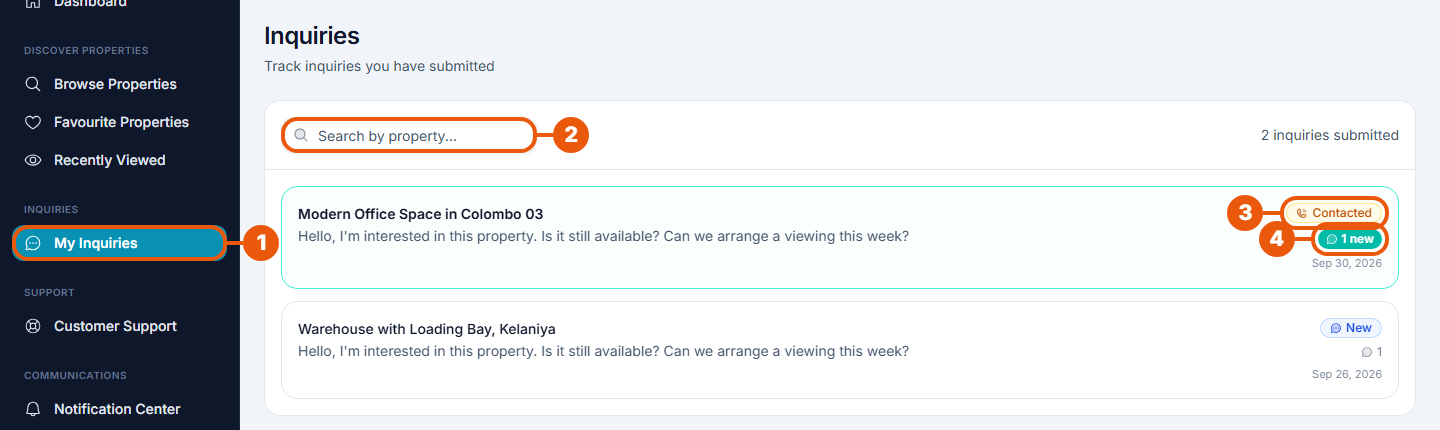
My Inquiries in the side menu.
Search by property: find an inquiry by the property's name.
Status: where your inquiry stands. New means the advertiser hasn't answered yet. Contacted means they have.
New messages: a green label shows how many replies you haven't read.
Each inquiry shows the property, your first message and the date. Click one to open the conversation.
The conversation
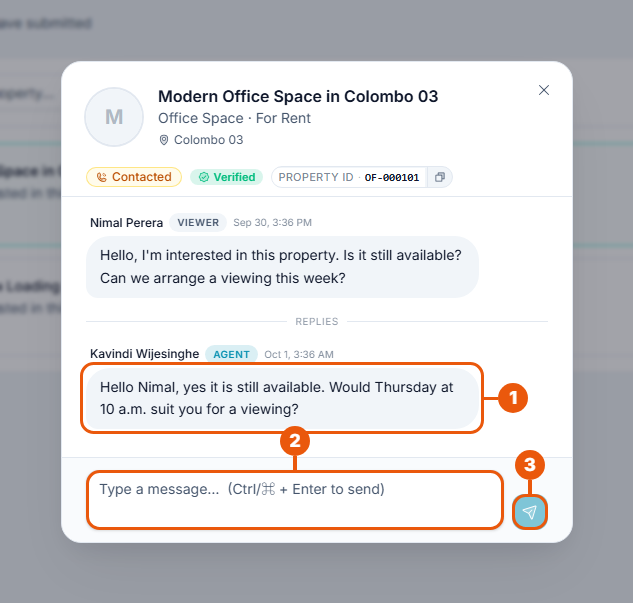
At the top are the property, its status and its Property ID.
Messages: yours are marked Viewer, the advertiser's are marked Agent. Each shows the date and time.
Type a message.
Click the send button, or press Ctrl + Enter.
The message limit
Each conversation can hold a limited number of messages (10 at the time of writing). When the limit is reached, the message box is replaced by this note:
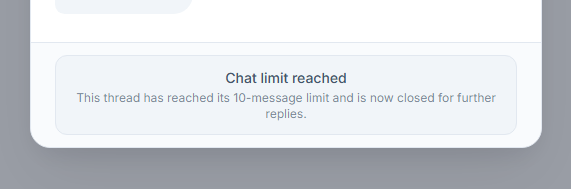
After that, carry on by phone or email. The advertiser's contact details are on the property's page.
To make the most of the limit, put all your questions in one message.
Notifications
You get a notification when the advertiser replies. See The Notification Center.
Good to know
Only inquiries sent while signed in appear here. An inquiry sent without signing in can't be followed on the website; the advertiser replies by phone or email.
You can have one conversation per property. To ask again about the same property, open the existing conversation.
Related articles
Previous Article
15.1 Sending an Inquiry About a Property
Next Article
15.3 Managing Incoming Inquiries
Was this article helpful?
If you still have questions, our support team is here to help.
Submit a Support TicketNot signed in? Sign in first
