When someone asks about one of your listings, the inquiry appears on your Inquiries page. This article shows how to find, read and answer them.
Who sees which inquiries
You are
You see
Agent
Inquiries about your own listings
Agency Admin or Agency Super Admin
Your own, plus an All Agency Inquiries tab for the whole agency
Property Owner
Inquiries about your own listings
The Inquiries page
Click Inquiries in the side menu. A number beside it shows inquiries waiting for you.
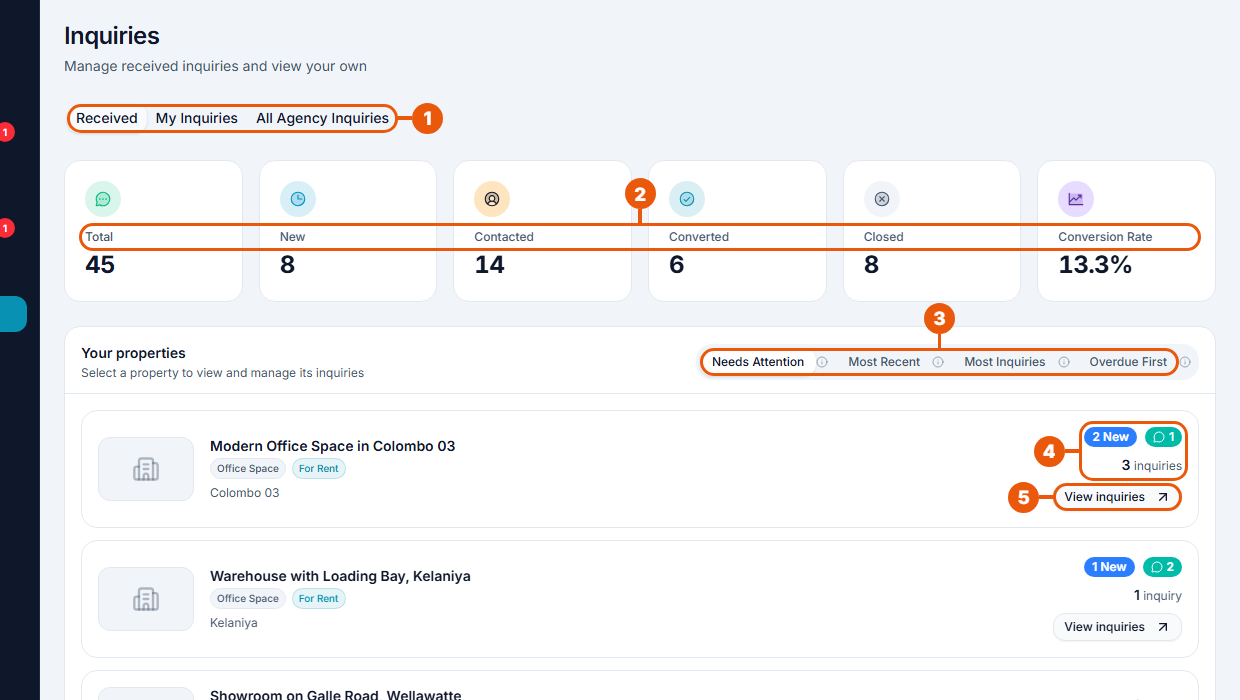
Tabs: Received (inquiries about your listings), My Inquiries (inquiries you have sent) and, for agency managers, All Agency Inquiries.
Summary cards: total inquiries, how many are in each status, and your conversion rate.
Sort: Needs Attention, Most Recent, Most Inquiries or Overdue First.
Counts: new inquiries, unread messages and total inquiries for that property.
View inquiries: open that property's inquiries.
Inquiries are grouped by property. Start with the properties that show a blue New label.
A property's inquiries
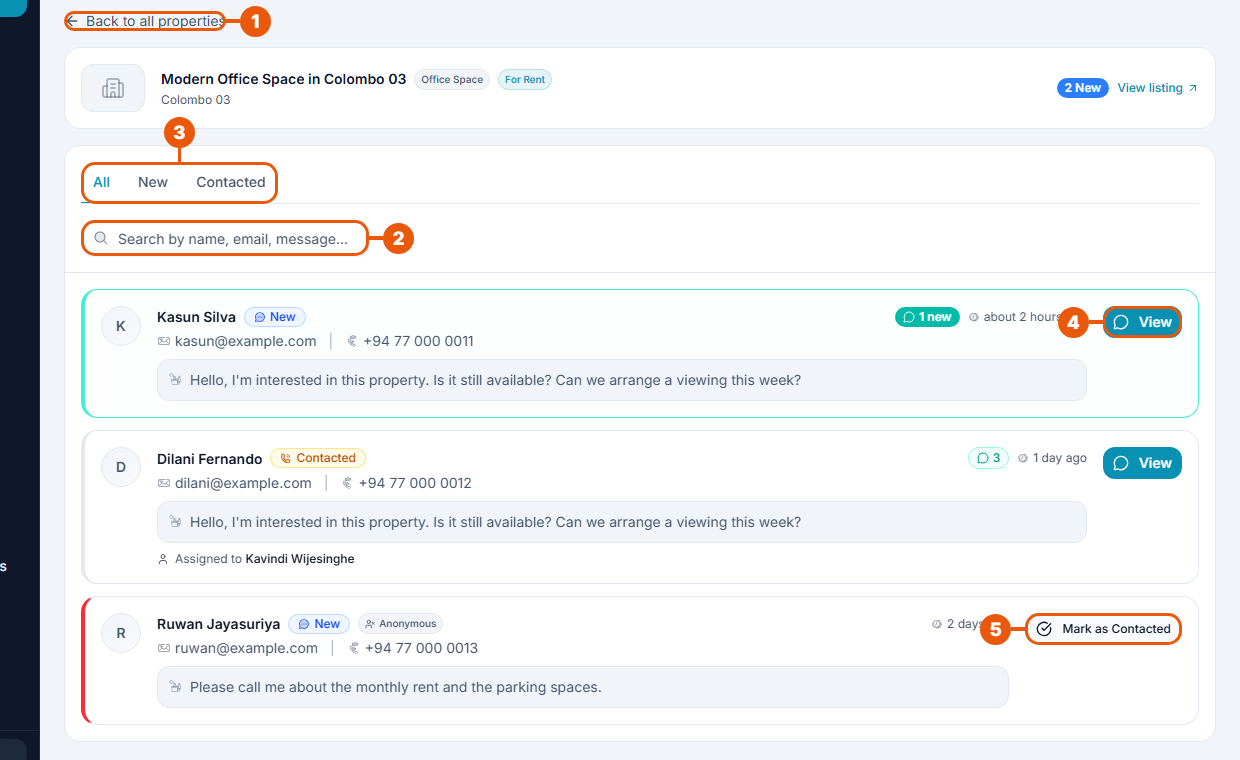
Back to all properties.
Search: find an inquiry by name, email or message.
Status tabs: All, New or Contacted.
View: open the conversation and reply.
Mark as Contacted: shown on inquiries from people who weren't signed in. See below.
Each inquiry shows the person's name, status, email, phone number, message and how long ago it arrived. A green label shows unread messages. An inquiry with a red edge has been waiting too long.
Replying in a conversation
Click View.
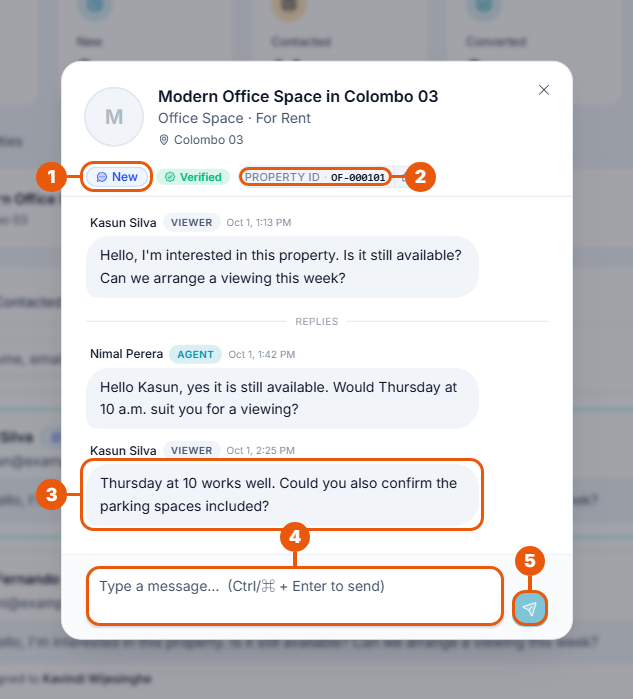
Status of the inquiry.
Property ID: click the small button to copy it.
Messages: the visitor's are marked Viewer, yours are marked Agent.
Type a message.
Click send, or press Ctrl + Enter.
When you send your first reply, the inquiry's status changes from New to Contacted by itself.
Each conversation can hold a limited number of messages (10 at the time of writing). After that, continue by phone or email.
Inquiries marked "Anonymous"
An inquiry from someone who wasn't signed in is marked Anonymous. It has no conversation, so there is no View button.
Call or email the person using the details on the inquiry.
Click Mark as Contacted so the inquiry no longer shows as new.
All Agency Inquiries (agency managers)
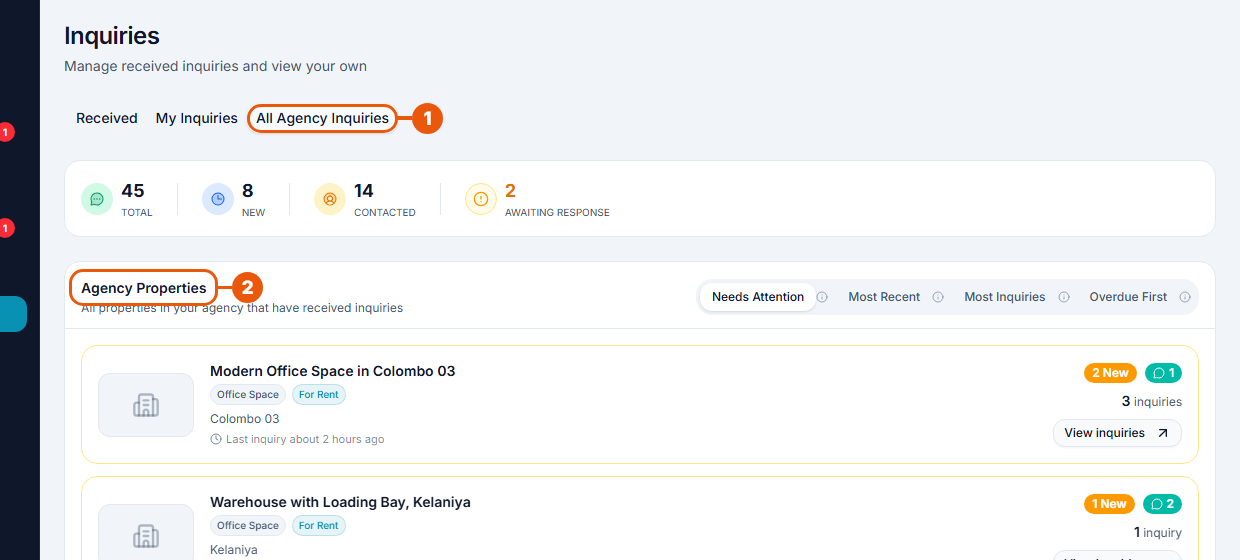
All Agency Inquiries: every inquiry received by anyone in your agency.
Agency Properties: the agency's properties that have received inquiries. Click View inquiries to see who is handling each one.
The Awaiting Response figure shows how many inquiries nobody has answered yet.
Good habits
Reply the same day. Fast replies win more deals.
Check Overdue First once a day.
Keep phone calls and emails in step with the website: mark an inquiry as contacted once you have spoken to the person.
Related articles
Previous Article
15.2 Following Your Inquiries and Conversations
Next Article
15.4 The Lead Pipeline: Inquiry Statuses
Was this article helpful?
If you still have questions, our support team is here to help.
Submit a Support TicketNot signed in? Sign in first
