When a Property Owner pays a listing fee or a renewal by bank transfer, they upload a payment slip. You check it against the bank statement and approve or reject it.
This article is for Financial Officers. The Super Admin can do the same.
The names, amounts and slip in these pictures are examples only.
The Payment Slips page
Click Payment Slips in the side menu.
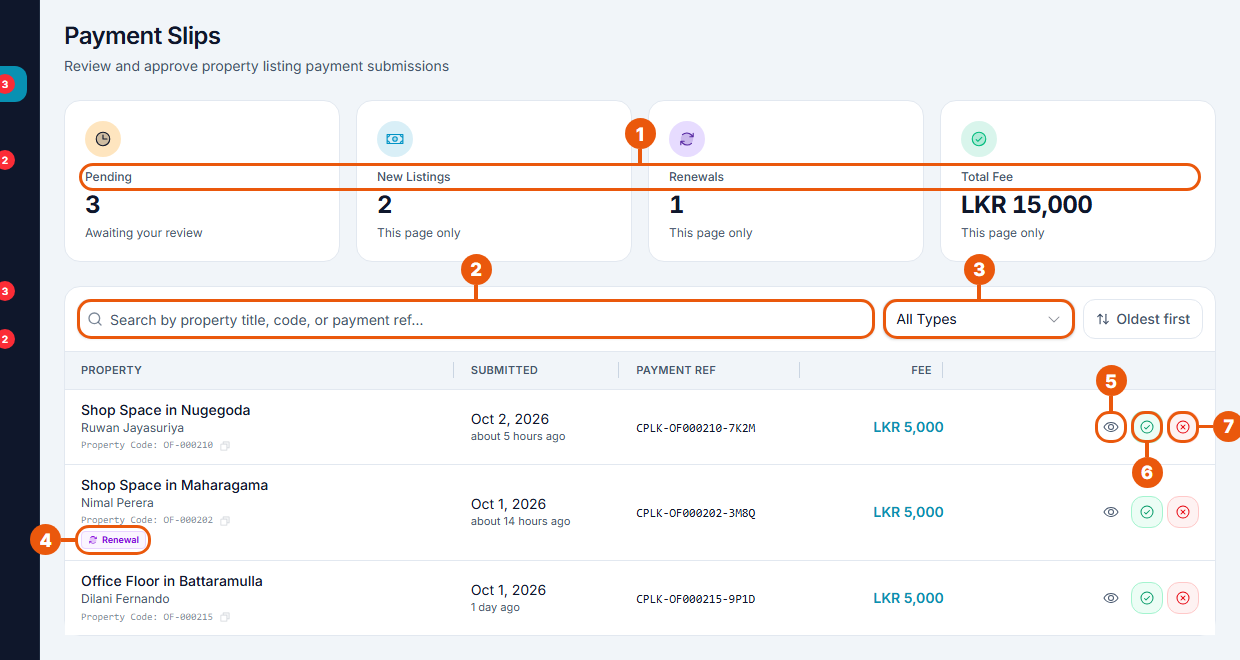
Summary: how many slips are waiting, how many are new listings or renewals, and their total value.
Search by property title, property code or payment reference.
Type: All Types, New Listings or Renewals.
Renewal: this payment renews an expired listing.
View: open the slip and its details.
Approve.
Reject.
The oldest slips are at the top. Click Oldest first to change the order.
Step 1: Look at the slip
Click the eye button.
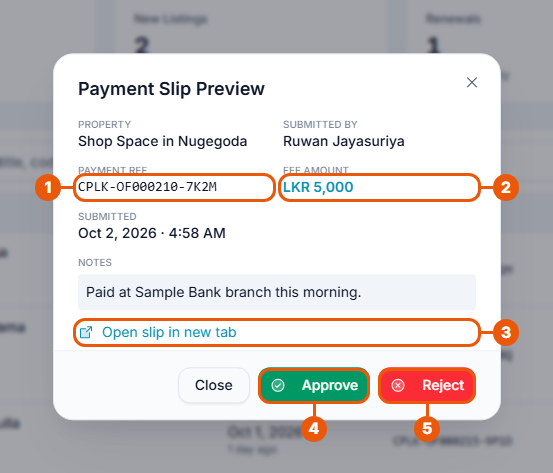
Payment reference: the code the owner had to use for the transfer.
Fee amount: what should have been paid.
Open slip in new tab: see the uploaded receipt at full size.
The window also shows the property, who sent it, when, and any note from the owner.
Approve or
Reject.
Step 2: Check the bank statement
Find the transfer in the bank statement. Approve only if both match:
the reference in the transfer remark is the payment reference shown;
the amount is the fee amount shown.
Step 3a: Approve
Click Approve, then Approve again in the message to confirm.
New listing: the payment is confirmed and the listing goes for review.
Renewal: the listing goes back on the website for a new period.
The owner is notified, and an invoice is created.
Step 3b: Reject
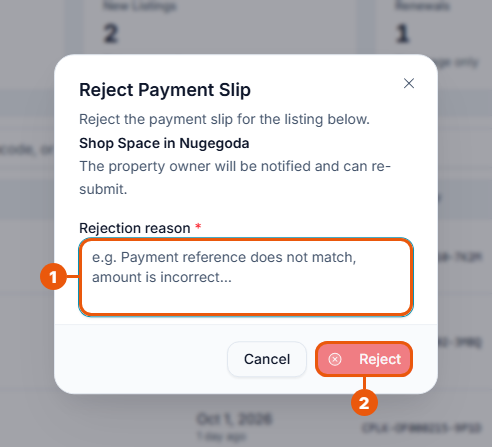
Write the reason, for example "The payment reference does not match" or "The amount is incorrect". The owner sees it.
Click Reject.
The owner is notified and can upload a new slip or pay online.
Payment History
Click Payment History in the side menu to see slips that have already been checked.
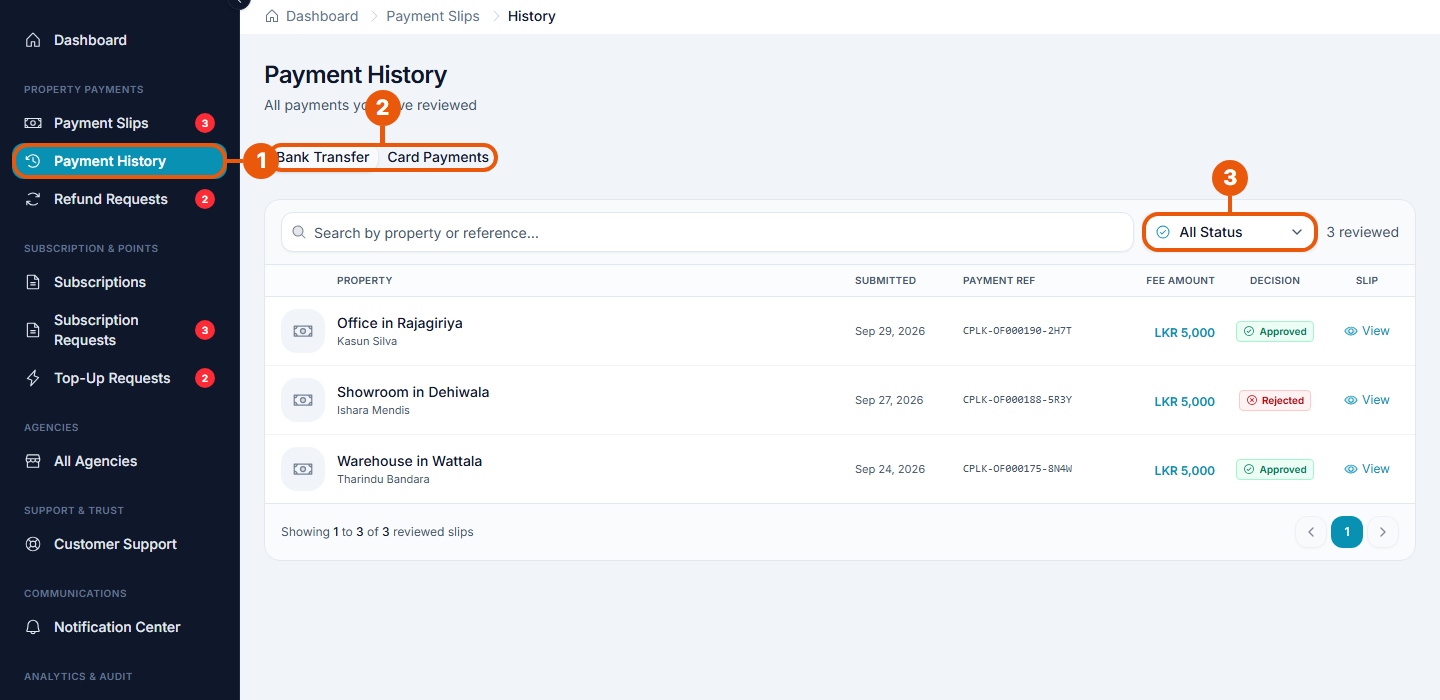
Payment History in the side menu.
Bank Transfer (slips that were checked) or Card Payments (paid online, no checking needed).
Decision: show only approved or only rejected slips.
Search by property or reference. Click View on any row to see the slip again.
Related articles
Previous Article
18.1 The Financial Officer Workspace
Next Article
18.3 Checking Subscription Bank Transfers
Was this article helpful?
If you still have questions, our support team is here to help.
Submit a Support TicketNot signed in? Sign in first
