A Property Owner whose listing was rejected can ask for part of the listing fee back. A refund passes through two people before the money is sent:
The Financial Officer checks the request and proposes the refund percentage.
The Super Admin approves or rejects it.
The Financial Officer makes the bank transfer and closes the request.
The names, amounts and bank details in these pictures are examples only.
The whole journey
Step
Who
Status the Financial Officer sees
Status the owner sees
Owner gives bank details
Property Owner
Awaiting Bank Details
Action Required
Check and propose a percentage
Financial Officer
Needs Review
Under Review
Decide
Super Admin
Awaiting SA
Under Review
Transfer and close
Financial Officer
SA Approved / % Adjusted by SA / SA Rejected
Processing
Done
Completed or Rejected
Completed or Rejected
Part 1: Financial Officer – check and forward
Click Refund Requests in the side menu.
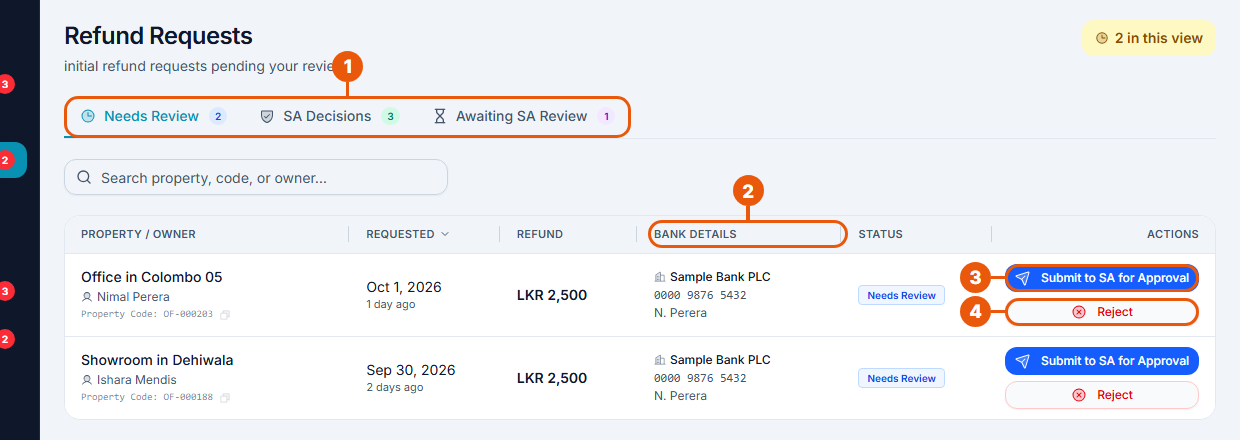
Tabs: Needs Review (your turn), SA Decisions (the Super Admin has decided; your turn again) and Awaiting SA Review (waiting for the Super Admin).
Bank details: where the money will go.
Submit to SA for Approval: propose a percentage and forward it.
Reject: refuse the request yourself, without the Super Admin.
Forwarding to the Super Admin
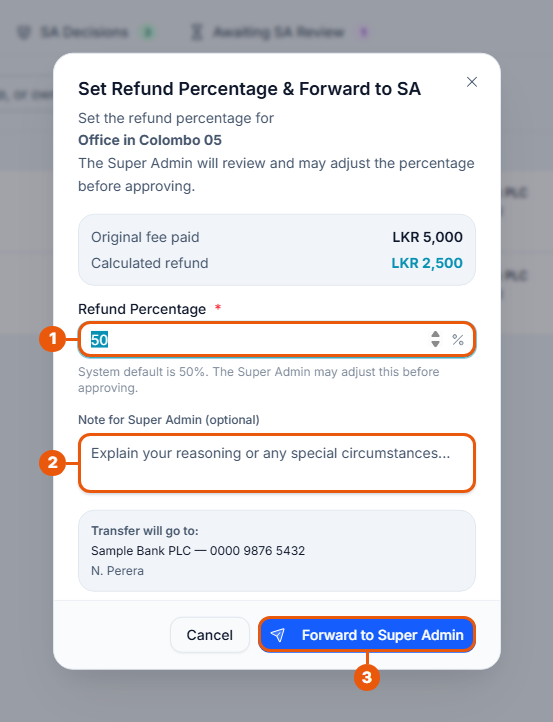
The window shows the fee the owner paid and the refund it works out to.
Refund Percentage: the usual figure is 50%. Change it if the case calls for it.
Note for Super Admin (optional): explain your reasoning.
Click Forward to Super Admin.
Rejecting without the Super Admin
Use Reject only when the request is clearly not valid, for example a duplicate request or an ineligible listing. Write the reason; the owner sees it. This is final: no Super Admin review takes place.
Part 2: Super Admin – decide
The Super Admin clicks Refund Requests in the side menu. The page is called Refund Approvals.
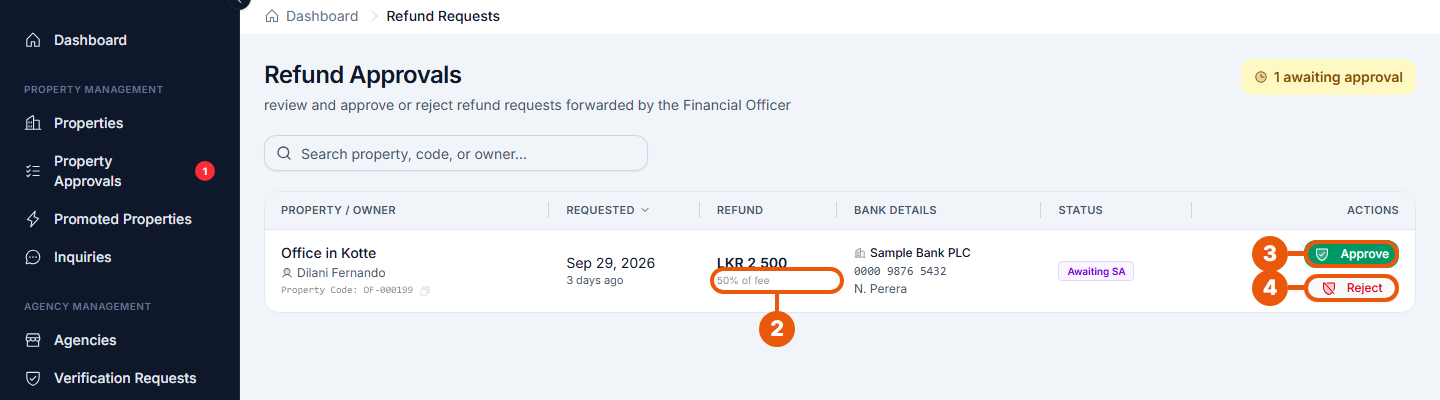
Refund Requests in the side menu.
The proposed refund and its percentage of the fee.
Approve.
Reject.
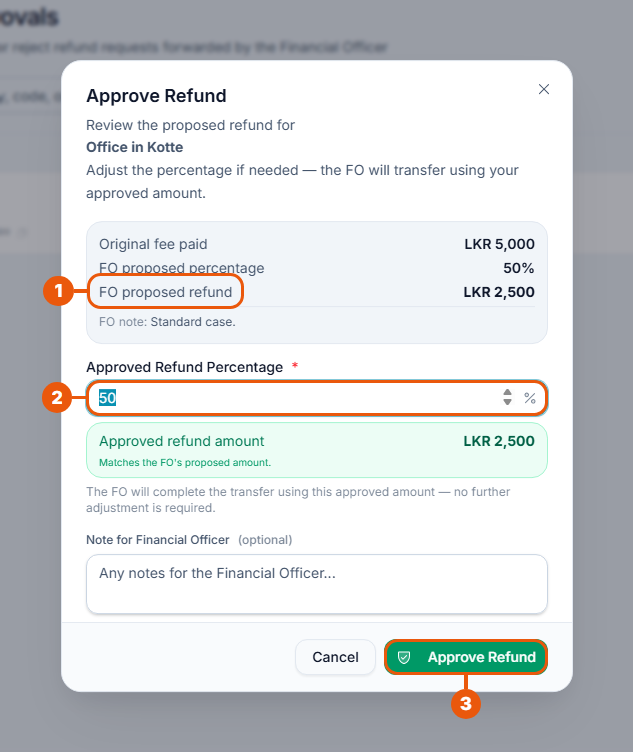
What the Financial Officer proposed, and their note.
Approved Refund Percentage: keep it or change it. The approved amount updates as you type.
Add a note for the Financial Officer if you like.
Click Approve Refund (or Approve with Adjusted % if you changed it).
Reject refuses the refund completely. Write a reason for the Financial Officer, who explains it to the owner. If only the percentage is wrong, use Approve and change the percentage instead.
Part 3: Financial Officer – transfer and close
Open the SA Decisions tab.
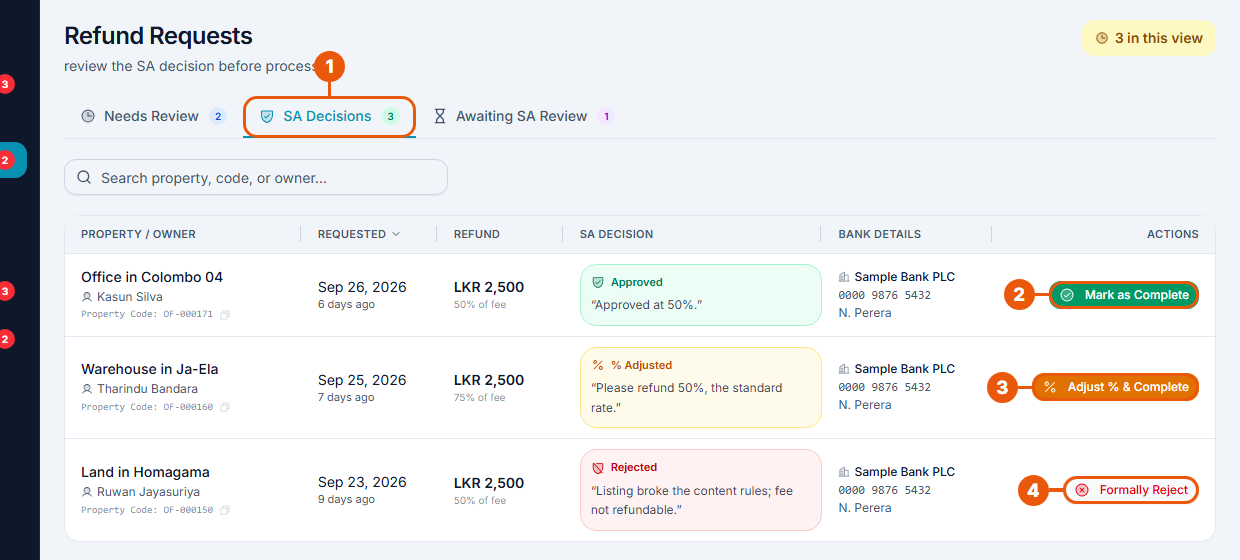
SA Decisions: each row shows the Super Admin's decision and note.
Mark as Complete: the refund was approved. Send the money, then close it.
Adjust % & Complete: the Super Admin wants a different percentage. Set it, send the money, then close it.
Formally Reject: the Super Admin refused the refund. Write the reason for the owner and close it.
Completing a refund
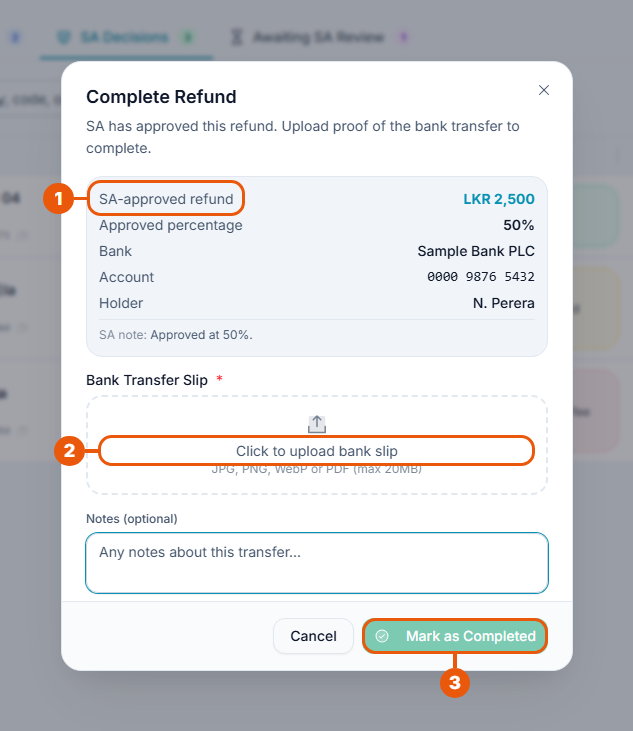
The approved refund, the percentage and the owner's bank details. Transfer exactly this amount to this account.
Upload the bank transfer slip: JPG, PNG, WebP or PDF, up to 20 MB.
Click Mark as Completed.
When the refund is completed:
the owner is notified and can see your transfer receipt;
a credit note is created for the refund.
Related articles
Previous Article
18.4 Checking Points Top-Up Requests
Next Article
18.6 Transactions and the Financial Audit
Was this article helpful?
If you still have questions, our support team is here to help.
Submit a Support TicketNot signed in? Sign in first
