14.3 Refund Process and Tracking
After you ask for a refund, you can follow it on the Refunds page until the money reaches your bank account.
This article is for Property Owners.
The stages of a refund
Stage
Status you see
What is happening
1
Action Required
We need your bank details. Nothing happens until you give them.
2
Under Review
Our finance team is reviewing your request and deciding the amount.
3
Processing
The decision has been made and the payment is being arranged.
4
Completed
The money has been transferred to your bank account.
–
Rejected
The refund was refused. You see the reason.
You get a notification when your refund moves forward, and when it is completed or rejected.
The Refunds page
Click Refunds in the side menu. A red number beside it shows how many refunds are waiting for you to act.
Pending: refunds that need your bank details
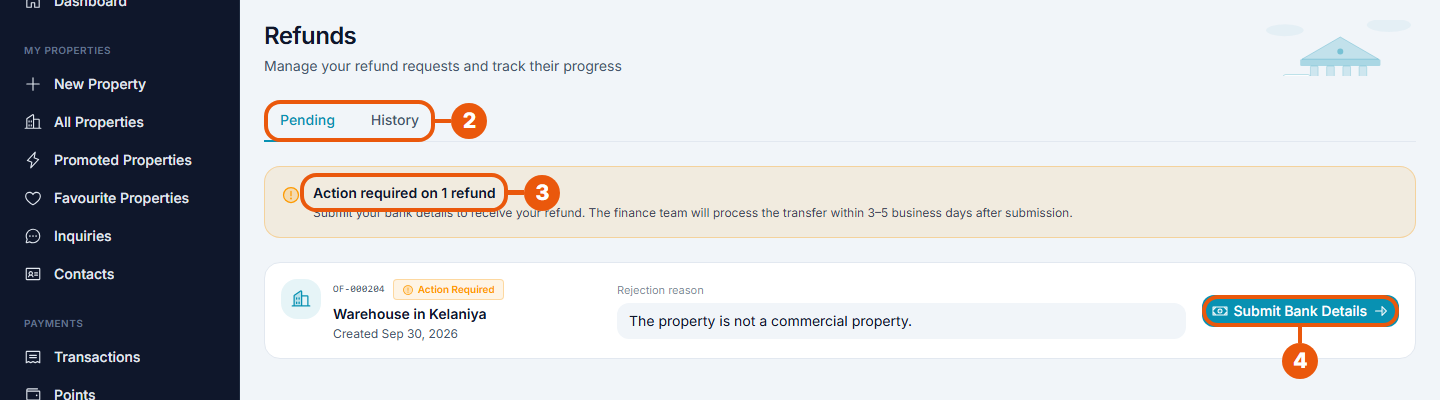
Refunds in the side menu.
Tabs: Pending and History.
Action required: how many refunds need your bank details.
Submit Bank Details: enter your bank details for that refund. See Requesting a Refund.
Each row shows the listing and the reason it was rejected.
If you have already sent your bank details and the request is still being reviewed, the button reads Update Bank Details. Use it to correct a mistake.
When nothing is waiting, the tab says "No pending refunds".
History: all your refunds
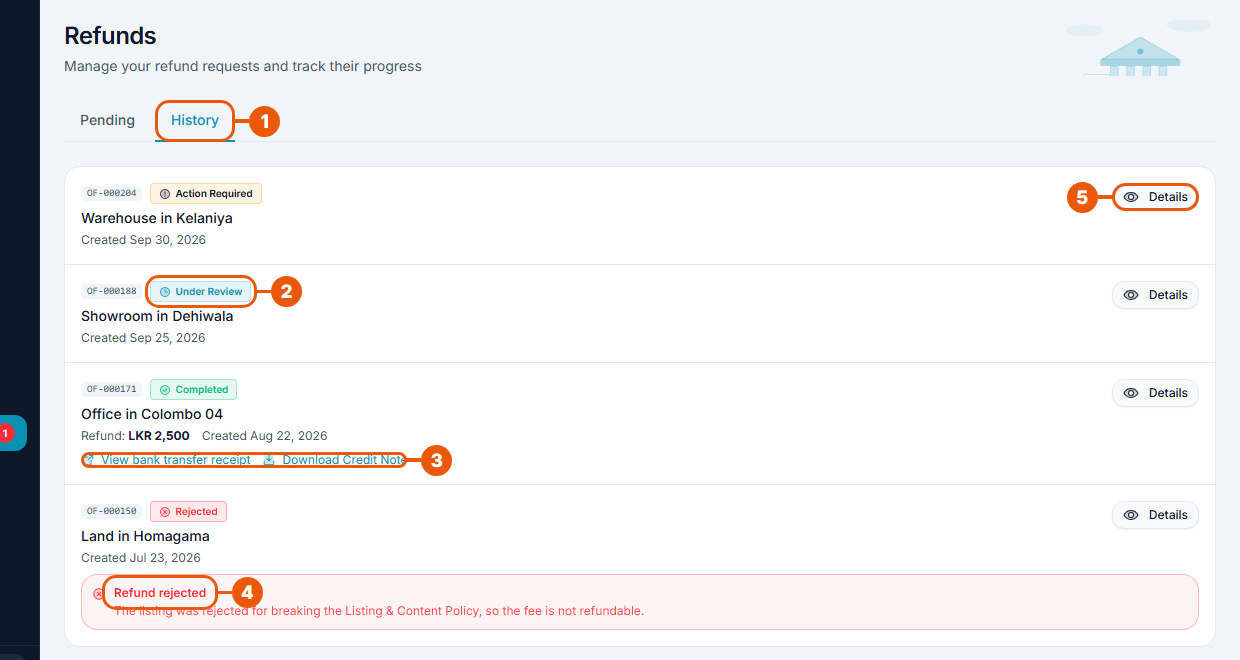
History: every refund request, newest first.
Status: where the refund is now.
View bank transfer receipt and Download Credit Note: shown on a completed refund.
Refund rejected: the reason a refund was refused.
Details: open the full details.
Refund details
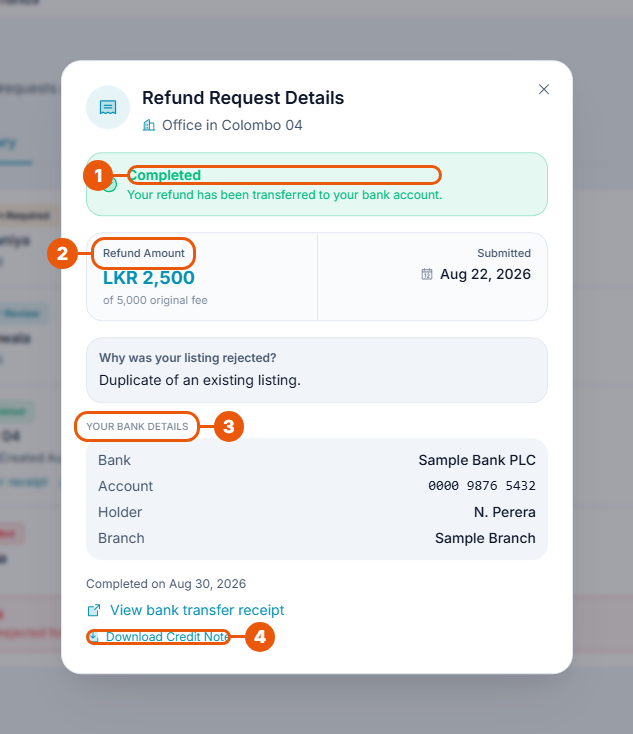
Status, with a short explanation.
Refund Amount: shown once the refund is completed, together with the fee you first paid.
Your Bank Details: the account the refund is sent to.
Download Credit Note: your record of the refund.
The window also shows why the listing was rejected and the date the refund was completed.
How long it takes
Once you have given your bank details, the finance team aims to make the transfer within 3–5 business days. Your bank may need extra time to show the money in your account.
When the refund is completed
The status changes to Completed and you get a notification.
View bank transfer receipt opens proof of the transfer.
A credit note is created. You can download it here or from the Credit Notes tab under Transactions. See Invoices, Credit Notes and Your Transactions.
If your refund is rejected
The status changes to Rejected and the reason is shown under the listing.
A rejected refund is final for that listing.
If you think it is a mistake, contact support and quote the property code. See Raising a Support Ticket.
The money hasn't arrived?
Check the status. The transfer is only made at Completed.
Open Details and check the bank details you gave.
Open View bank transfer receipt and compare it with your bank statement.
Still missing after a few working days? Contact support with the property code.
Related articles
Was this article helpful?
If you still have questions, our support team is here to help.
Submit a Support TicketNot signed in? Sign in first
