If a reviewer finds a problem with your listing, it is rejected and sent back to you with the reason. A rejection isn't final: fix the problem and send the listing again.
Step 1: Find your rejected listings
Click Rejected Properties in the side menu. The red number shows how many you have.
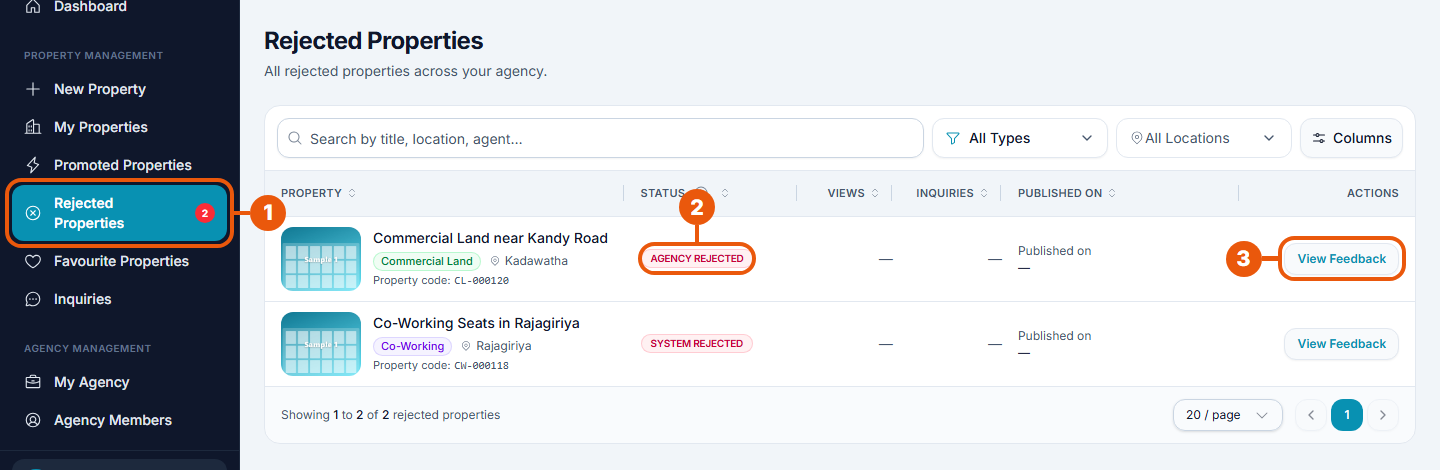
Rejected Properties in the side menu.
Status: who rejected it.
Agency Rejected: sent back at the first check.
System Rejected: sent back by CommercialProperty.lk at the final check.
View Feedback: open the listing to read the reason.
Property Owners: your rejected listings are also in All Properties.
Step 2: Read the reason
Click View Feedback. The listing's page opens.
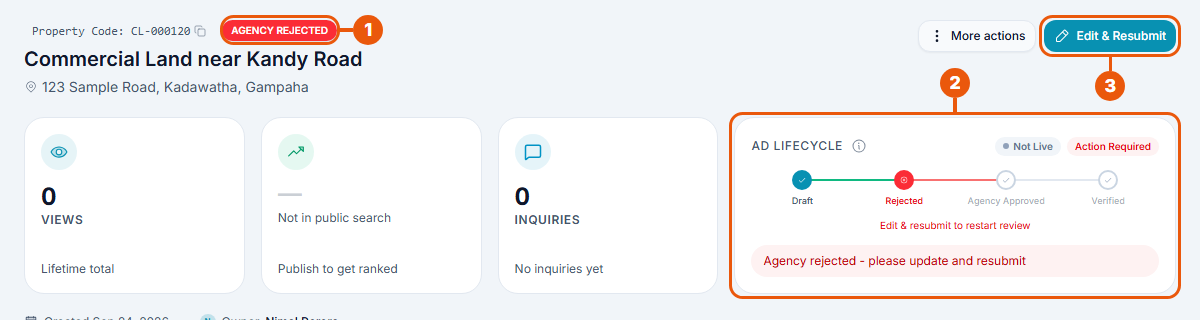
Status label: shows the listing is rejected.
Status tracker: shows where it stopped, and says "Edit & resubmit to restart review".
Edit & Resubmit: open the listing form to fix it.
Scroll down to Property History for the reviewer's reason:
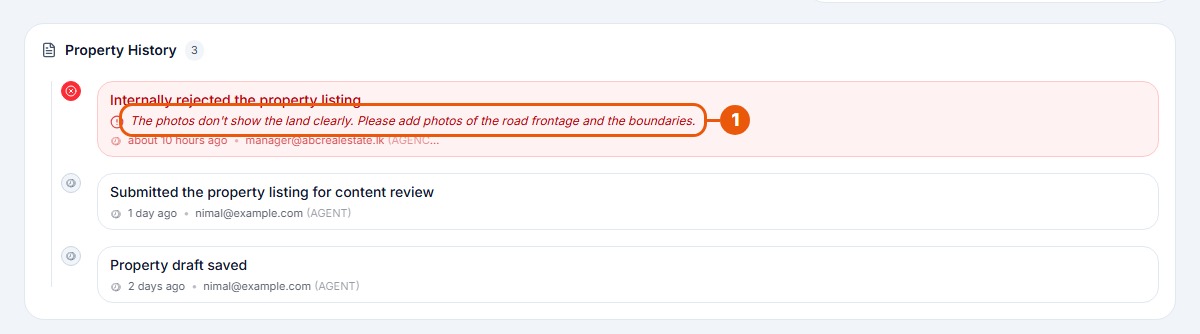
The reason, written by the reviewer. It tells you what to fix.
Step 3: Fix it and send it again
Click Edit & Resubmit. The listing form opens with your details filled in.
Fix what the reviewer asked for.
Go to the last step, tick the two confirmation boxes, and send the listing again.
The listing goes back to Pending Approval and is checked again.
Property Owners: the rejection limit
You don't pay again when you send a rejected listing back.
A listing can be rejected a set number of times, currently 2. The listing page shows your count, for example "Rejected 1 of 2 allowed times. This is your final chance."
After the limit, the listing is Permanently Rejected. It can't be sent again, and a partial refund of the listing fee is started.
You don't have to try again: after any rejection you can ask for a refund instead.
Tips to avoid rejection
Use clear photos of the property itself.
Check your sizes and price for typing mistakes.
Keep phone numbers and emails out of the description. Add them as contacts instead.
Read the Listing & Content Policy (in the Legal links at the bottom of the website).
Related articles
Was this article helpful?
If you still have questions, our support team is here to help.
Submit a Support TicketNot signed in? Sign in first
