6.3 The Listing Form: Overview, Drafts and Saving
You create a listing by filling in a short form, one step at a time. Your work is saved as you go, so you can stop at any point and finish later.
To open the form, click New Property in the side menu. See Before You List for what to have ready.
The steps
Step
Name on screen
What you do
Guide
1
Type & Location
Choose the listing type and property type, and say where the property is
2
Details
Add size, price, features, title and description
3
Finalize
Add a contact person and photos
4
Review
Check everything and send the listing for review
5
Payment
Pay the listing fee. Property Owners only.
Agency listings have four steps. Property Owners have a fifth step, Payment, the first time they send a listing.
The top of the form

Steps: shows where you are. Finished steps get a tick, and you can click a finished step to go back to it.
Save status: Unsaved, Auto-saving… or Saved.
Discard: delete this draft.
Save draft: save your work now.
Moving between steps

Back: go to the previous step.
Continue: go to the next step. The button names the next step, for example Continue to Details.
If something required is missing, the form shows a message and takes you to the box that needs attention.
Saving and drafts
Your work saves automatically. Once you've chosen the listing type, the property type and the city, the form creates a draft and keeps saving as you type.
Save draft saves straight away. Use it before you leave the page.
To finish a draft later, open All Properties (or My Properties), find the listing marked Draft, and open it. The form reopens where you left off.
A draft is not visible to the public. Nothing appears on the website until the listing is sent and approved.
Deleting a draft
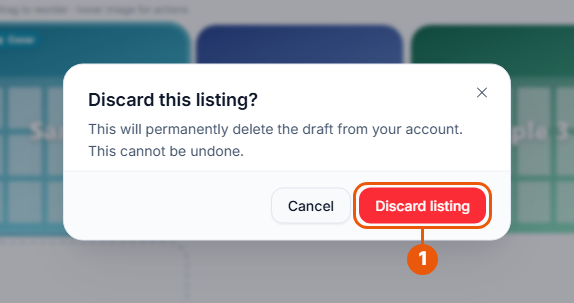
Click Discard at the top of the form. A confirmation appears.
Click Discard listing to delete the draft.
⚠️ This permanently deletes the draft. It can't be undone.
Changed your mind? Click Cancel.
Related articles
Was this article helpful?
If you still have questions, our support team is here to help.
Submit a Support TicketNot signed in? Sign in first
