In this step you describe the property: its size, price, features, and the title and description people will read.
A bar at the top reminds you what you chose in Step 1, for example Office Space | For Rent | Colombo 03.
Size and price
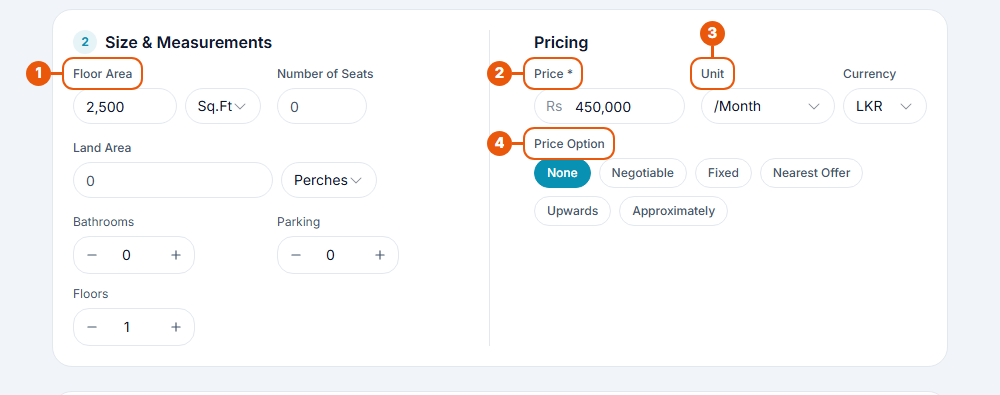
Size & Measurements: enter the Floor Area and choose the unit (Sq.Ft or Sq.M). For some property types you can give the Number of Seats instead. You can also add land area, bathrooms, parking spaces and floors.
Price (required): type the asking price or rent.
Unit and Currency: for rent, choose how the price is charged (per Month, Week, Day, Sq.Ft or Seat). Choose LKR or USD.
Price Option (optional): add a note to the price, such as Negotiable, Fixed or Nearest Offer.
Land listings
If you chose a land type, the form asks for land details instead:
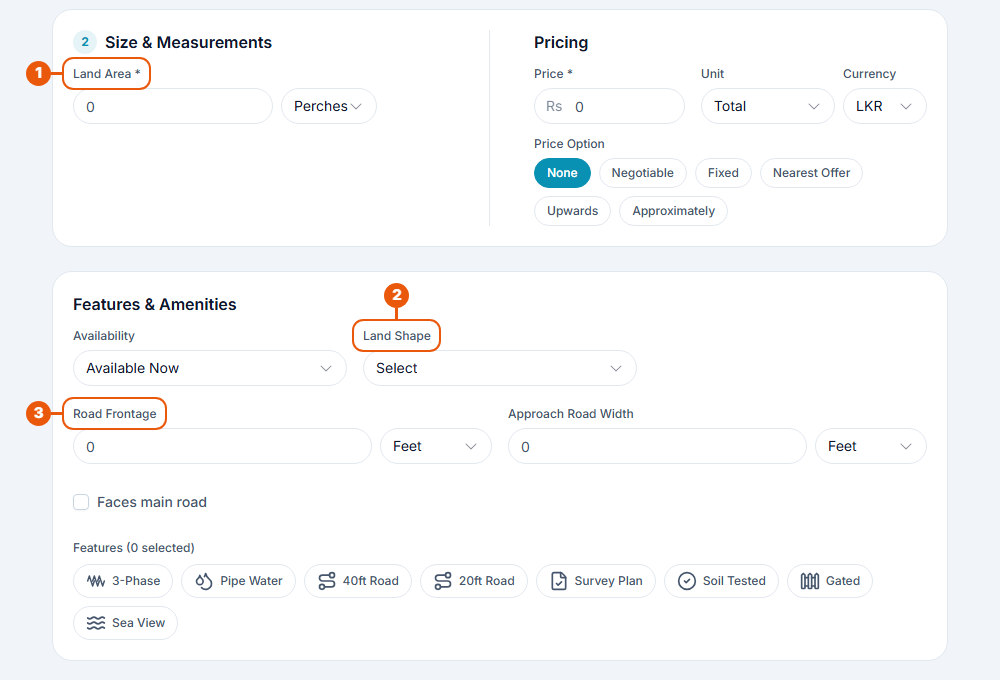
Land Area (required), with its unit, for example Perches.
Land Shape.
Road Frontage and Approach Road Width.
Features
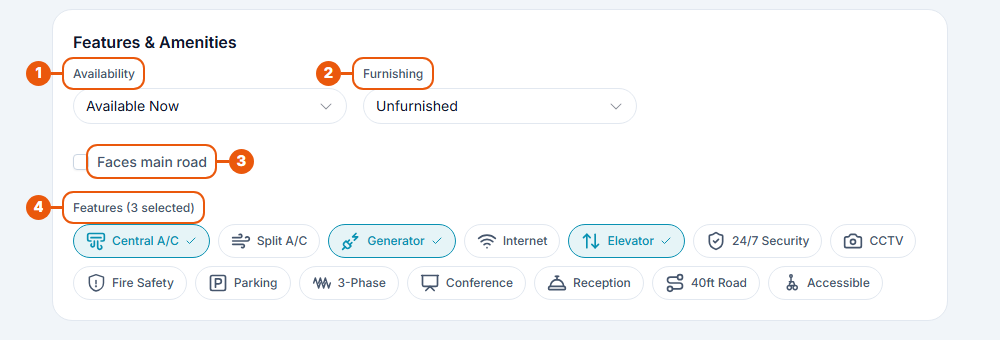
Availability: Available Now or Available Soon.
Furnishing: Fully Furnished, Semi Furnished or Unfurnished.
Faces main road: tick this if the property is on a main road.
Features: click every feature the property has, such as Central A/C, Generator, Elevator or Parking. Click again to remove one. The features offered depend on the property type.
Title and description
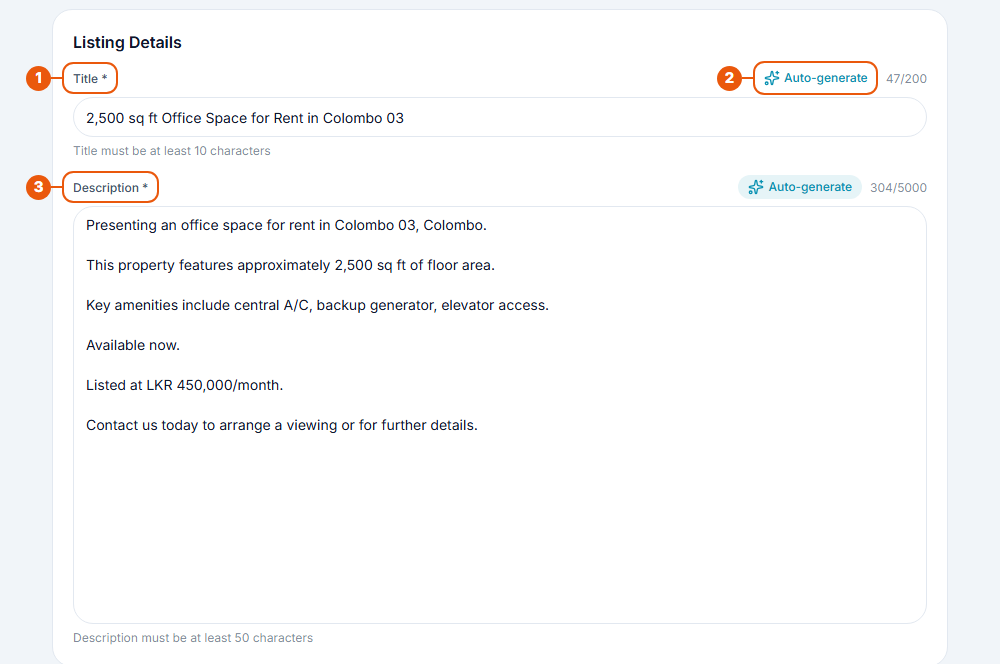
Title (required): a short headline, between 10 and 200 characters. The counter on the right shows how many you've used.
Auto-generate: click this to have a title or description written for you from the details you've entered. You can then edit it.
Description (required): between 50 and 5,000 characters. Say what makes the property a good choice.
Tips for a good listing
Put the most important facts in the title: size, type and area.
In the description, mention what's nearby, such as main roads, transport and parking.
Fill in the size and features first, then use Auto-generate for a quick starting point.
Continue
Click Continue to Photos at the bottom of the form.
Common messages
Message
What to do
"Floor area is required" / "Land area is required"
Enter the size.
"Floor area or Number of seats is required"
Enter at least one of the two.
"Please enter a valid price"
Enter a price greater than zero.
"Title must be at least 10 characters"
Make the title longer.
"Description must be at least 50 characters"
Add more detail to the description.
Next step
Was this article helpful?
If you still have questions, our support team is here to help.
Submit a Support TicketNot signed in? Sign in first
