Contacts are the people whose phone numbers and emails appear on your listings, so interested visitors can reach them. Save your contacts once on the Contacts page, then pick them when you create a listing.
For an agency, the contacts are shared by the whole agency.
The Contacts page
Click Contacts in the side menu.
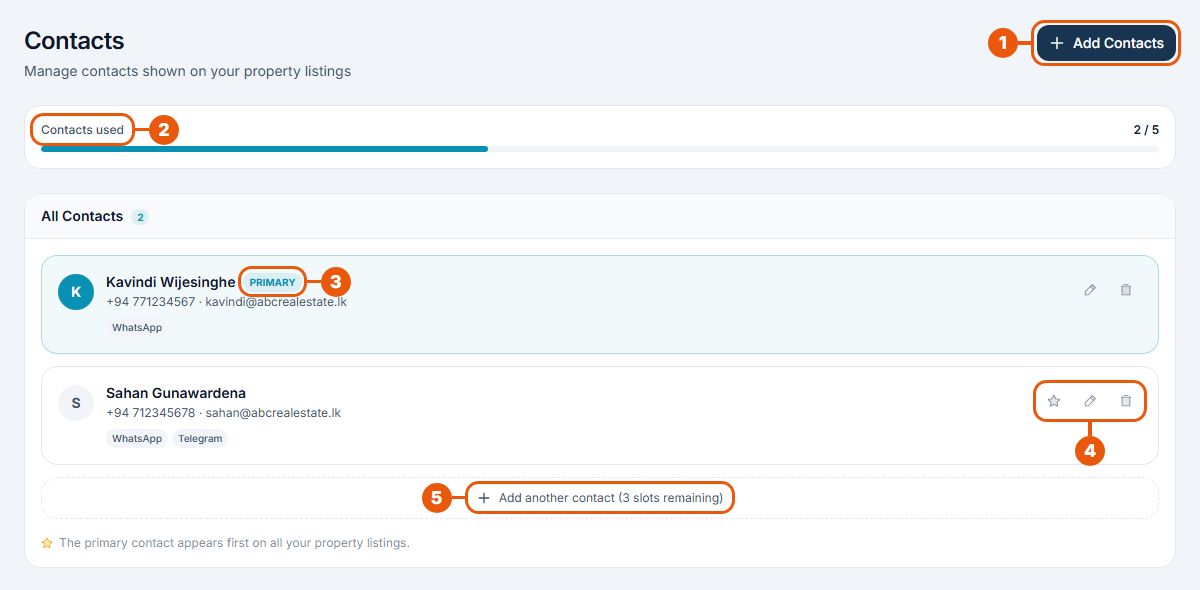
Add Contacts: add a new contact.
Contacts used: how many contacts you've saved, out of the number allowed (for example 2 / 5).
Primary: your main contact. It appears first on all your listings.
Buttons on each contact:
☆ star: make this contact the primary one;
✎ pencil: change the contact's details;
🗑 bin: delete the contact.
Add another contact: another way to add a contact. It shows how many places are left.
Adding a contact
Click Add Contacts.
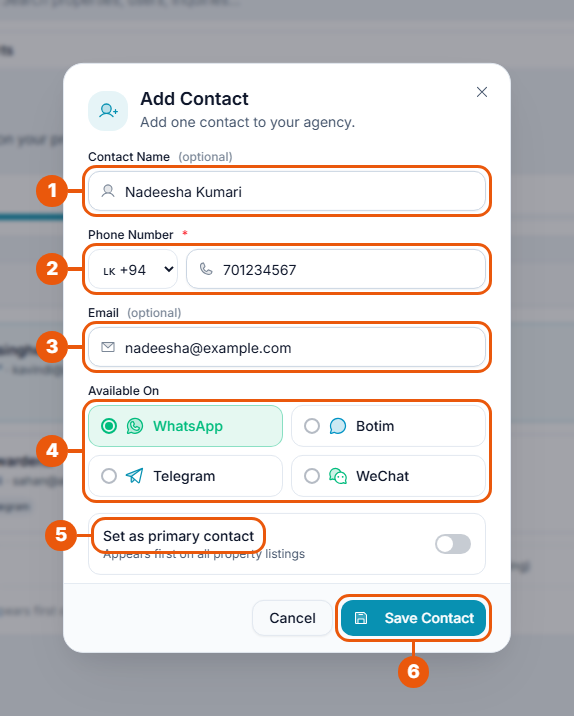
Contact Name (optional): the person's name.
Phone Number (required): choose the country code and type the number. Each phone number can only be saved once.
Email (optional).
Available On: click the apps this person can be reached on: WhatsApp, Botim, Telegram or WeChat.
Set as primary contact: switch this on to make this your main contact.
Click Save Contact.
Using contacts on a listing
In Step 3 of the listing form, your primary contact is filled in for you. To use a different person, choose them from the Phone list, or click Add Contact.
Visitors see the contact's name with Call, Email and messaging buttons for the apps you switched on.
Common messages
Message
What to do
"Phone number is required"
Enter a phone number.
"This phone number already exists in your contacts"
That number is already saved. Edit the existing contact instead.
Related articles
Was this article helpful?
If you still have questions, our support team is here to help.
Submit a Support TicketNot signed in? Sign in first
