The last step shows everything you've entered, so you can check it before sending the listing for review.
Check your listing
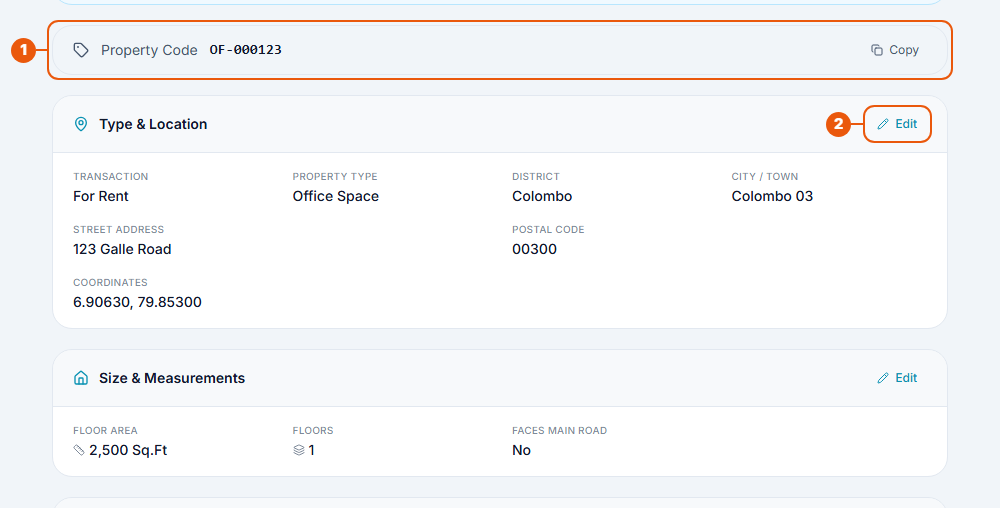
Property Code: your listing's own reference number. Click Copy to copy it. Quote this code if you contact us about the listing.
Edit: each section has an Edit link. Click it to go back and change that part.
Scroll down to check every section: Type & Location, Size & Measurements, Pricing, Listing Details, Features & Amenities, Contact Details and Property Images.
Confirm and send
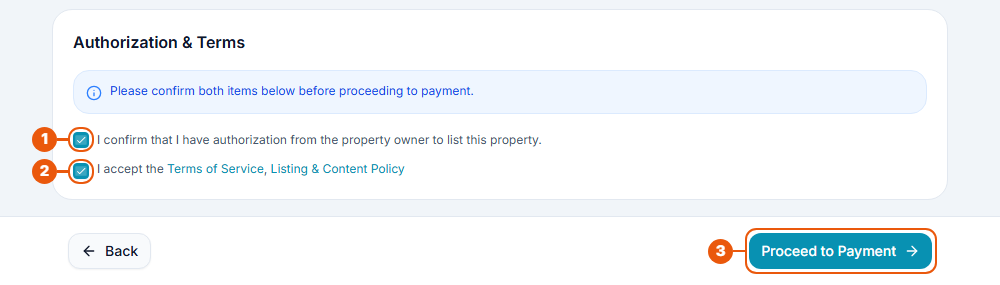
Tick I confirm that I have authorization from the property owner to list this property.
Tick I accept the Terms of Service, Listing & Content Policy.
Click the button at the bottom right:
Property Owners: Proceed to Payment. Continue with Step 5: Paying the Listing Fee.
Agencies: Submit.

What happens after you send it
You are
What happens next
A Property Owner
You pay the listing fee. The CommercialProperty.lk team then checks your listing. See How Owner Listings Are Approved.
An agency user
The listing goes to your agency's Property Approvals list for your Agency Super Admin to approve. See How Agency Listings Are Approved.
You'll get a notification when the listing is approved, or if it needs changes.
"No Ad Slots Available"
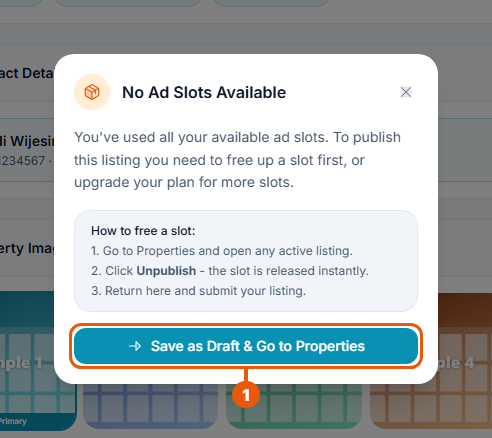
If your agency has no free ad slot, you'll see this message when you click Submit. The listing isn't sent.
Click Save as Draft & Go to Properties. Your listing is kept as a draft.
To free a slot:
Open Properties and open a live listing you no longer need.
Click Unpublish. The slot is freed straight away.
Open your draft and click Submit again.
You can also upgrade your plan for more slots. Agents: ask your Agency Super Admin.
If the message says Subscription Required, your agency has no paid plan. It needs one before it can publish listings.
Common messages
Message
What to do
"You must confirm owner authorization"
Tick the first box.
"You must accept the terms and conditions"
Tick the second box.
Related articles
Previous Article
6.6 Step 3: Contacts and Photos
Next Article
6.8 Step 5: Paying the Listing Fee (Property Owners)
Was this article helpful?
If you still have questions, our support team is here to help.
Submit a Support TicketNot signed in? Sign in first
