This guide is for the people who check listings before they go live.
Reviewer
Checks
Agency Super Admin
Listings sent by their own agency's team
Property Approver (CommercialProperty.lk)
Listings sent by Property Owners
Super Admin (CommercialProperty.lk)
The final check of listings already approved, across the whole platform
The Property Approvals page
Click Property Approvals in the side menu. The red number shows how many listings are waiting.
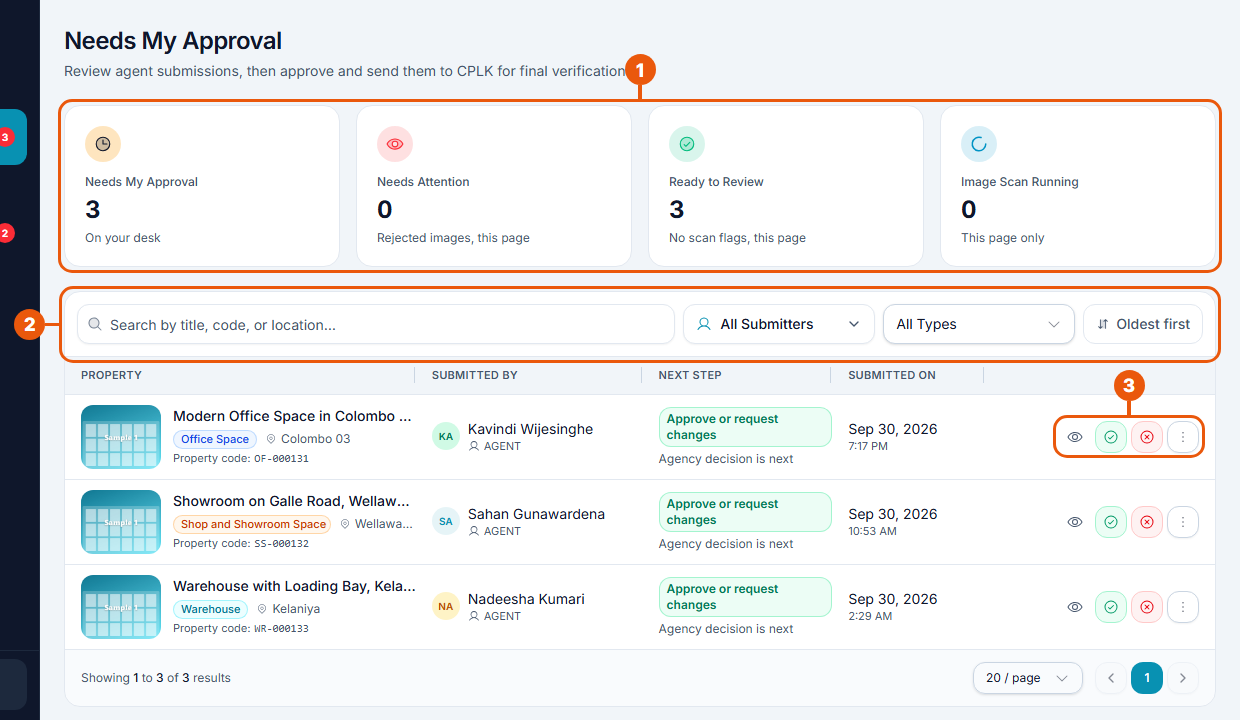
Summary cards
Needs My Approval: how many listings are waiting for you.
Needs Attention: listings with photos that failed the automatic photo check.
Ready to Review: listings with no photo problems.
Image Scan Running: listings whose photos are still being checked.
Search and filters: search by title, code or location; filter by who sent it or by property type; and sort oldest or newest first.
Row buttons: what you can do with each listing (see below).
Each row shows the property, who sent it, the next step, and when it was sent.
For CommercialProperty.lk reviewers, this page is titled Pending Approvals.
The buttons on each listing
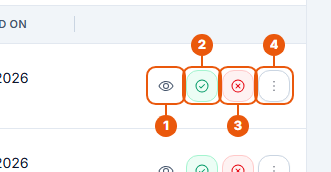
View (eye): open the listing to check its details and photos.
Approve (green tick).
Reject (red cross).
More actions: Edit Property, Preview Listing, or Assign to another user.
Always open the listing first. Check that the details are accurate, the photos show the property, and nothing breaks the Listing & Content Policy.
Approving a listing
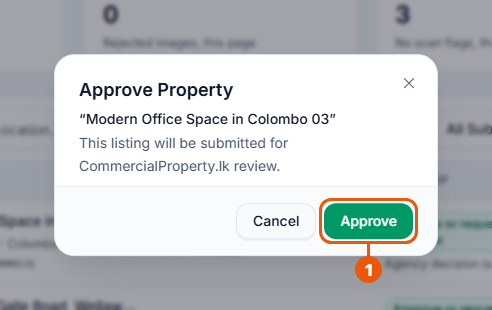
Click the green Approve button on the listing. A confirmation appears.
Click Approve.
What happens next
First check (Agency Super Admin or Property Approver): the listing goes live and is passed to CommercialProperty.lk for the final check.
Final check (Super Admin): the listing is marked Verified.
The person who created the listing is notified.
Agencies: if you see No Ad Slots Available, your agency has no free place for another live listing. Unpublish a listing you no longer need, or upgrade your plan, then approve again.
Rejecting a listing
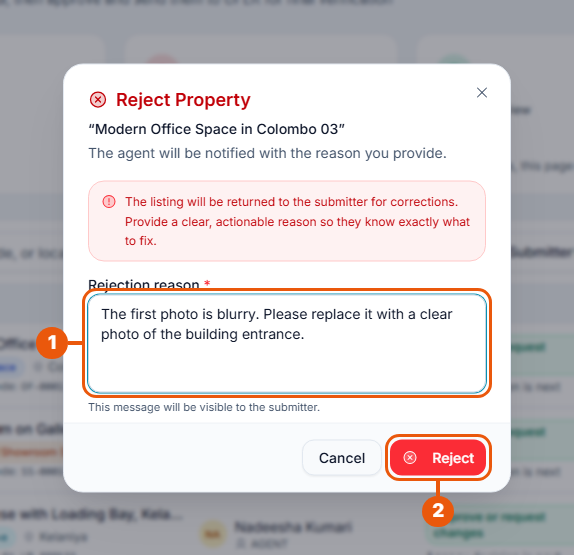
Click the red Reject button on the listing.
Type the rejection reason. It is required, and the person who sent the listing will see it.
Click Reject.
The listing goes back to the person who sent it, so they can fix it and send it again.
Write a reason they can act on. Say exactly what to fix.
Instead of
Write
"Bad photos"
"The first photo is blurry. Please replace it with a clear photo of the building entrance."
"Wrong details"
"The floor area says 25 sq ft. Please check and correct it."
Permanently rejecting a listing
If a listing should never be published, open it and choose Permanently Reject Listing, then give a reason. A permanently rejected listing can't be sent again. For a Property Owner's listing, this starts a partial refund.
A Property Owner's listing is also permanently rejected automatically when it reaches the rejection limit (currently 2).
Photos that failed the check
Photos are checked automatically when a listing is first approved. If a photo is flagged, the listing appears under Needs Attention. Open the listing to see the flagged photos. CommercialProperty.lk reviewers can accept a wrongly flagged photo.
Related articles
Previous Article
7.3 How Property Owner Listings Are Approved
Next Article
7.5 Handling Rejected Listings
Was this article helpful?
If you still have questions, our support team is here to help.
Submit a Support TicketNot signed in? Sign in first
