4.2 Submitting Verification Documents
To get verified, upload your document and send it to us for review. It takes a couple of minutes.
What you need
Account type
Document
File types
Maximum size
Agency
Business Registration certificate (issued by the Registrar of Companies)
JPEG, PNG, WebP, PDF, DOC or DOCX
20 MB (15 MB for images)
Property Owner
National Identity Card: one photo of the front and one of the back
JPEG, PNG or WebP
15 MB each
Tips for a document we can approve quickly
Make sure the whole document is in the picture, and that every word and number can be read.
Avoid glare, shadows and blur.
Only the Agency Super Admin can do this.
Step 1: Open the Verification page
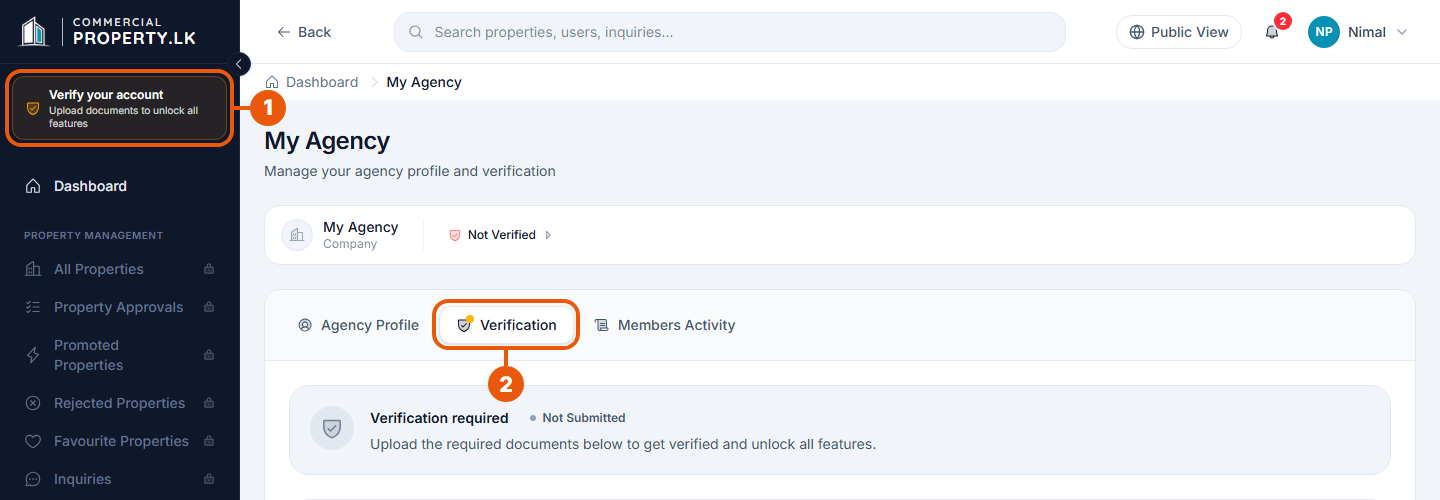
Click the Verify your account notice at the top of the side menu. (You can also click Upload documents in the checklist on your Dashboard.)
The My Agency page opens on the Verification tab. It shows Verification required until you send your document.
Step 2: Upload your document and send it
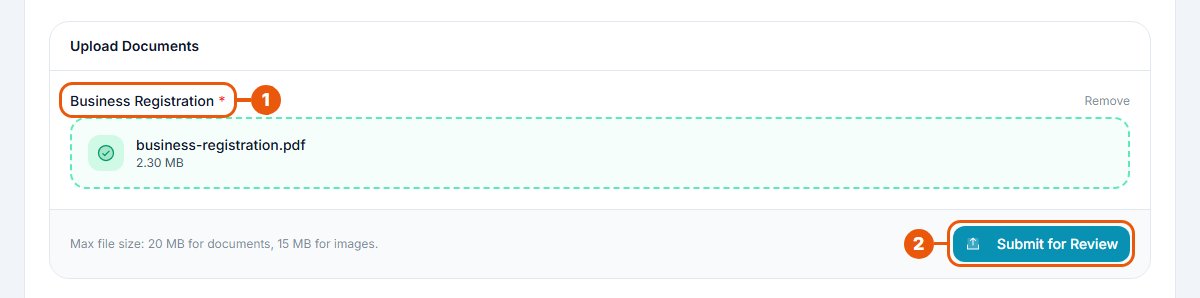
Under Business Registration, click Click to upload and choose your file, or drag the file onto the box. The file name and size appear when it's attached. Chose the wrong file? Click Remove and try again.
Click Submit for Review.
You'll see a message that your request was sent, and the page changes to Under review.
Older agency accounts registered as "Individual" can choose which document to send: Business Reg. or NIC (National Identity Card, front and back).
Step 1: Open the Verification tab
Click your name at the top right, then My Profile.
Click the Verification tab.
Step 2: Upload both sides of your ID and send them
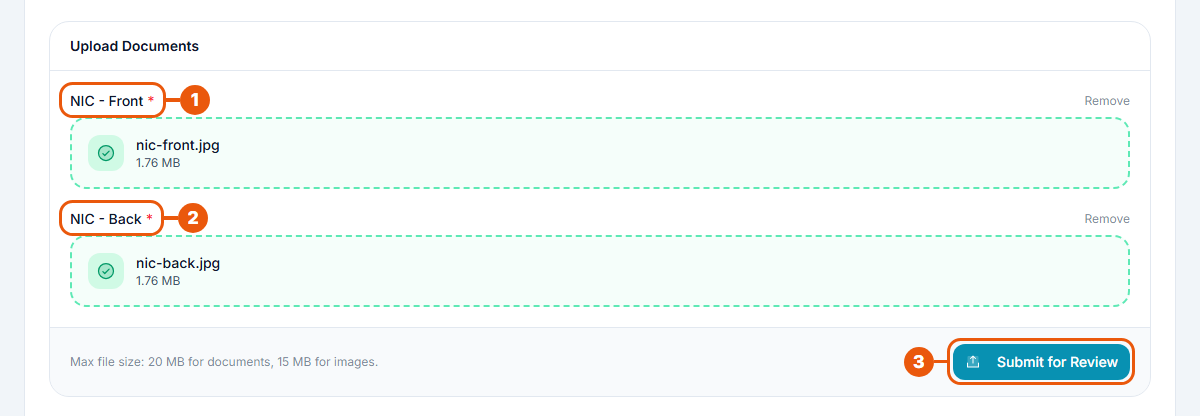
Under NIC - Front, upload a clear photo of the front of your National Identity Card.
Under NIC - Back, upload a clear photo of the back.
Click Submit for Review.
What happens next
Our team reviews your documents, usually within 1–2 business days. You'll get a notification and an email with the result. See After You Submit.
While your documents are being reviewed, you can't change them or send new ones.
Common problems
Message
What to do
"Invalid file type. Accepted formats: …"
Save or export your document as one of the accepted file types and try again.
"File is too large. Maximum size is … MB."
Use a smaller file. For a photo, take it at a lower quality; for a scan, lower the scan resolution.
"Business Registration document is required."
Attach your business registration file before clicking Submit for Review.
"NIC front image is required." / "NIC back image is required."
Attach both sides of your ID.
I can't see the Verification page
Agency Admins and Agents can't send documents; ask your Agency Super Admin.
Related articles
Previous Article
4.1 Why Verification Is Required
Next Article
4.3 After You Submit: Review, Approval and Rejection
Was this article helpful?
If you still have questions, our support team is here to help.
Submit a Support TicketNot signed in? Sign in first
