20.3 Editing Published Posts and Articles
A published blog post or help article can be changed without taking it off the website. Your changes wait as a draft until the Super Admin approves them.
For Blog Editors: changing a published item
Open the post from Blog Posts (or the article from Knowledge Base).
Click Edit. The editor opens with the published text.
Make your changes.
Click Save & Submit to send them for review, or Save Draft to finish later.
While your changes wait:
the published version stays on the website exactly as it was;
the item is marked Draft pending review in your list.
Result
What happens
Changes approved
They replace the published version on the website.
Changes rejected
The published version stays. You see the reason and can try again.
For the Super Admin: reviewing changes
When a published item has changes waiting, its page shows a notice.
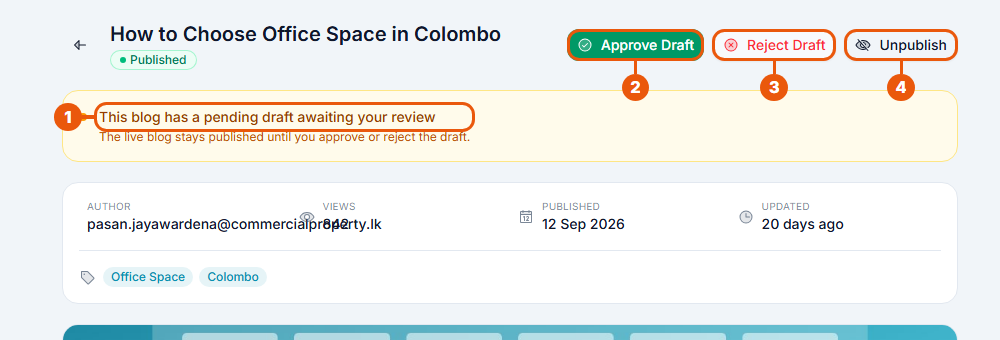
Notice: changes are waiting. The live version stays published until you decide.
Approve Draft: publish the changes.
Reject Draft: send the changes back with a reason. The live version is untouched.
Unpublish: take the whole item off the website.
Unpublishing and deleting
Unpublish (Super Admin): takes a published item off the website. It stays in the system and is marked Unpublished.
Delete (the author only): removes a post completely. Only the person who wrote it can delete it.
Related articles
Was this article helpful?
If you still have questions, our support team is here to help.
Submit a Support TicketNot signed in? Sign in first
