Your profile holds your name, photo and phone number. These appear to other people, for example on your listings and in inquiry conversations, so keep them up to date.
Opening your settings
Use either of these:
Click your name at the top right, then My Profile.
Click My Profile at the bottom of the side menu.
The Settings page opens on the Profile tab.
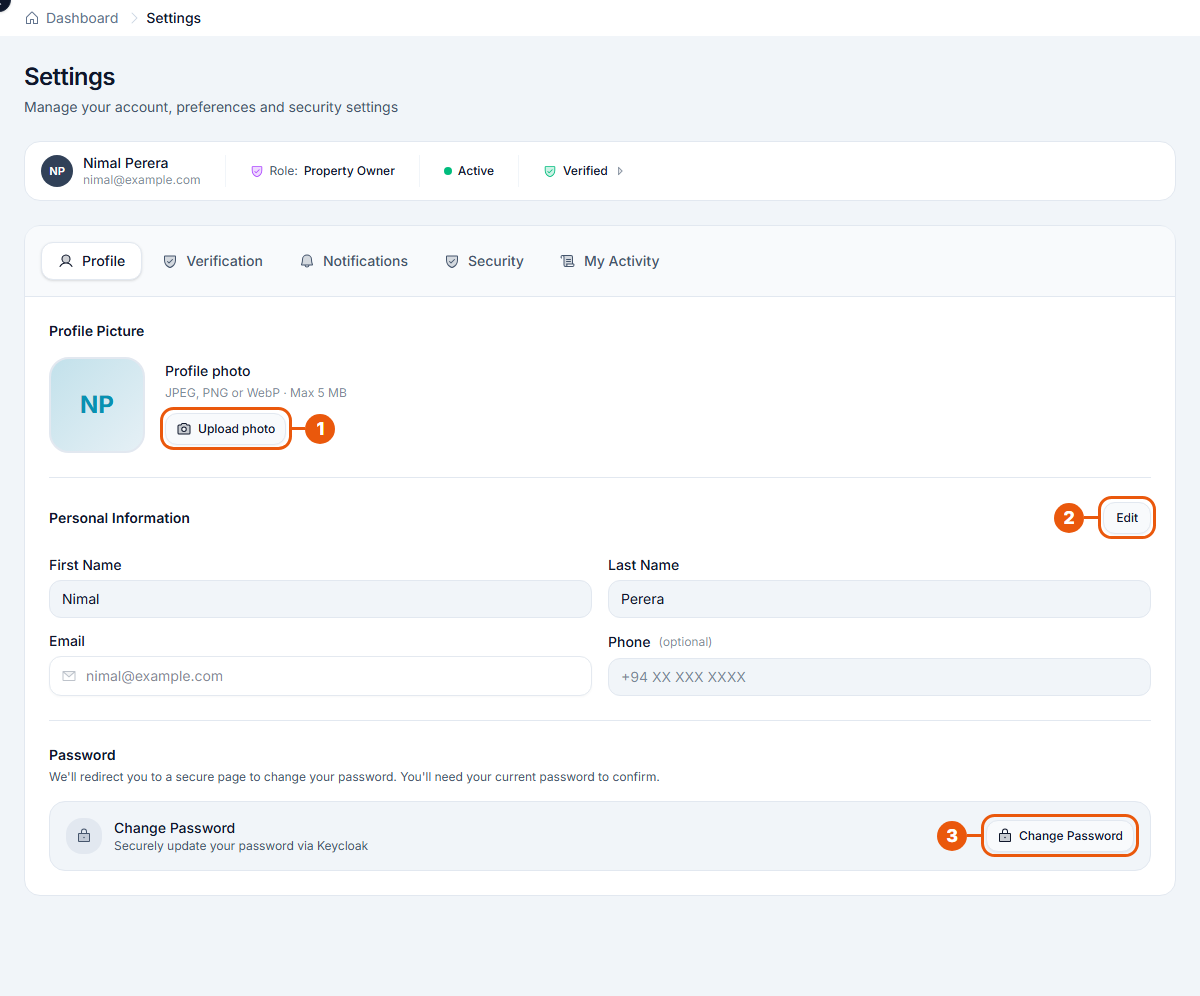
At the top of the page you'll see a summary of your account: your name and email, your role (account type), your status (Active) and whether your account is Verified.
Below it are the settings tabs. The tabs you see depend on your account type:
Tab
What it's for
Who sees it
Profile
Your photo, name, phone and password
Everyone
Account
Upgrading your account type
Just Browsing accounts
Verification
Sending your identity documents
Property Owners
Notifications
Choosing which emails and alerts you get
Everyone
Security
Your recent sign-ins and signed-in devices
Everyone
My Activity
A history of what you've done
Everyone
Agencies: your agency's verification is under My Agency → Verification, not here.
Changing your profile photo
Click Upload photo 1 (or drag a photo onto the picture box).
Choose a JPEG, PNG or WebP photo, up to 5 MB.
Your photo is saved straight away. To remove it, use the remove option under the photo and confirm.
Changing your name or phone number
Click Edit 2 next to Personal Information. The boxes become editable:
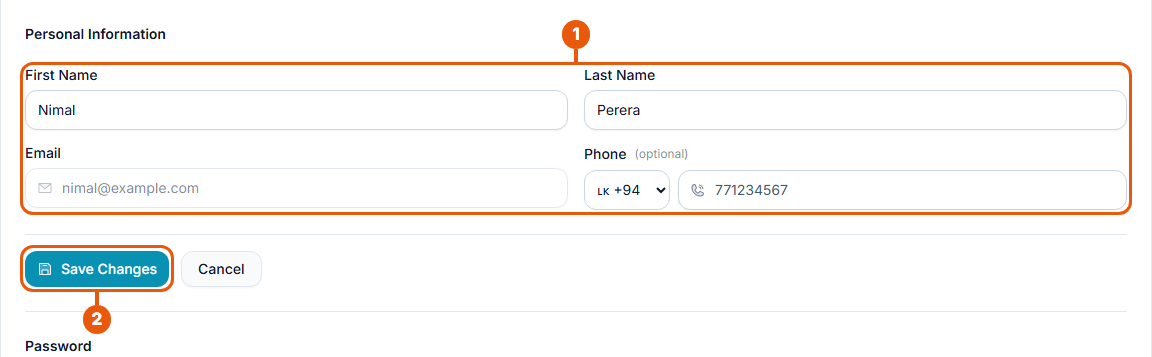
Change your first name, last name or phone (choose the country code, then type the number). Your email address can't be changed here.
Click Save Changes. Changed your mind? Click Cancel.
Changing your password
Click Change Password 3. You're taken to a secure page where you:
enter your current password;
choose a new password (at least 8 characters, with a capital letter, a small letter and a number);
confirm it.
Forgotten your current password? Sign out and use Forgot Password? on the sign-in page. See Forgot Password.
Signed up with Google or LinkedIn? You don't have a CommercialProperty.lk password to change.
Related articles
Was this article helpful?
If you still have questions, our support team is here to help.
Submit a Support TicketNot signed in? Sign in first
