The Promoted Properties page lists every promotion you have run. From here you can add days to a promotion, move it up to a higher type, cancel it, and look back at past promotions.
The Promoted Properties page
Click Promoted Properties in the side menu.
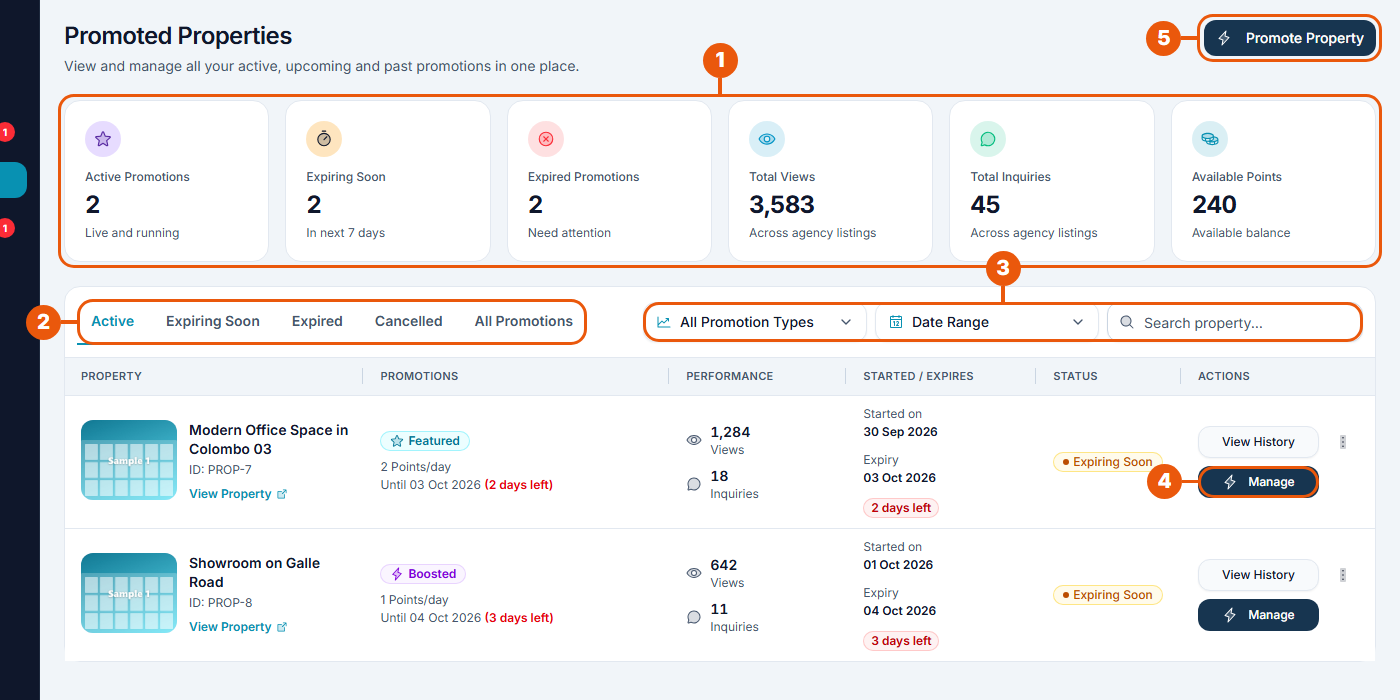
Summary cards: promotions running now, ending soon and ended, plus total views, total inquiries and your points balance.
Tabs: Active, Expiring Soon, Expired, Cancelled and All Promotions.
Filters: show one promotion type, pick a date range, or search for a listing.
Manage: extend, upgrade or cancel a running promotion.
Promote Property: start a new promotion. See Promoting a Listing.
Each row shows the listing, the promotion type and its daily cost, the listing's views and inquiries, the start and end dates, and the status.
Adding days to a promotion
You can extend a Boost Ad or a Featured Ad by 1, 2 or 3 days. Click Manage on the promotion's row.
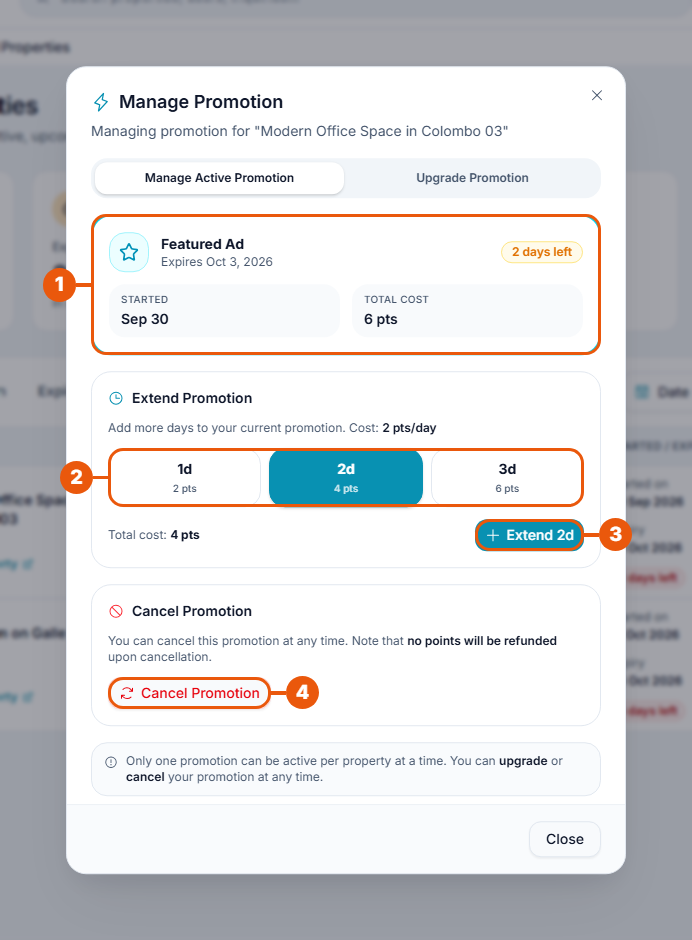
The running promotion: its type, end date, days left and cost so far.
Click the number of extra days. The cost is shown under each choice.
Click Extend. The points are taken from your balance and the end date moves forward.
Cancel Promotion: see below.
Homepage Sponsored can't be extended, because the places are limited. When it ends, promote the listing again.
Moving up to a higher type
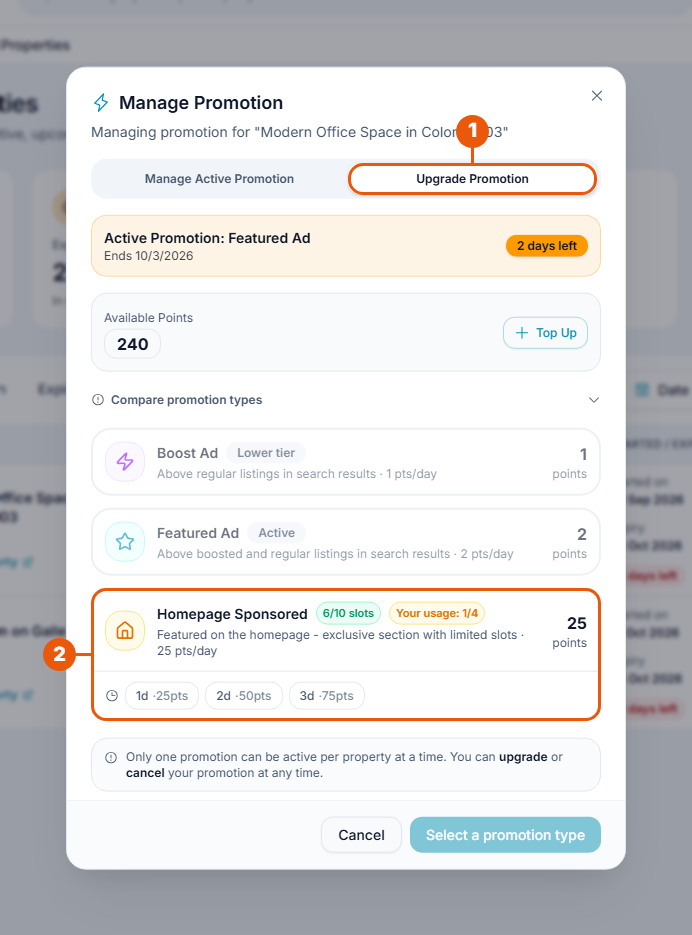
In the Manage Promotion window:
Click Upgrade Promotion.
Click a higher type and the number of days, then click Promote for … points.
The type you have now is marked Active. Lower types are marked Lower tier and can't be chosen.
Important: The new promotion replaces the one that is running. The old one is cancelled and its unused days are not returned as points. You pay the full cost of the new promotion.
Cancelling a promotion
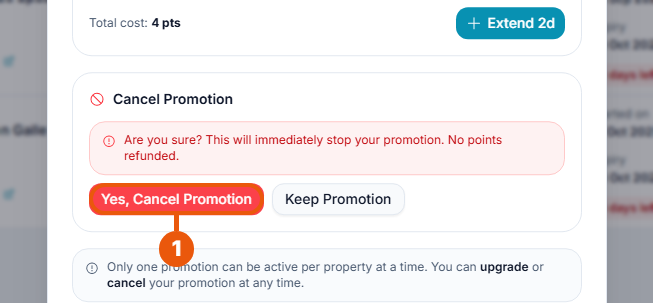
In the Manage Promotion window, click Cancel Promotion. You are asked to confirm.
Click Yes, Cancel Promotion. Click Keep Promotion if you change your mind.
The promotion stops straight away. No points are returned.
Looking at a listing's past promotions
Click View History on any row.
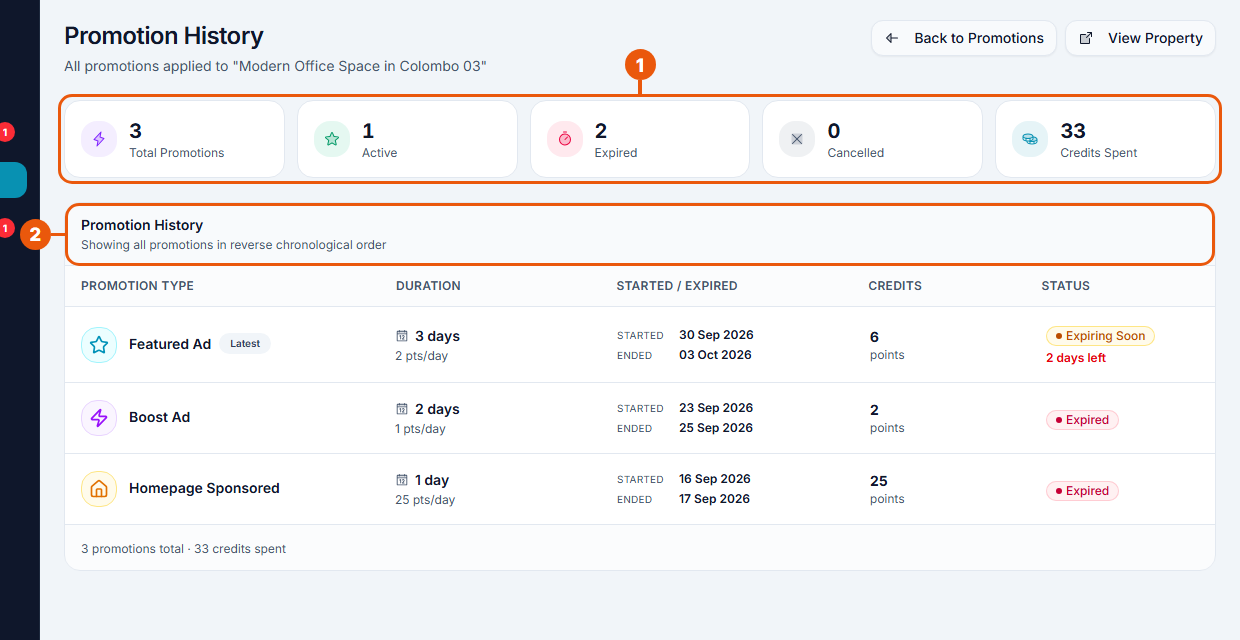
Totals for this listing: promotions run, how many are active, expired and cancelled, and the points spent.
The list, newest first: type, number of days, start and end dates, points used and status.
What the statuses mean
Status
Meaning
Active
Running now.
Expiring Soon
Running, and ends within 7 days.
Expired
Ran to its end date.
Cancelled
Stopped before its end date, by you or automatically.
Related articles
Was this article helpful?
If you still have questions, our support team is here to help.
Submit a Support TicketNot signed in? Sign in first
