Promoting a listing takes about a minute: pick the listing, choose a promotion type and the number of days, and confirm.
Before you start
The listing must be Verified and on the website. A listing that is only Agency Approved shows "Available after CPLK verification".
You need enough points. See Understanding Points.
The listing must not already have the same promotion running.
Not sure which type to pick? See Promotion Types Explained.
Step 1: Open the promotion window
You can start from three places:
The listing's page: click the orange Promote button at the top.
Your listings list: click Promote Property in the listing's row.
The Promoted Properties page: click Promote Property, then pick a listing:
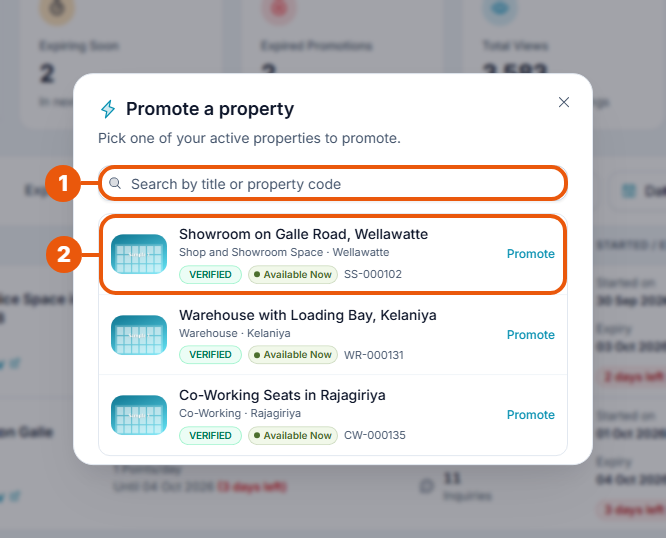
Search by title or property code if you have many listings.
Click the listing you want to promote.
Only listings that can be promoted are shown here.
Step 2: Choose the type and the number of days
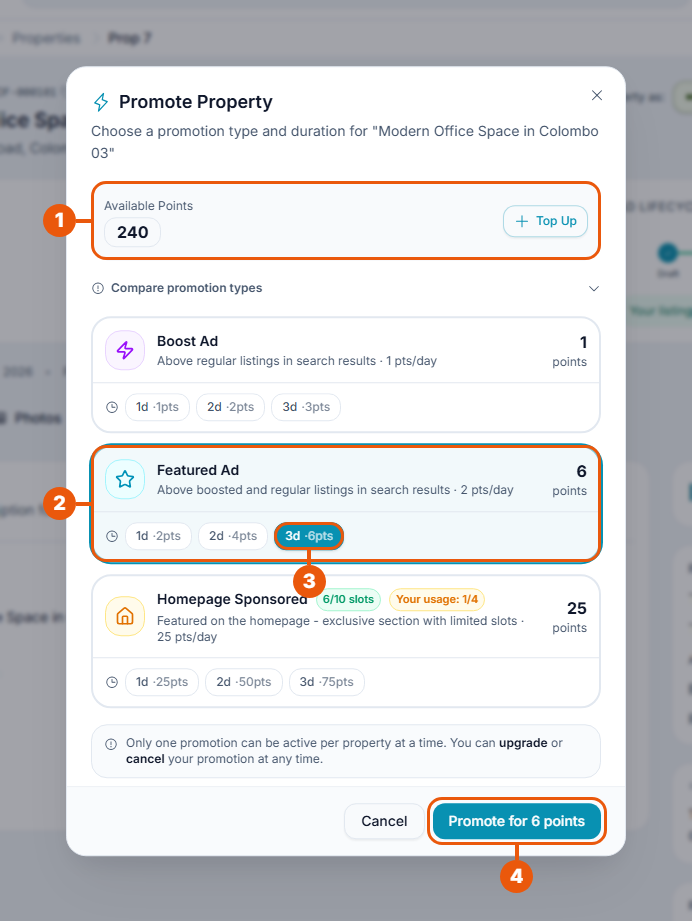
Check your Available Points. Click Top Up if you need more.
Click the promotion type you want.
Click the number of days: 1d, 2d or 3d. The points needed are shown beside each one and on the right of the card.
Click Promote for … points.
A message confirms the promotion, for example "Property promoted with Featured Ad for 3 days". The points are taken from your balance straight away and the promotion starts at once.
If something stops you
What you see
What it means
What to do
A type or a number of days is greyed out or crossed out
You don't have enough points for it.
Pick fewer days, or click Top Up. See Topping Up Points.
Not enough points
Your balance is lower than the cost.
Click Top up now, or move to a plan with more points.
All system slots taken. Next slot from …
Every Homepage Sponsored place on the website is in use.
Try again on the date shown, or choose Featured Ad.
You have used all … sponsored slots
You already hold the most Homepage Sponsored places allowed.
Wait for one to end, or cancel one.
Active or Lower tier beside a type
The listing already has a promotion. You can only move up to a higher type.
No Promote button on the listing
The listing isn't Verified, or it is off the website.
Wait for the final check, or put the listing back on the website.
A warning you may see
If the promotion would run past the end of your agency's plan, or past the day a Property Owner's listing expires, a yellow note tells you. You can still go ahead, but the promotion will be cut short if the plan or listing isn't renewed in time. Points for the unused days are not returned.
Good to know
Points spent on a promotion are not returned if you cancel it or if it ends early.
Editing a promoted listing cancels its promotion. Make your changes before you promote. See Editing a Listing.
Related articles
Was this article helpful?
If you still have questions, our support team is here to help.
Submit a Support TicketNot signed in? Sign in first
