When you need more points to promote your listings, you can buy them at any time. This is called a top-up.
The bank details and reference code in these pictures are examples only. Always use the details shown on your own screen.
Who can top up
Property Owners
Agency Super Admins, when the agency has a paid plan or a free trial
An agency on the free Explorer plan can't buy points. You'll see this message instead:
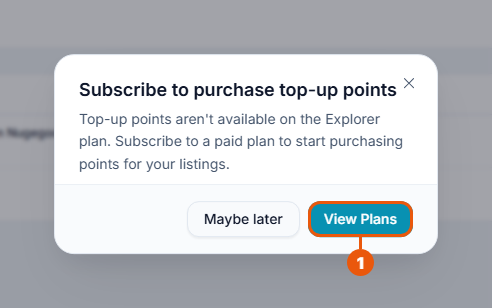
Click View Plans to choose a plan first. See Subscribing to a Plan.
What points cost
Prices checked on 1 October 2026. The top-up window always shows the current prices.
Pack
Points
Price
Price per point
Micro
20
LKR 3,600
LKR 180
Starter
50
LKR 8,000
LKR 160
Growth
100
LKR 14,000
LKR 140
Pro
300
LKR 36,000
LKR 120
The more points you buy at once, the less each point costs. You can also buy any other number of points, from 5 upwards. The price per point then depends on how many you buy.
Step 1: Open the top-up window
Use any of these:
Property Owners: click Points in the side menu, then Top Up.
Agencies: click Subscription & Points in the side menu, then Top Up in the Points Balance box.
In the window where you promote a listing, click Top Up.
On the public Pricing page, click Buy Now beside a pack. You'll be asked to sign in first.
Step 2: Choose how many points
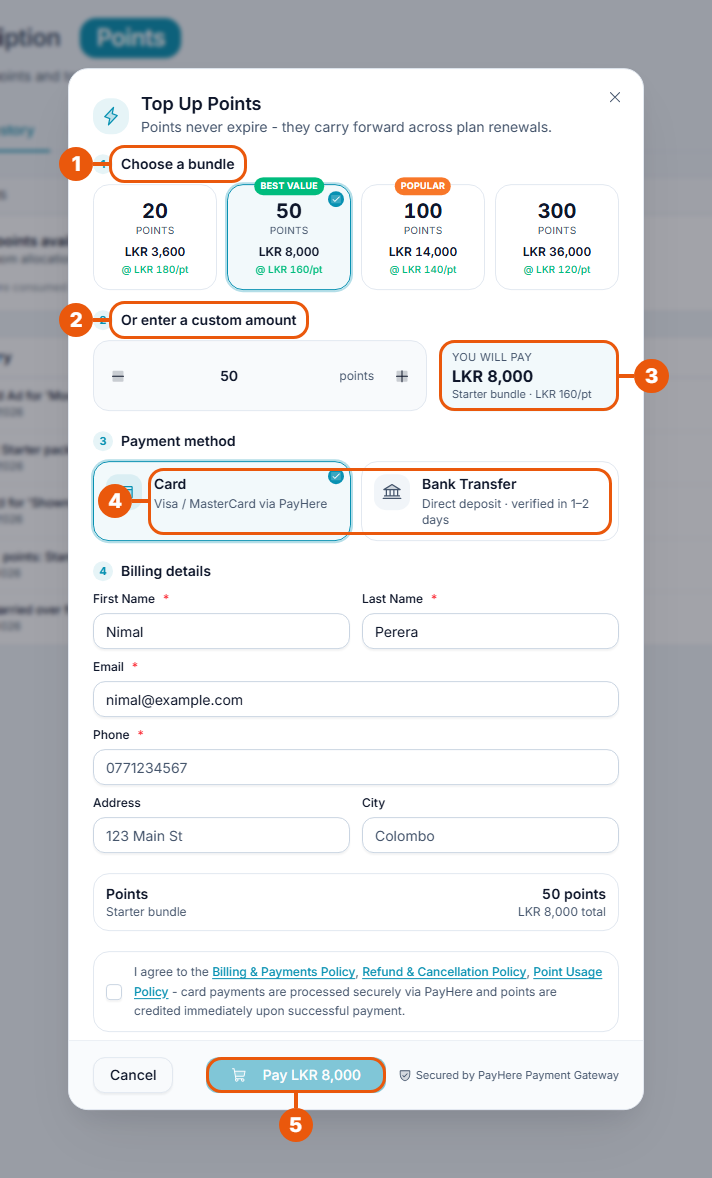
Choose a bundle: click one of the four packs.
Or enter a custom amount: type a number, or use − and +.
You will pay: the total, and the price per point.
Choose Card or Bank Transfer.
For a card payment: check your details, enter your phone number, tick the agreement box and click Pay LKR ….
Step 3: Pay
By card
You're taken to the secure PayHere page to enter your card details. When the payment goes through, the points are added to your balance straight away.
By bank transfer
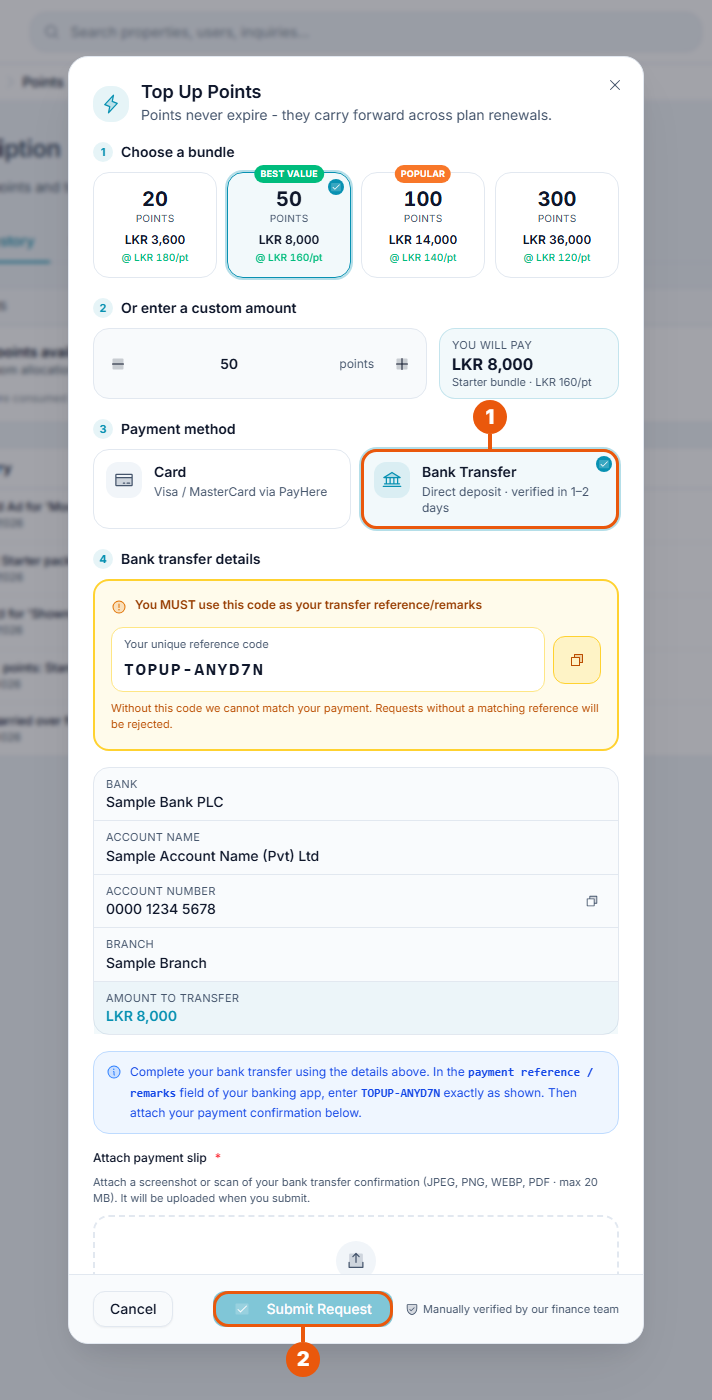
Click Bank Transfer. Then:
Copy the reference code. Enter it as the reference (or remark) of your transfer. Without it we can't match your payment.
Transfer the exact amount to the bank account shown.
Scroll down and attach your payment slip: JPEG, PNG, WebP or PDF, up to 20 MB.
Add a note if it helps.
Tick the agreement box.
Click Submit Request.
Our finance team checks the slip, usually within 1–2 business days. The points are added when the request is approved, and you get a notification.
Following a bank transfer request
Open the Points page and click the Bank Transfer Requests tab.
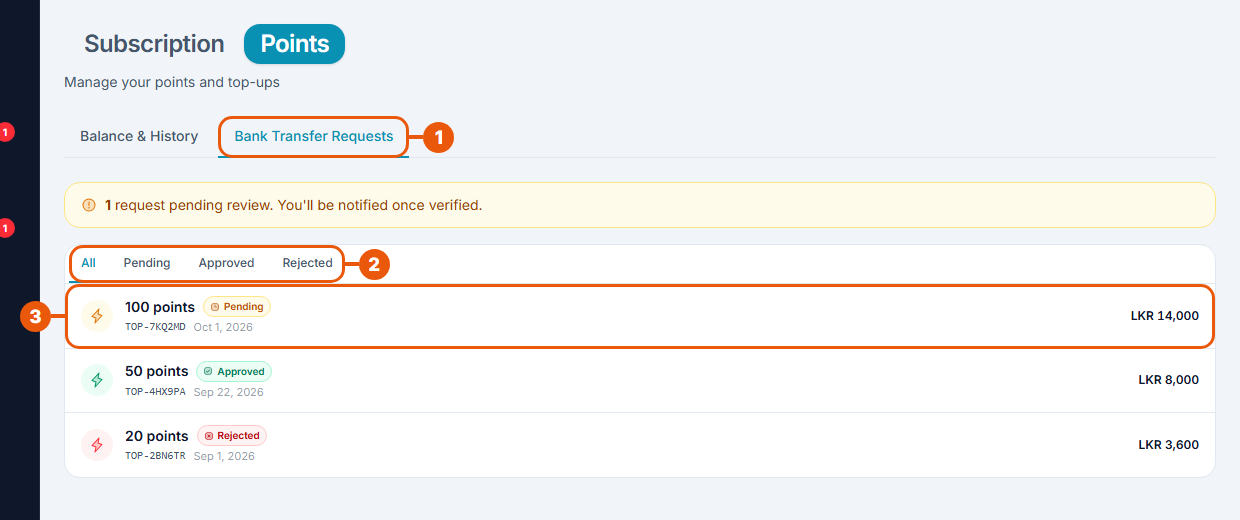
Bank Transfer Requests.
Filters: All, Pending, Approved or Rejected.
A request: the points, the status, the reference code, the date and the amount. Click it for the details.
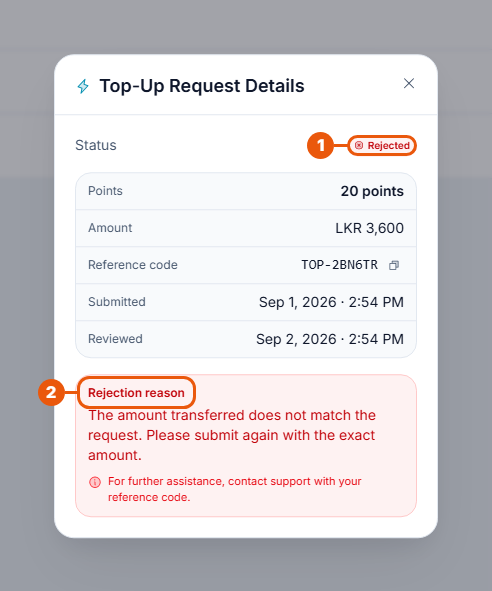
Status: Pending, Approved or Rejected.
Rejection reason: shown only when a request is rejected.
If your request is rejected, no points are added. Fix the problem and send a new request, or pay by card. If you have already sent the money, contact support and quote the reference code.
After you top up
Your new balance shows on the Points page.
The top-up appears in your Points History. See Viewing Your Points Balance and History.
An invoice appears under Transactions. See Invoices, Credit Notes and Your Transactions.
Good to know
For refunds on points, see the Refund & Cancellation Policy and the Point Usage Policy, linked at the bottom of every page of the website.
Top-up points are used only after your plan's points run out.
For when points can be lost, see Understanding Points.
Related articles
Was this article helpful?
If you still have questions, our support team is here to help.
Submit a Support TicketNot signed in? Sign in first
