To publish listings, your agency needs a paid plan. This article shows how to choose one and pay for it.
The bank details and reference code in these pictures are examples only. Always use the details shown on your own screen.
Before you start
You must be the Agency Super Admin.
Your agency must be verified.
Not sure which plan? See Subscription Plans Explained.
Step 1: Choose a plan
Click Subscription & Points in the side menu and scroll to Choose a Plan.
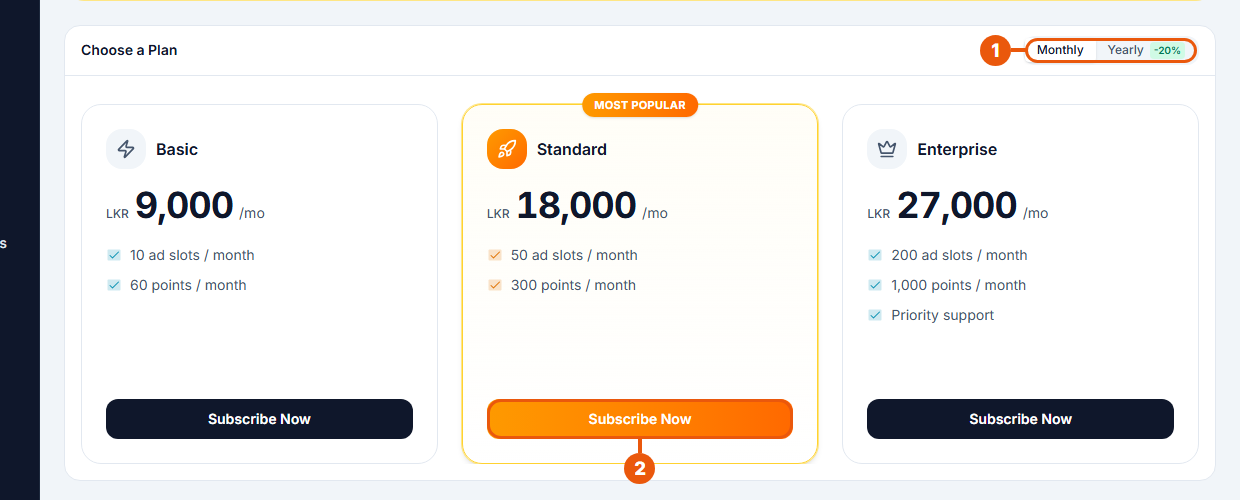
Choose Monthly or Yearly. Yearly costs 20% less.
Click Subscribe Now under the plan you want.
Step 2: Pay
A payment window opens. It shows the plan you are moving from (Explorer) and the plan you chose.
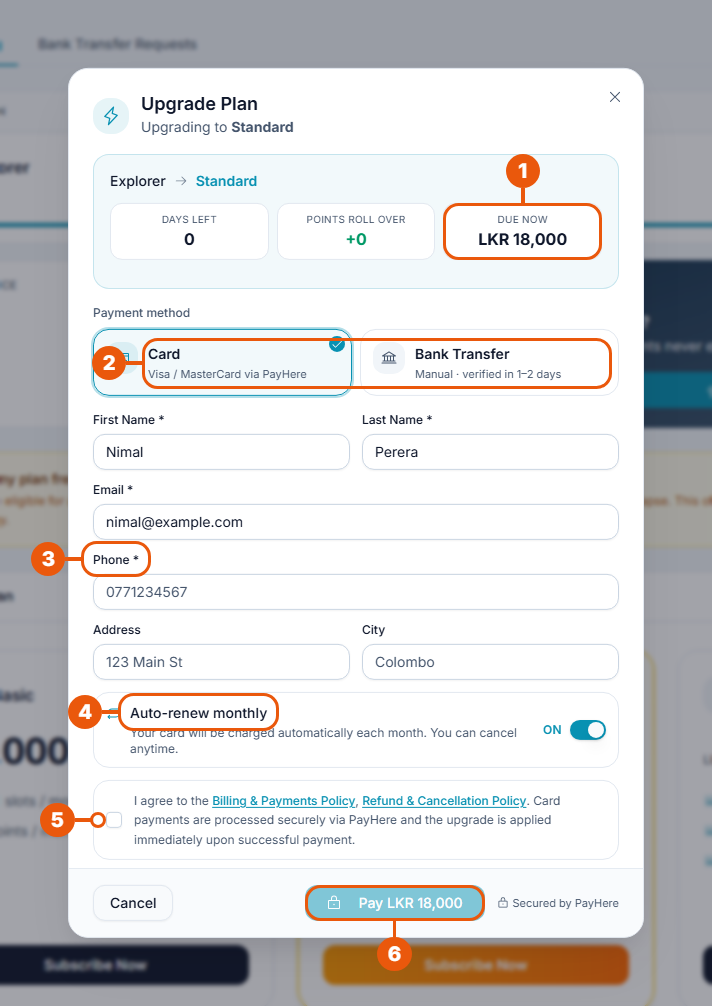
Due now: the amount to pay.
Choose Card or Bank Transfer.
Check your name and email, and enter your phone number. Address and city are optional.
Auto-renew monthly (card only): leave it ON to have your card charged automatically each month. Switch it OFF to renew by hand.
Tick the box to agree to the payment policies.
Click Pay LKR …. You're taken to the secure PayHere page to enter your card details.
When the card payment goes through, your plan starts straight away.
Paying by bank transfer
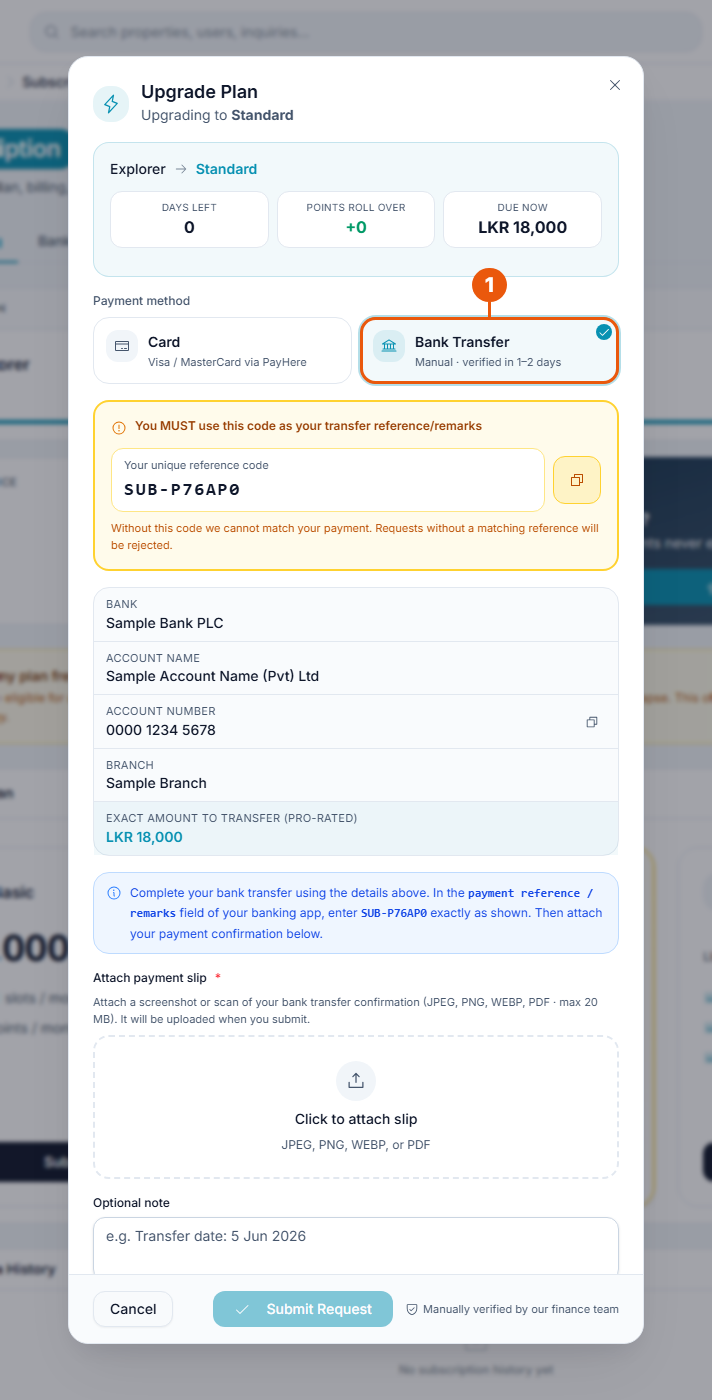
Click Bank Transfer. Then:
Copy the reference code. You must enter it as the reference (or remark) of your transfer.
Transfer the exact amount to the bank account shown.
Attach your payment slip: a photo, screenshot or PDF of the transfer. JPEG, PNG, WebP or PDF, up to 20 MB.
Add a note if it helps, such as the date of the transfer.
Tick the agreement box and click Submit Request.
Your request goes to our finance team. It is usually checked within 1–2 business days, and you get a notification with the result. Your plan starts when the request is approved.
While a request is waiting, you can't make other plan changes. Follow it under Bank Transfer Requests. See Tracking Your Bank Transfer Requests.
After your plan starts
The Current Plan box shows your new plan and its end date.
Your ad slots are ready, so listings can be published.
Your points for the month are added.
You get a notification, and an invoice appears under Transactions. See Invoices, Credit Notes and Your Transactions.
If your payment doesn't go through
Card payment cancelled or failed: nothing is charged. Open the Subscription page and try again, or choose bank transfer.
Bank transfer rejected: open the request to read the reason, then submit a new one.
Related articles
Was this article helpful?
If you still have questions, our support team is here to help.
Submit a Support TicketNot signed in? Sign in first
