You can choose which notifications you receive, and whether each one comes by email, in your account, or both.
Opening your preferences
Click your name at the top right, then My Profile. You can also click My Profile at the bottom of the side menu. The Settings page opens.
Click the Notifications tab.
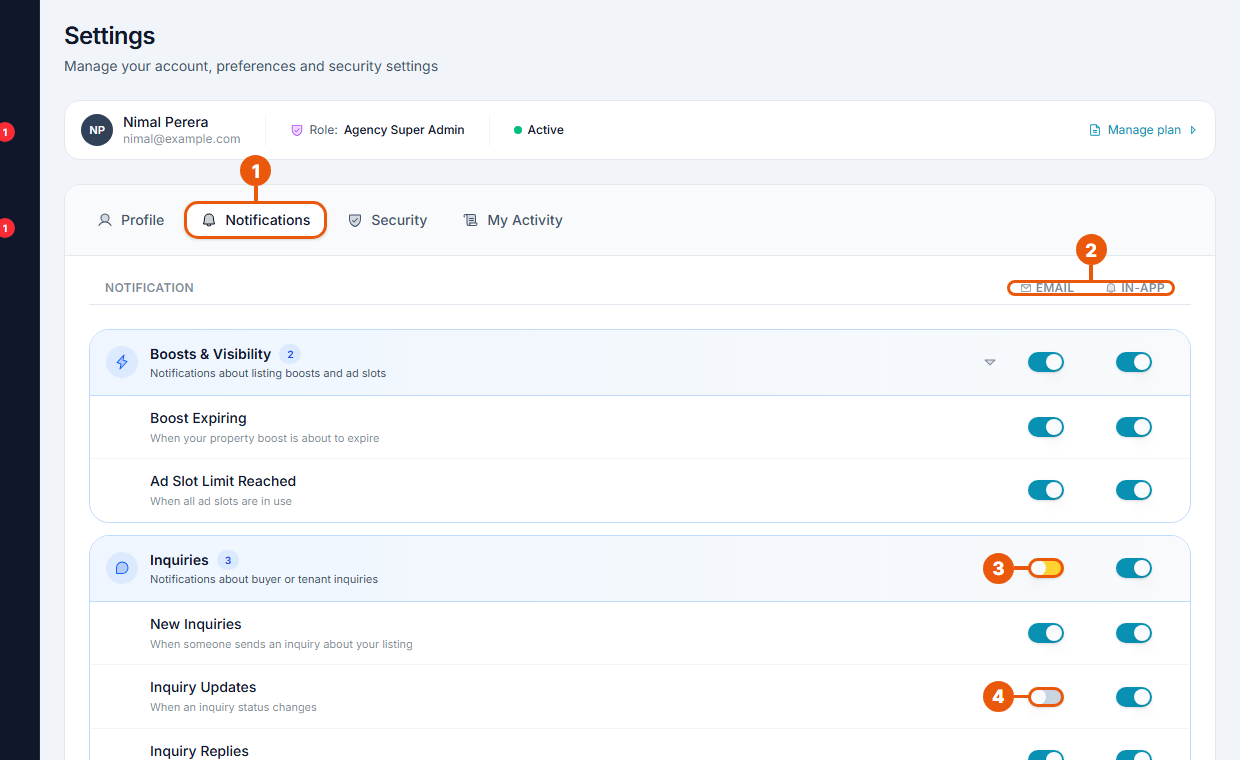
Notifications tab.
Email and In-app: the two ways a notification can reach you. In-app means the bell and the Notification Center.
Group switch: turn a whole group on or off in one click.
Single switch: turn one notification on or off.
How the switches work
Switch
Meaning
Blue
On
Grey
Off
Yellow (group switch only)
Mixed: some notifications in the group are on and some are off
Everything is on to begin with.
Click the small arrow beside a group to open or close it.
The groups
The groups you see depend on your role. They can include:
Group
What it covers
Blog & Articles
New blog articles
Boosts & Visibility
Promotions about to end, and all ad slots in use
Inquiries
New inquiries, replies and status changes
Listings & Properties
Listings sent for review, verified, moved to another team member, sold or rented, and high-demand alerts
Payments & Refunds
Payments confirmed or rejected
Subscription & Plan
Plan about to end and downgrades
System
Announcements, and changes to these preferences
System Support
Updates, replies and results on your support tickets
Verification
Verification sent and approved
Saving your changes
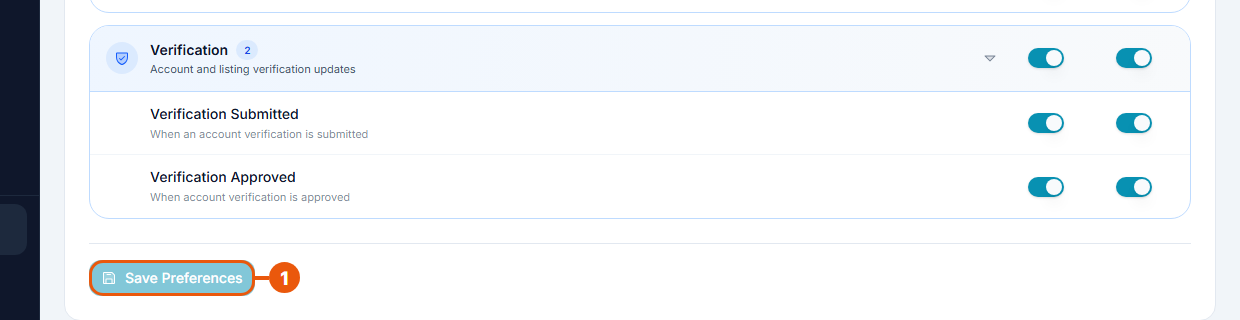
Click Save Preferences at the bottom of the tab. A message confirms that your preferences were saved.
Your changes are not saved until you click it. While you have unsaved changes, a notice appears at the top of the tab with a Save now button.
If you try to leave the page with unsaved changes, you are asked whether to stay or to leave without saving.
Notifications you can't turn off
Only the notifications listed on this tab can be switched off. Others are always sent because they are important for your account, for example payment results, refunds, your plan ending and listing rejections.
Tips
Keep New Inquiries on for both email and in-app. A fast reply wins more deals.
If you get too many emails, turn off Email for the less urgent groups and keep In-app on.
Related articles
Was this article helpful?
If you still have questions, our support team is here to help.
Submit a Support TicketNot signed in? Sign in first
