Notifications tell you when something needs your attention: a new inquiry, a listing approved, a plan about to end. You see them at the bell at the top of your account and on the Notification Center page.
The bell
The bell is at the top right of every page in your account. A red number shows how many notifications you haven't read. New notifications appear by themselves; you don't need to refresh the page.
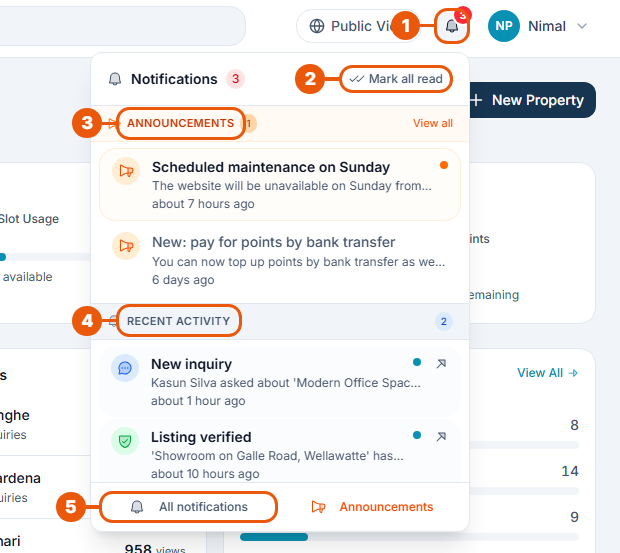
Bell: click to open the panel.
Mark all read: clear the red number.
Announcements: the latest messages from CommercialProperty.lk.
Recent Activity: your newest notifications. A dot marks the ones you haven't read. Click one to go to the item it is about.
All notifications: open the Notification Center.
The Notification Center page
Click Notification Center in the side menu, or All notifications in the bell's panel.
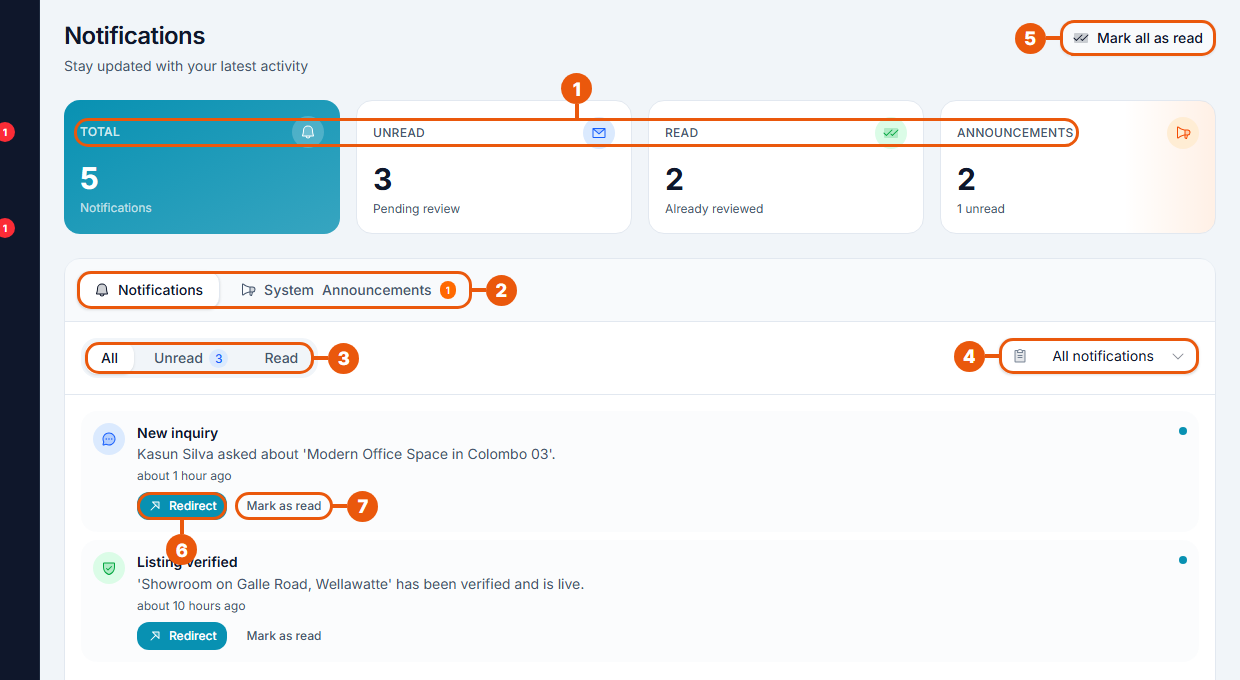
Summary cards: total, unread and read notifications, and announcements.
Tabs: Notifications and System Announcements.
Read filter: All, Unread or Read.
Type filter: show one kind of notification only, for example inquiries or payments.
Mark all as read.
Redirect: go to the item the notification is about, such as the listing or the inquiry.
Mark as read: mark this one notification as read.
Unread notifications have a dot on the right and a shaded background.
If there are many notifications, use the page buttons at the bottom.
Notifications by email
Many notifications are also sent to your email address, so you don't miss them when you are signed out. You can choose which ones arrive by email. See Notification Preferences.
Emails go to the address on your account. Check your spam folder if you don't see them.
Good to know
Marking a notification as read doesn't delete it. It stays in your list under Read.
A notification only appears for the people it concerns. In an agency, team members see different notifications depending on their role.
Related articles
Was this article helpful?
If you still have questions, our support team is here to help.
Submit a Support TicketNot signed in? Sign in first
