Your agency profile holds your agency's name, logo, cover picture and contact details. Visitors see them on your agency's page on the website and beside your listings.
Who can change it
Only the Agency Super Admin.
Opening the profile
Click My Agency in the side menu. The page opens on the Agency Profile tab.
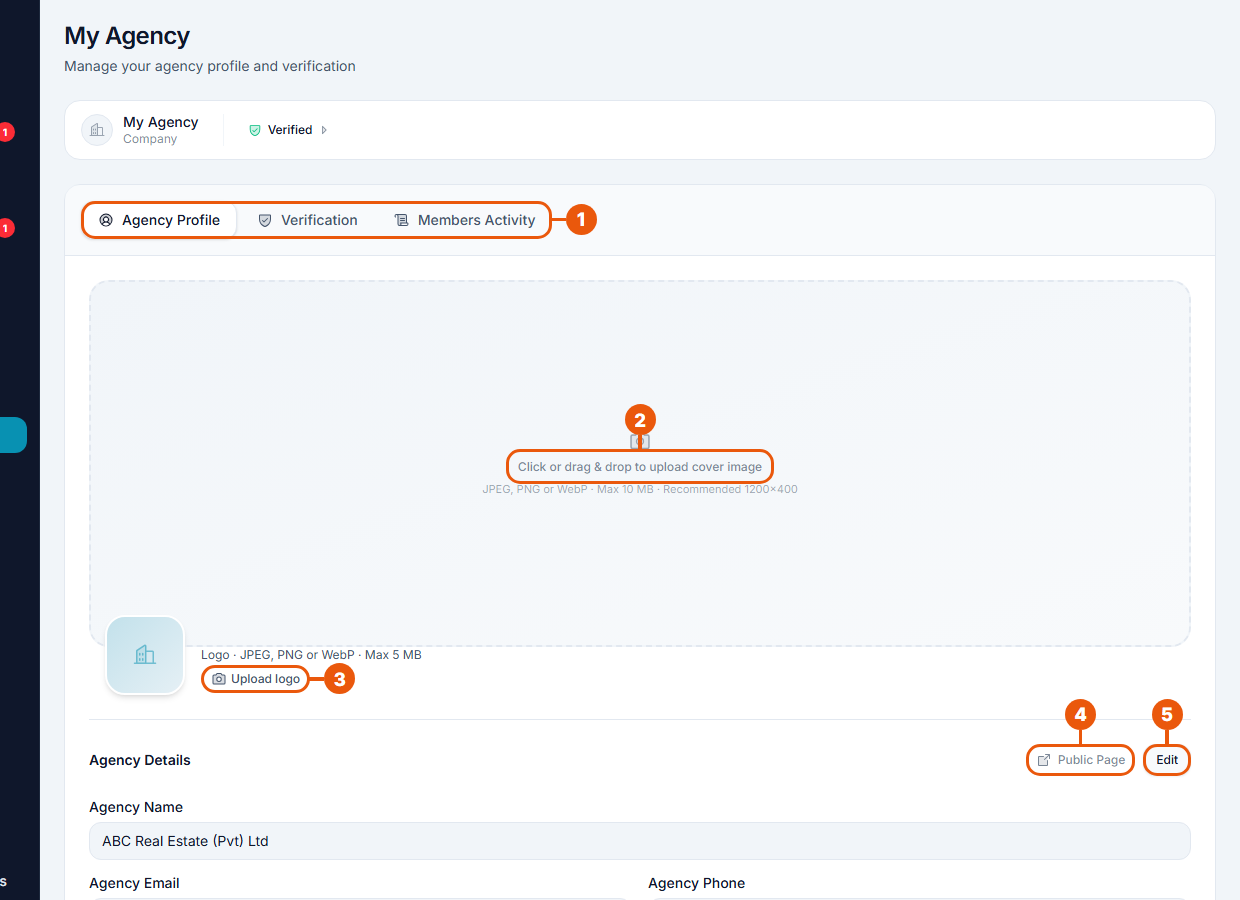
Tabs: Agency Profile, Verification and Members Activity.
Cover picture: click the area, or drag a picture onto it. JPEG, PNG or WebP, up to 10 MB. A wide picture works best (about 1200 × 400).
Upload logo: JPEG, PNG or WebP, up to 5 MB.
Public Page: see your agency's page as visitors see it.
Edit: change your agency's details.
The strip at the top shows your agency type and whether the agency is Verified.
Changing your agency's details
Click Edit.
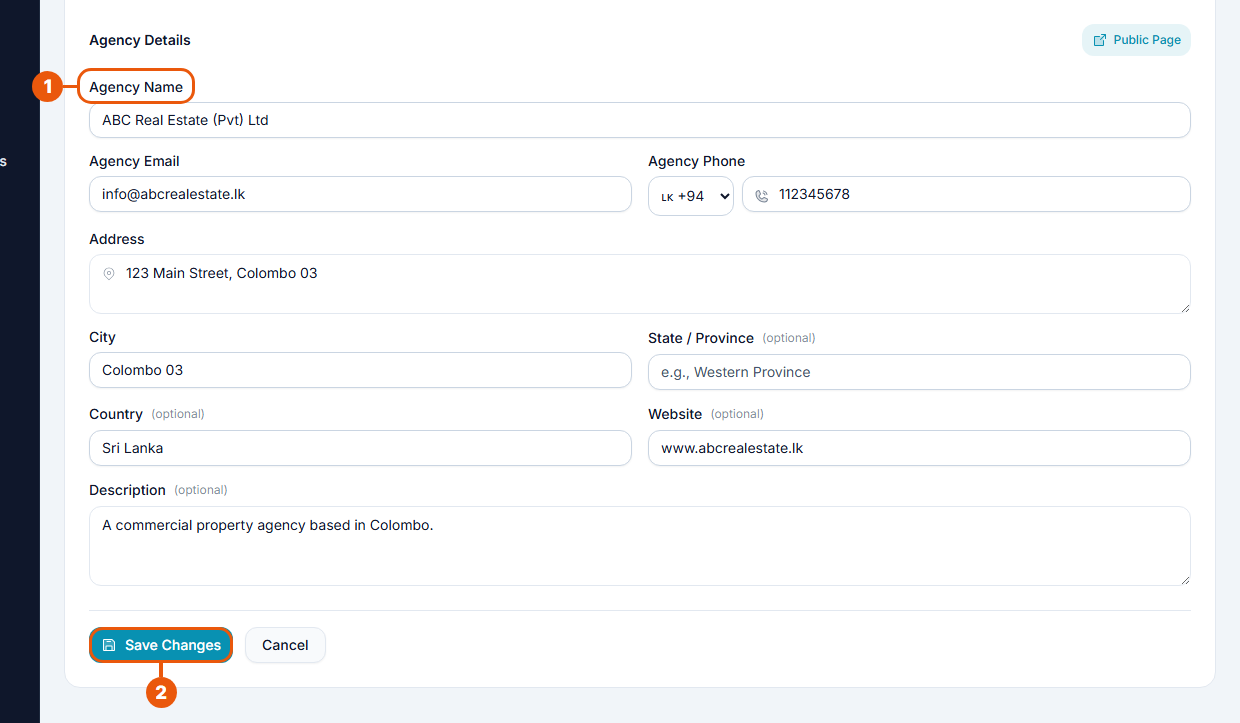
Change what you need:
Agency Name
Agency Email and Agency Phone
Address and City
State / Province, Country and Website (optional)
Description (optional): a few lines about your agency
Click Save Changes. Click Cancel to leave everything as it was.
Where visitors see these details
On your agency's page: the logo, cover picture, name, city, contact details and all your listings.
On the list of agencies on the website.
Beside your listings: the logo and agency name.
See Browsing Agencies.
Tips
Use a clear, square logo. It is shown small on property cards.
Keep the phone number and email current. Visitors use them to reach you.
Write a short description: what kinds of property you handle and where.
Related articles
Was this article helpful?
If you still have questions, our support team is here to help.
Submit a Support TicketNot signed in? Sign in first
