This article is for CommercialProperty.lk staff. It shows how to work through support tickets: picking them up, replying, passing them to a colleague, and resolving them.
Who
What they can do
Customer Support Agent
See every ticket, assign tickets, reply, add internal notes, change the status, resolve and close.
Super Admin
See every ticket, assign tickets, reply and add internal notes. Status changes are left to the Customer Support Agent or the person the ticket is assigned to.
Property Approver, Financial Officer, Blog Editor
See tickets assigned to them (and their own tickets), reply, add internal notes and change the status of those tickets.
The tickets and names in these pictures are examples only.
The Support Dashboard
As a Customer Support Agent, you start on the Support Dashboard.
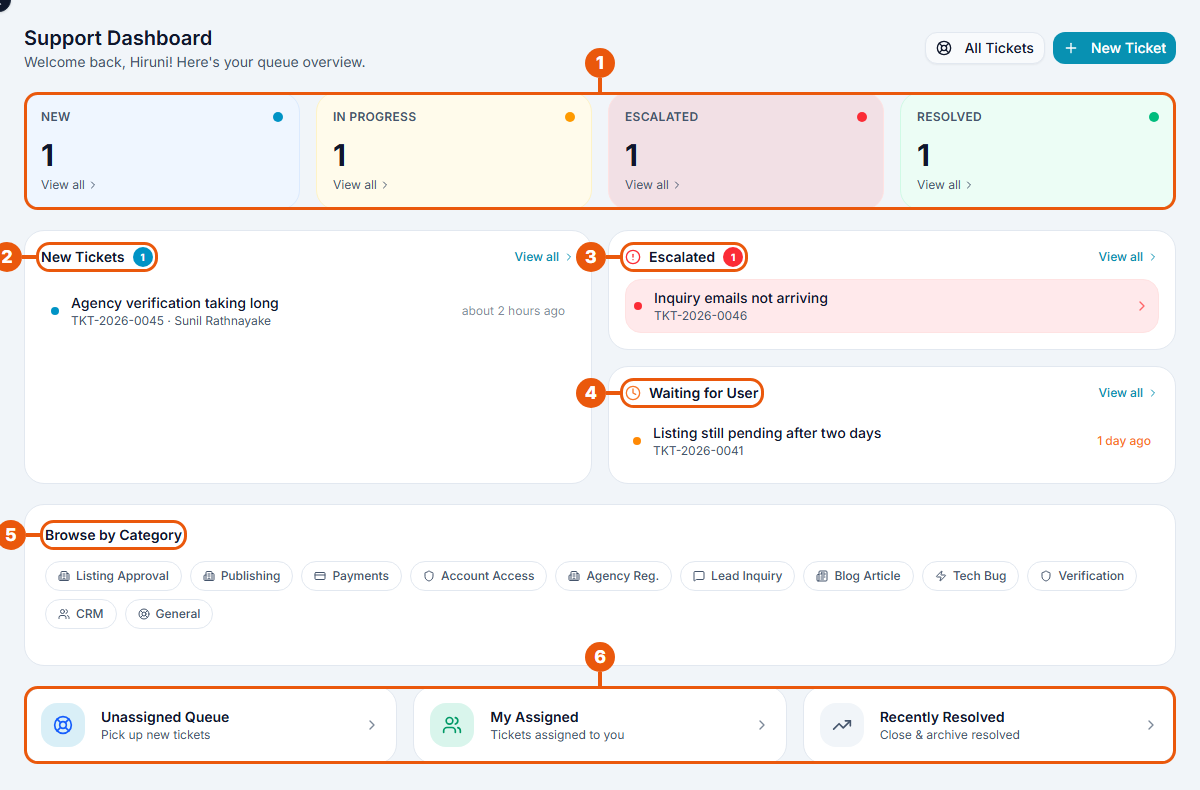
Counters: how many tickets are New, In Progress, Escalated and Resolved. Click View all to see them.
New Tickets: the latest tickets nobody has picked up yet.
Escalated: tickets passed to a senior colleague. Deal with these first.
Waiting for User: tickets waiting for the user's answer.
Browse by Category: show only one kind of ticket, such as Payments.
Shortcuts: Unassigned Queue (new tickets to pick up), My Assigned (tickets given to you) and Recently Resolved (tickets to close).
New Ticket: raise a ticket yourself, for example after a phone call. It is raised in your name.
The ticket queue
Click Customer Support in the side menu, or All Tickets on the dashboard.
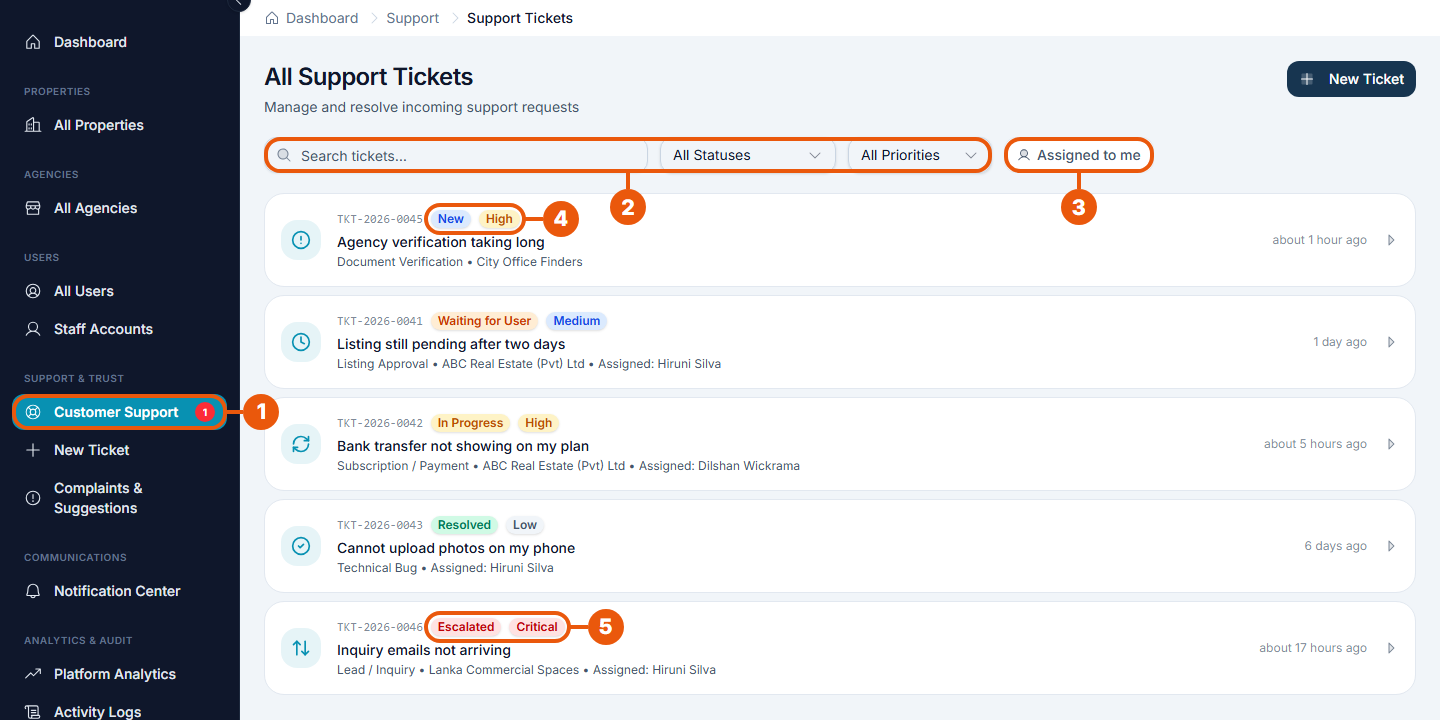
Customer Support: the red number shows how many new tickets are waiting.
Search and filters: search by words in the title, or show one status or priority.
Assigned to me: show only the tickets given to you.
A new ticket: its status and priority. Pick up New tickets first, most urgent first.
An escalated ticket: needs attention from a senior colleague.
Each row also shows the category, the user's agency and who the ticket is assigned to. Click a row to open the ticket.
Working on a ticket
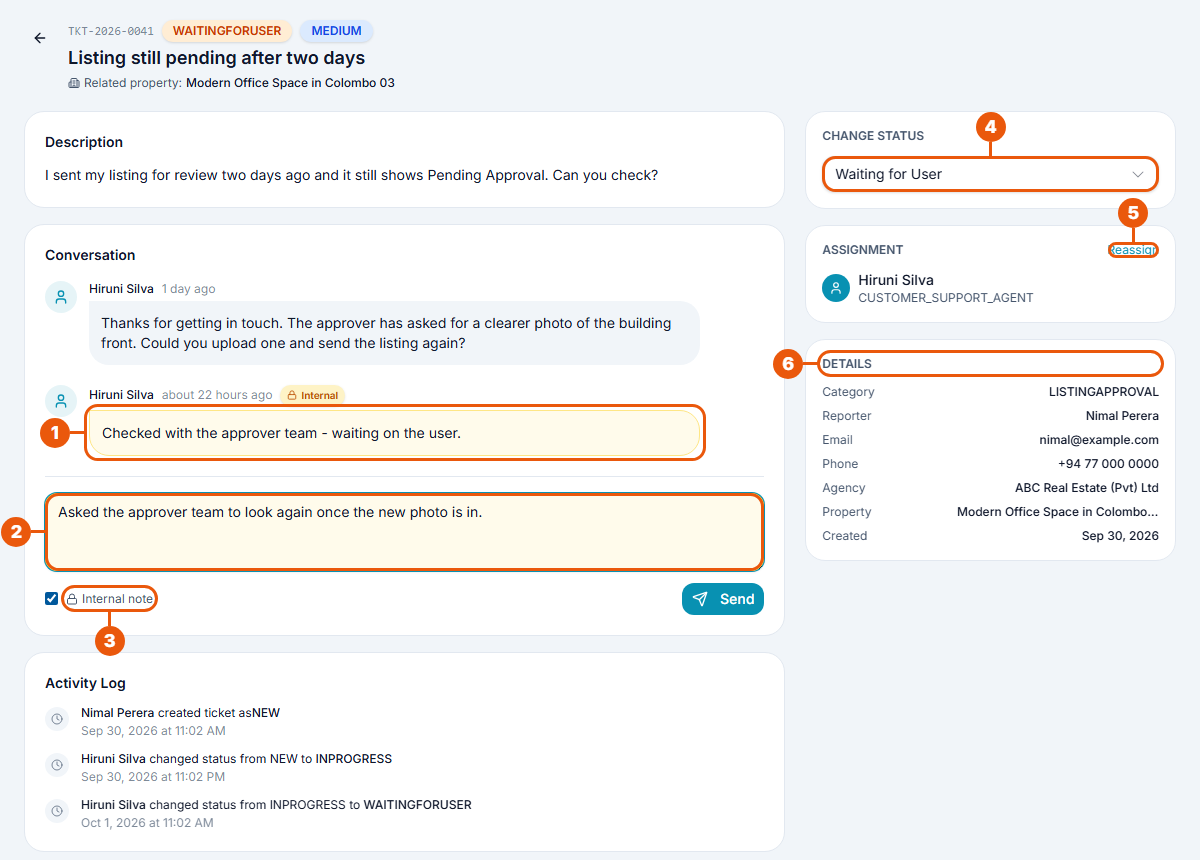
Internal note: a yellow message marked Internal. Only staff can see it; the user can't.
Reply box: write your answer to the user.
Internal note tick box: tick it before clicking Send to keep the message among staff. The box turns yellow as a reminder. Leave it unticked to reply to the user.
Change Status: move the ticket on. See the statuses in Ticket Statuses and Priorities.
Reassign: give the ticket to someone else.
Details: who raised the ticket, their email and phone, their agency, and the related listing. To look them up, use All Users, All Agencies or All Properties in the side menu.
A good routine
Open a New ticket and set it to In Progress (or assign it to the right colleague).
Reply to the user. If you need something from them, set Waiting for User. When they reply, the ticket goes back to In Progress by itself.
If you are waiting for another team, set Waiting for Team and add an internal note saying what you asked for.
If you can't solve it, set Escalated. The Super Admin is notified.
When it's solved, resolve it (see below), then close it.
Assigning a ticket to a colleague
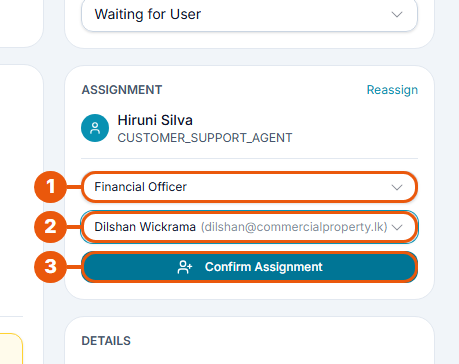
Click Reassign (or Assign if nobody has the ticket yet).
Choose the colleague's role: Customer Support Agent, Financial Officer, Blog Editor, Property Approver or Super Admin.
Choose the person.
Click Confirm Assignment.
The colleague is notified and can now see the ticket. Add an internal note saying what you need from them.
For example, give a payment question to a Financial Officer, or a listing question to a Property Approver.
Resolving and closing
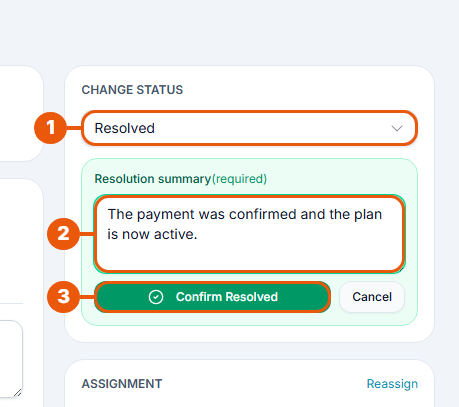
In Change Status, choose Resolved.
Write a resolution summary: what was done to solve the problem. It is required, and the user sees it.
Click Confirm Resolved. Click Cancel to go back without changing anything.
The user is notified and can reopen the ticket if the problem isn't solved.
When you are sure the ticket is finished, open it and click Close Ticket (shown only on resolved tickets). A closed ticket can't be changed, replied to or reopened, so give the user time to check first.
Tips
Reply before you change the status. The user sees your reply and the new status together.
Use internal notes for anything the user shouldn't see, such as notes for a colleague.
Check Escalated and Critical tickets first every time you open the queue.
Related articles
Was this article helpful?
If you still have questions, our support team is here to help.
Submit a Support TicketNot signed in? Sign in first
