5.5 Quick Start: CommercialProperty.lk Staff
This guide is for CommercialProperty.lk staff: Property Approvers, Financial Officers, Customer Support Agents and Blog Editors. It shows where each role starts and what to do first.
Everyone: getting in
You receive an invitation by email from the Super Admin. Click Accept Invitation and set your password. See Accepting an Invitation.
Sign in. You go straight to your main work list. See Signing In.
Check your notifications 🔔 for anything new. See Finding Your Way Around.
Any staff member can also be given a support ticket to handle. See Handling Support Tickets.
Property Approver
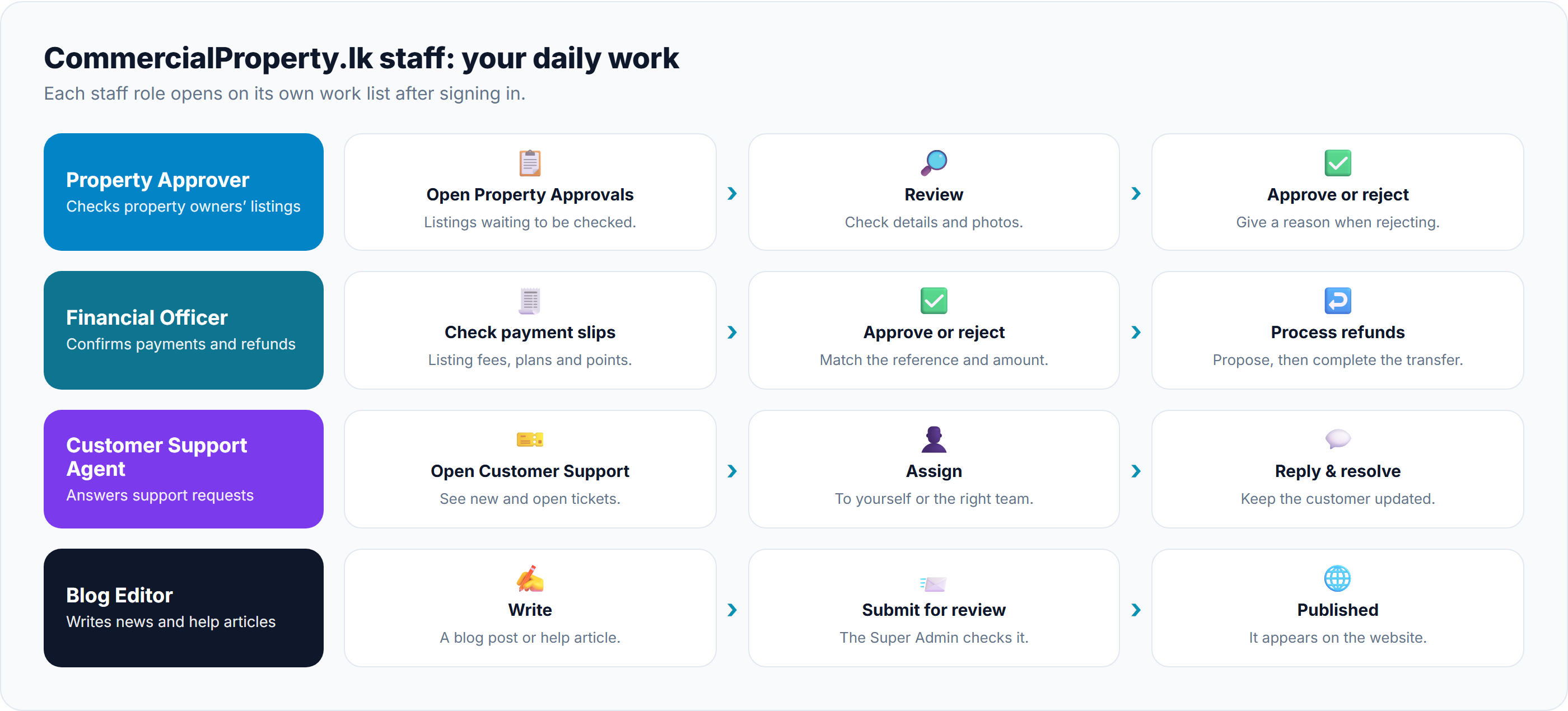
You check listings from property owners before they go live. You start on Property Approvals.
Step
What to do
Learn more
1. Open the list
Property Approvals shows the listings waiting for you. The red number shows how many.
Reviewing & Approving Listings
2. Review
Open a listing and check its details and photos.
How Owner Listings Are Approved
3. Approve or reject
Approve it to make it live, or reject it and explain why so the owner can fix it.
Financial Officer
You confirm bank transfer payments and handle refunds. You start on Payment Slips.
Step
What to do
Learn more
1. Check payment slips
Open each slip and match the reference code and amount. There are three lists: listing fees, plan payments and points top-ups.
Verifying Listing Payment Slips, Subscription Requests, Top-Up Requests
2. Approve or reject
Approve to confirm the payment, or reject with a reason.
The Financial Officer Workspace
3. Process refunds
Propose a refund amount and send it to the Super Admin. After the decision, complete the transfer.
You can also see all money movements. See Transactions & Financial Audit.
Customer Support Agent
You answer support requests from users. You start on your Dashboard.
Step
What to do
Learn more
1. Open Customer Support
See new and open tickets. The red number shows how many are open.
2. Assign
Take the ticket yourself, or give it to the right colleague.
Ticket Statuses & Response Times
3. Reply and resolve
Reply to the user, update the status, and mark it resolved when done.
To help a user, you can look up properties, agencies and users.
Blog Editor
You write news, market insights and help articles. You start on Blog Posts.
Step
What to do
Learn more
1. Write
Click New Blog or New KB Article and write your content.
Writing a Blog Post, Writing Help Centre Articles
2. Submit for review
Send it to the Super Admin.
3. Published
Once approved, it appears on the website. If it's rejected, fix it and submit again.
Was this article helpful?
If you still have questions, our support team is here to help.
Submit a Support TicketNot signed in? Sign in first
