This guide is for people who own a property and want to advertise it themselves. You pay a one-time fee for each listing, with no monthly bills.
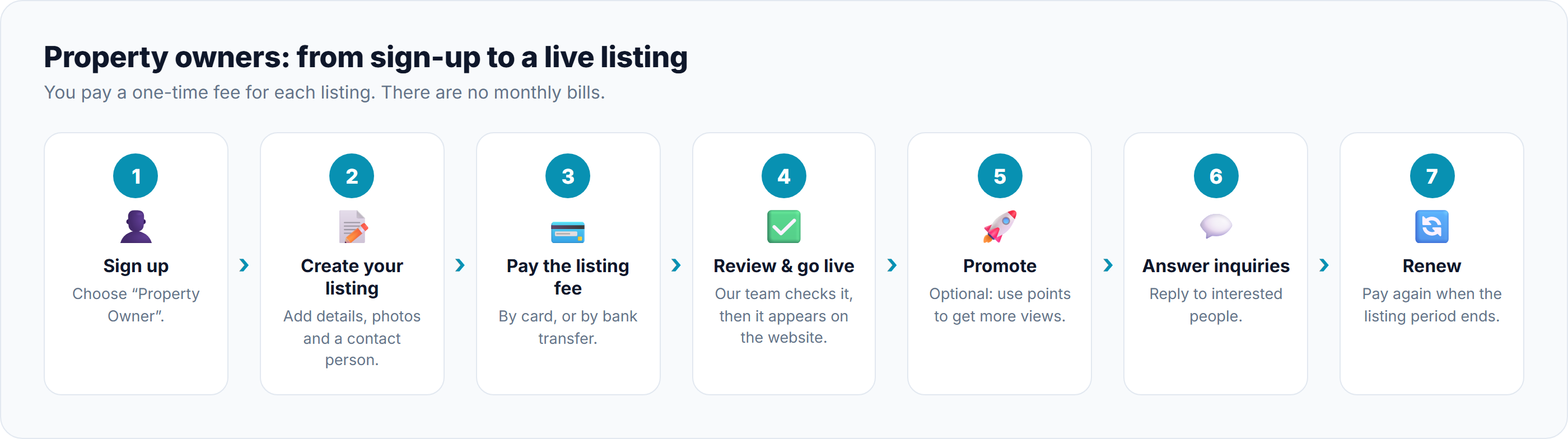
Your steps
Step
What to do
Learn more
1. Sign up
Click Sign up, confirm your email, and choose Property Owner.
Creating an Account, Completing Your Account Setup
2. Create your listing
Click New Property. Add the type, location, details, price, photos and a contact person. Your work is saved as you go.
Before You List, The Listing Form
3. Pay the listing fee
Pay online by card, or by bank transfer with a photo of your bank slip.
4. Review and go live
Our team checks your listing. Once approved, it appears on the website. A final check adds the CPLK Verified badge.
How Owner Listings Are Approved
5. Promote (optional)
Buy points and use them to show your listing higher up or on the home page.
Promoting a Listing, Topping Up Points
6. Answer inquiries
Reply to interested people from Inquiries, and update each one's status.
7. Renew
When the listing period ends, pay the fee again to keep it live.
When the deal is done, mark the property as Sold, Rented or Leased. See Marking Sold, Rented or Leased.
If your listing isn't approved
We tell you why. You can then:
fix it and send it again, without paying again; or
ask for a refund of part of the listing fee.
See Handling Rejected Listings and Requesting a Refund.
Your main pages
Page
What it's for
Dashboard
Your listings, views, inquiries, points and spending at a glance
New Property / All Properties
Create listings and manage the ones you have
Promoted Properties
Your promotions
Inquiries
Messages from interested people
Contacts
The people whose details appear on your listings
Transactions
Your payments and receipts
Points
Your points balance; buy more here
Refunds
Your refund requests
Good to know
Confirm your identity: you're asked to upload your National Identity Card. See Submitting Verification Documents.
Changing a live listing sends it back for review before it reappears. See Editing a Listing.
Prices: see the Pricing page on the website and Pricing Overview.
Previous Article
5.1 Quick Start: Looking for a Property
Next Article
5.3 Quick Start: Agency Super Admins
Was this article helpful?
If you still have questions, our support team is here to help.
Submit a Support TicketNot signed in? Sign in first
