The Super Admin can send a message to everyone, to everyone with one role, or to one agency. It appears in their bell and Notification Center, and can also be sent by email.
Users see it as described in System Announcements.
Writing an announcement
Click Announcements in the side menu.
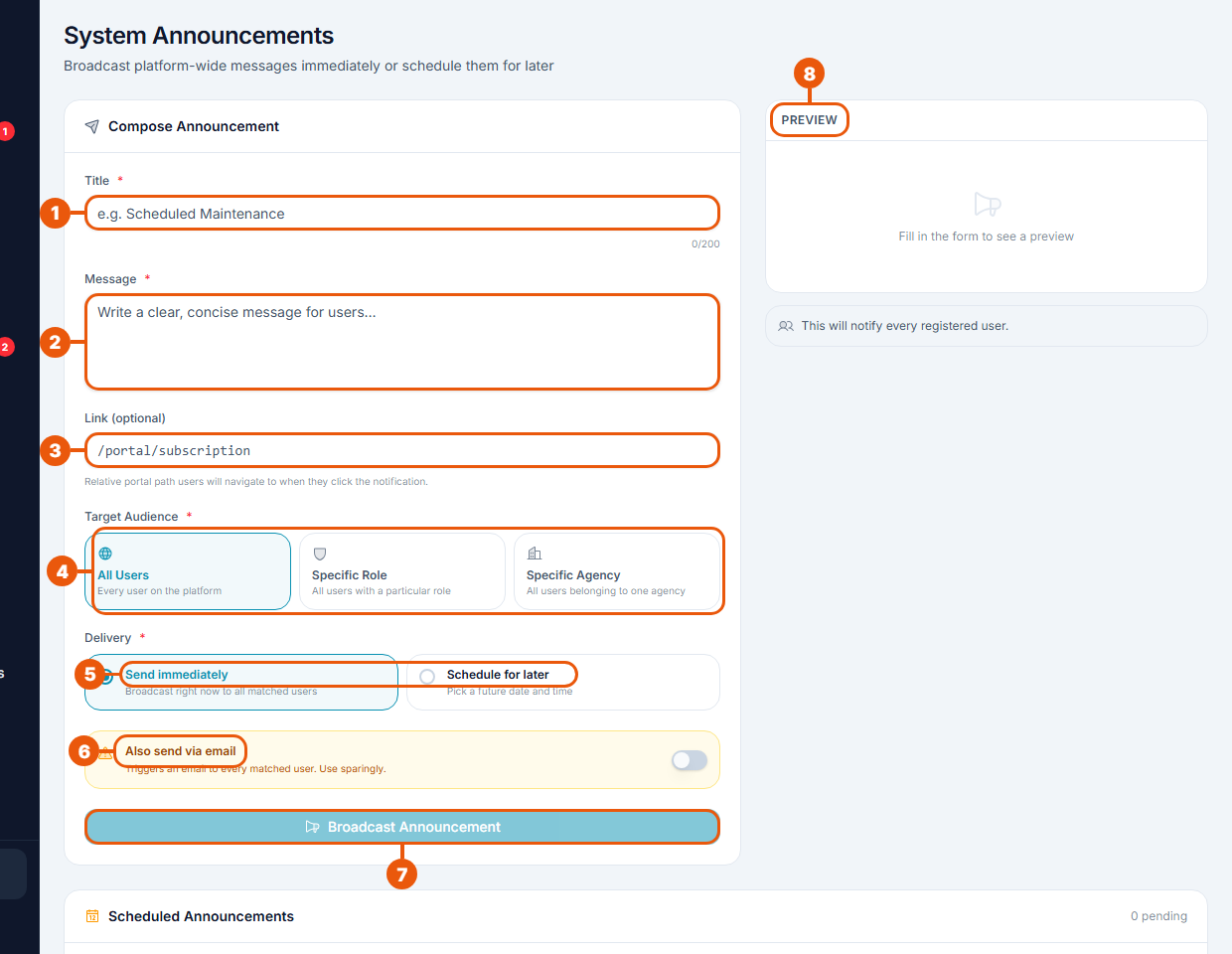
Title: short and clear, for example "Scheduled maintenance on Sunday". Up to 200 characters.
Message: what users need to know.
Link (optional): a page in the account area to open when the user clicks the announcement, for example
/portal/subscription.Target audience:
All Users: everyone with an account;
Specific Role: everyone with one role, such as all Property Owners. Choose the role;
Specific Agency: everyone in one agency. Choose the agency.
Delivery:
Send immediately; or
Schedule for later: choose a future date and time.
Also send via email: switch on to email everyone it goes to as well. Use this sparingly.
Click Broadcast Announcement.
Preview: shows how the announcement will look, and who will get it.
Scheduled and sent announcements
Below the form:
Scheduled Announcements lists messages waiting to go out, with their date and time. You can cancel one before it is sent.
Broadcast History lists announcements already sent, and when.
Good practice
Announce planned maintenance at least a day ahead.
Use Specific Role or Specific Agency when a message doesn't concern everyone.
Keep email for important messages, so users keep reading them.
Related articles
Was this article helpful?
If you still have questions, our support team is here to help.
Submit a Support TicketNot signed in? Sign in first
