This article is for the Super Admin. It covers finding an agency, adding one, changing its plan or points, and suspending it.
The agencies in these pictures are examples only.
The Agencies page
Click Agencies in the side menu.
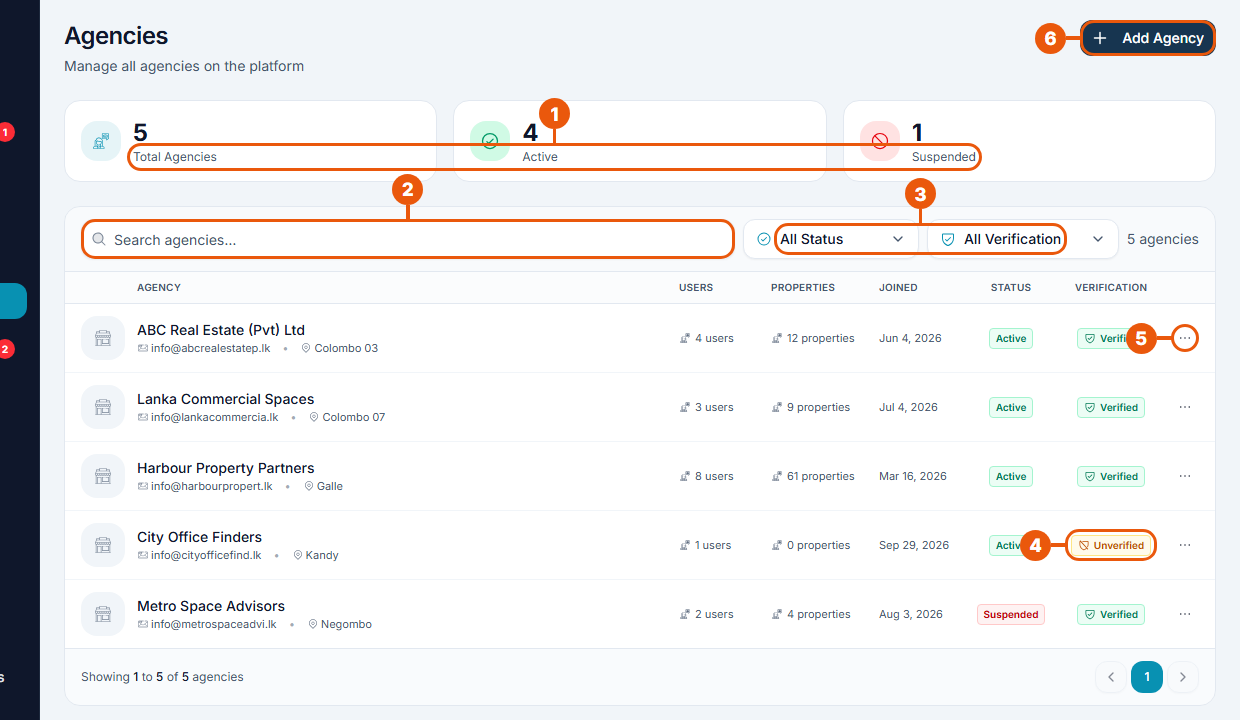
Summary: total, active and suspended agencies.
Search for an agency by name.
Filters: status (Active or Suspended) and verification (Verified or Unverified).
Unverified: the agency hasn't been verified yet. See Reviewing Verification Requests.
…: View Details or Edit.
Add Agency: create an agency yourself.
Each row shows the agency's email and city, how many users and listings it has, when it joined, its status and whether it is verified.
Financial Officers and Customer Support Agents can open this page to look agencies up, but can't change them.
An agency's page
Click an agency's name.
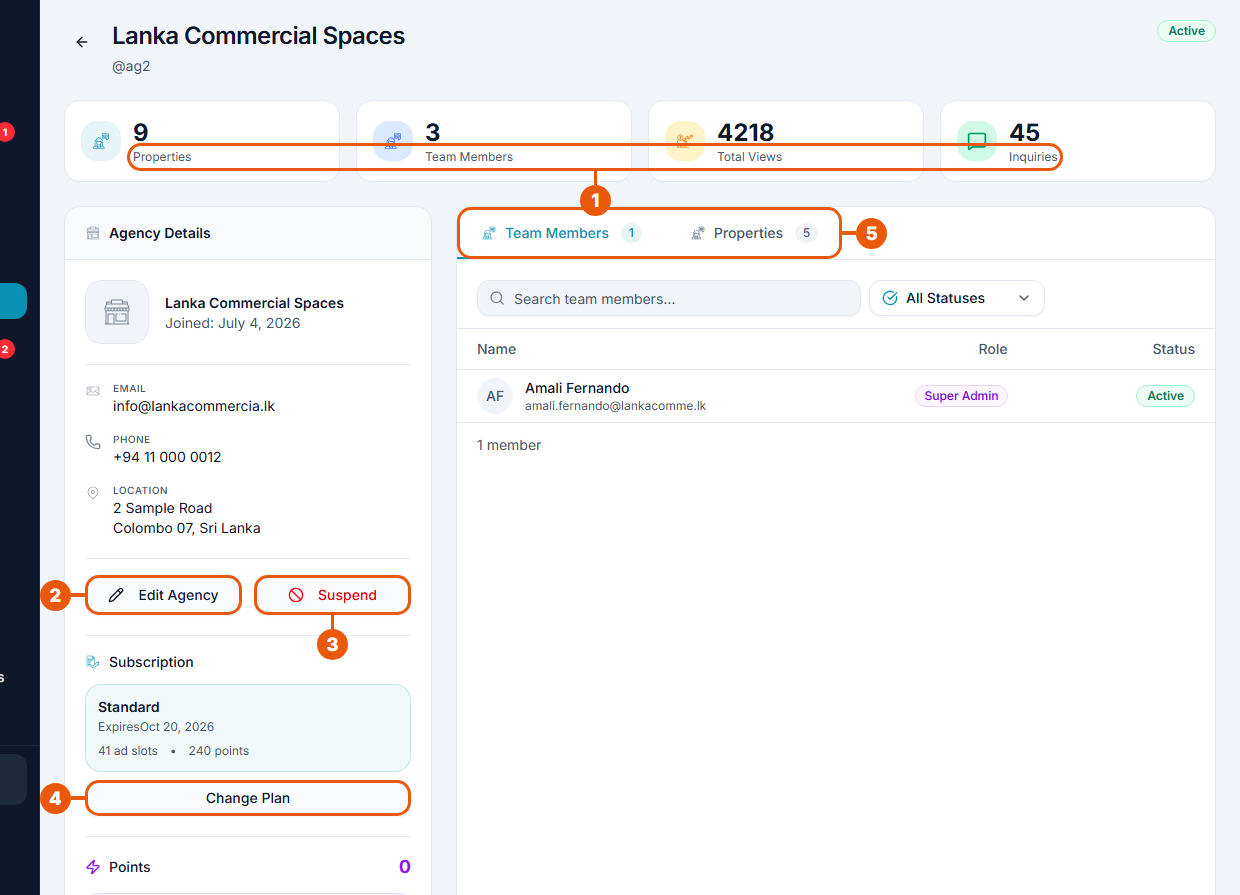
Summary: listings, team members, views and inquiries.
Edit Agency: change the agency's name, contact details, address or description.
Suspend (or Activate for a suspended agency). See below.
Change Plan: put the agency on a different plan, or give it one if it has none. Pick the plan and confirm.
Team Members and Properties: the agency's people and listings.
Lower down, Points shows the agency's balance. Click Add Points to give the agency points, for example as a goodwill gesture. Enter the number of points and, if you like, a reason. The change appears in the agency's points history.
Adding an agency
Agencies normally sign up themselves. To create one for a customer, click Add Agency and fill in:
Basic Information: agency name, email and phone (a logo address is optional);
Brand Color: the agency's colour;
Location: address, city, state or province, and country.
Then click Create Agency. Add the agency's first members from its page afterwards.
Suspending an agency
Suspend an agency that breaks the rules or must be stopped, for example after fraud or a serious complaint.
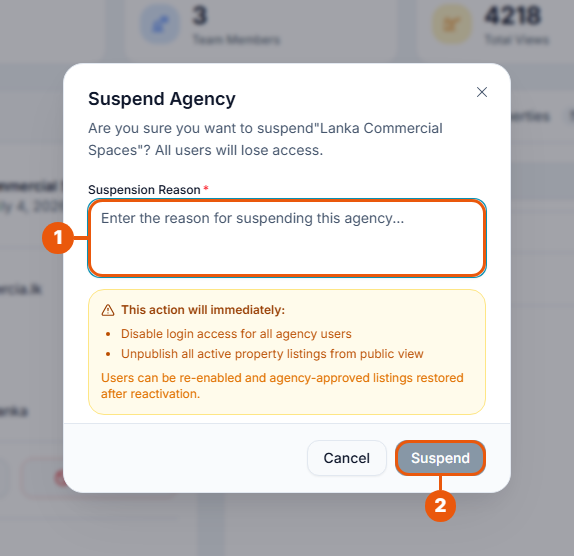
Click Suspend on the agency's page.
Write the reason. It is required.
Click Suspend.
Straight away:
no one in the agency can sign in;
all its listings are taken off the website.
To lift a suspension, open the agency and click Activate. Its members can sign in again, and its approved listings can be put back.
Related articles
Was this article helpful?
If you still have questions, our support team is here to help.
Submit a Support TicketNot signed in? Sign in first
