19.2 Reviewing Verification Requests
Agencies and Property Owners must prove who they are before they can list. They send documents, and the Super Admin checks them here.
Agencies send a business registration certificate.
Individuals (Property Owners) send the front and back of their national identity card (NIC).
The agency, person and document in these pictures are examples only.
The Verification Requests page
Click Verification Requests in the side menu. The red number shows how many are waiting.
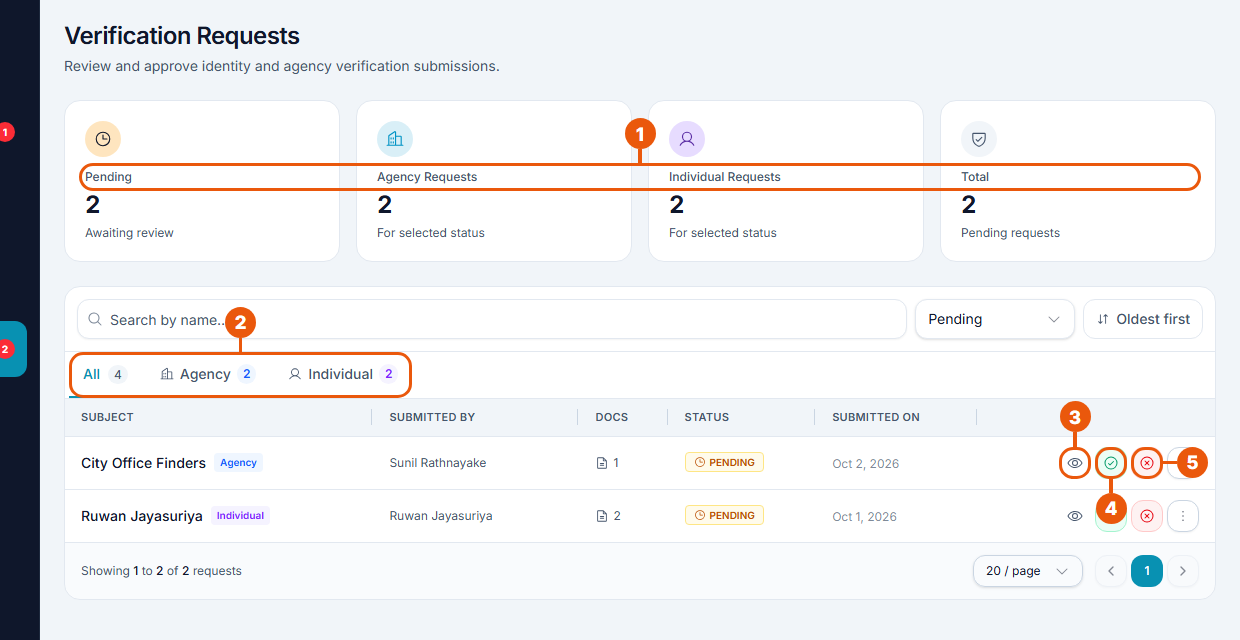
Summary: pending requests, and how many come from agencies and from individuals.
Tabs: All, Agency or Individual. Use the list beside the search box to show Pending, Verified or Rejected requests.
View: open the request and its documents.
Approve.
Reject.
The oldest requests are at the top.
Checking a request
Click View, or the agency's or person's name.
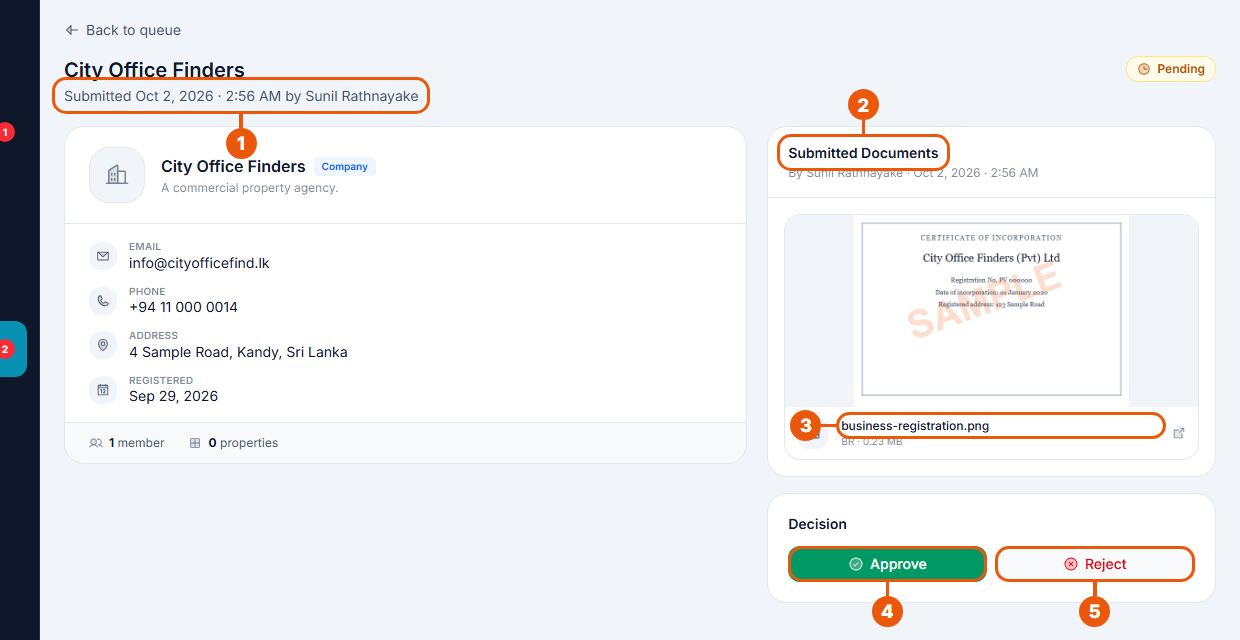
Who sent it, and when. The left side shows the agency's or person's details.
Submitted Documents.
A document: click to open it at full size.
Approve.
Reject.
Check that:
the document is clear and readable;
the name on the document matches the agency or person;
for an agency, the registration certificate is for the same business.
Approving
Click Approve and confirm. The agency or person becomes Verified and gets a notification. They can now use the features that need verification, such as listing properties.
Rejecting
Click Reject, write the reason, and confirm. Say clearly what to fix, for example "The NIC photo is blurred. Please upload a clear photo." They get a notification with your reason and can send new documents.
Related articles
Was this article helpful?
If you still have questions, our support team is here to help.
Submit a Support TicketNot signed in? Sign in first
