The Subscription Analytics page shows every agency's plan, how many ad slots and points they are using, and when their plan ends. Use it to spot agencies about to lose their listings and to answer billing questions.
This article is for Financial Officers and the Super Admin.
The agencies and figures in this picture are examples only.
Opening the page
Click Subscriptions in the side menu.
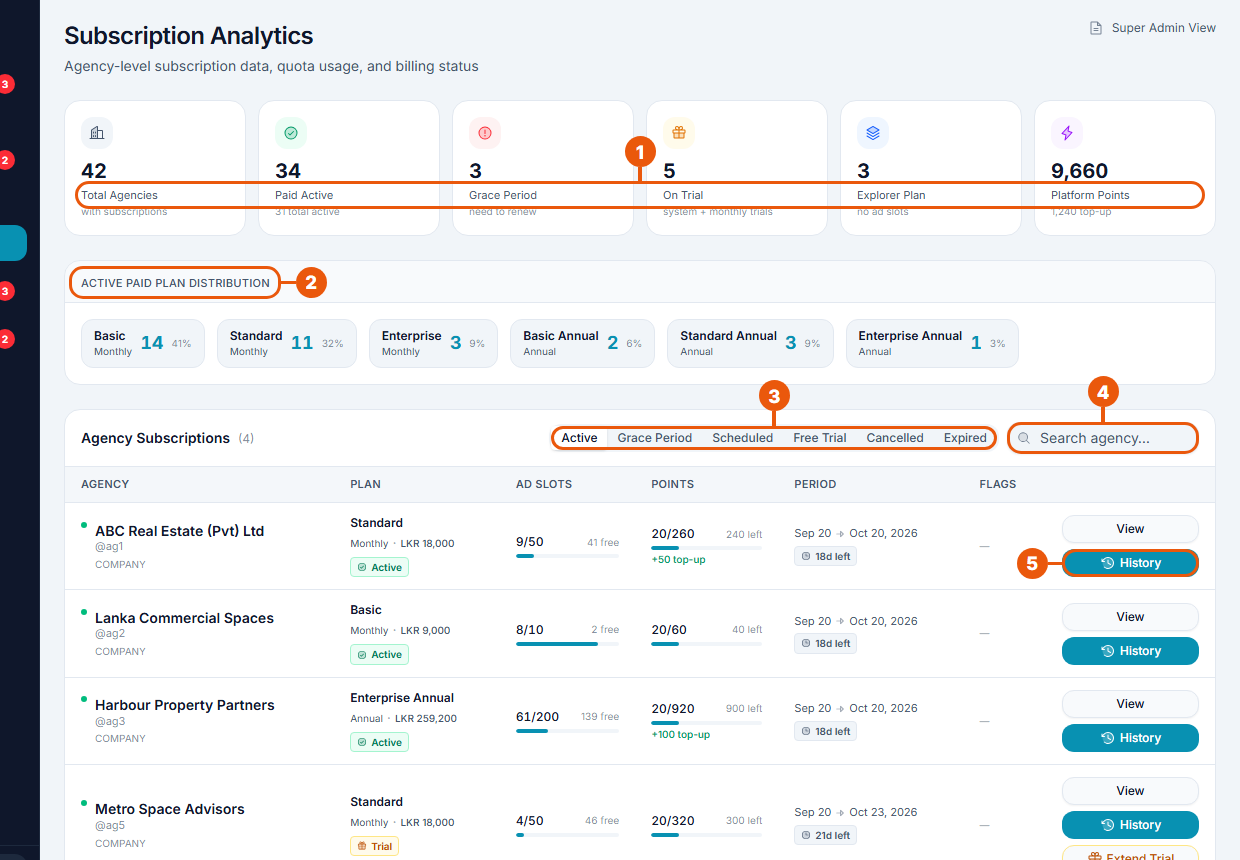
Summary: agencies with a plan, paid and active, in their grace period, on a free trial, on the free Explorer plan, and the total points held across the platform.
Active Paid Plan Distribution: how many agencies are on each paid plan.
Status tabs: Active, Grace Period, Scheduled, Free Trial, Cancelled and Expired.
Search for an agency.
History: the agency's past plans and every change to its points.
For each agency the list shows the plan and price, ad slots used and free, points used and left (plus any top-up points), the dates of the current period and the days left.
Finding agencies that need attention
Grace Period tab: plans that have ended. Their listings come off the website when the grace period ends. Check Subscription Requests in case a renewal payment is waiting. See Checking Subscription Bank Transfers.
Free Trial tab: trials and their days left.
Expired tab: agencies whose listings are already off the website.
An agency's history
Click History to see:
every plan the agency has had, with dates and status;
every points change: monthly points, top-ups, promotions, points carried over, points removed and changes made by staff.
Click View to open the agency's current plan details.
Extending a free trial (Super Admin)
On an agency in its free trial, click Extend Trial and choose how many days to add. The agency sees the extra days on its Subscription page.
Only the Super Admin can extend a trial. The button is also shown to Financial Officers, but the extension won't go through for them.
Coupons
Coupon codes give a discount on an agency's monthly plan or on a Property Owner's listing fee. Financial Officers can see every code and who used it. Only the Super Admin can create a code or switch one off.
On the Subscriptions page, click Manage coupons.

The Coupon codes page opens. A note at the top says Read-only view.
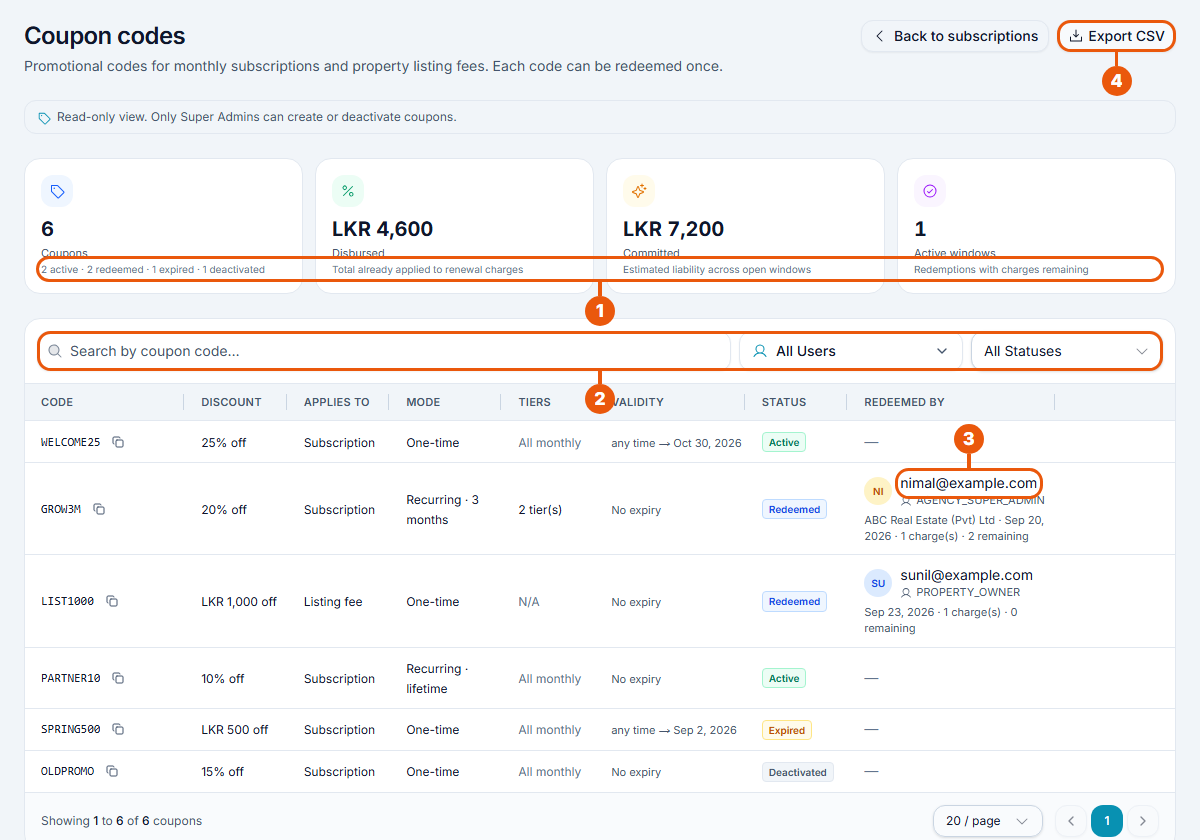
Summary:
Coupons: how many codes exist, and how many are active, redeemed, expired and deactivated.
Disbursed: the total discount already given on payments.
Committed: the discount still to come for coupons that run over several months (an estimate).
Active windows: coupons in use that still have discounted payments left.
Search and filters: search by code, or show one user's coupons or one status (Active, Redeemed, Expired, Deactivated).
Redeemed by: who used the code, their agency, the date, and how many payments have been discounted and how many are left.
Export CSV: download the list as a spreadsheet file, for your records.
The codes and names in this picture are examples only.
When you check a payment, remember that a coupon lowers the amount due. A bank transfer for a plan bought with a coupon should match the discounted amount on the request.
For what each column and status means, and how codes are created, see Creating and Managing Coupon Codes.
Related articles
Was this article helpful?
If you still have questions, our support team is here to help.
Submit a Support TicketNot signed in? Sign in first
