19.4 Creating and Managing Coupon Codes
This article is for the Super Admin. It shows how to create coupon codes, see who used them, and switch a code off.
A coupon gives a discount on an agency's monthly plan, or on a Property Owner's listing fee. Each code can be used once.
Who
What they can do
Super Admin
Create codes, switch them off, see and export the list.
Financial Officer
See and export the list only. See Watching Agency Plans.
The codes and names in these pictures are examples only.
Opening the coupon page
Click Subscriptions in the side menu, then Manage coupons at the top right.
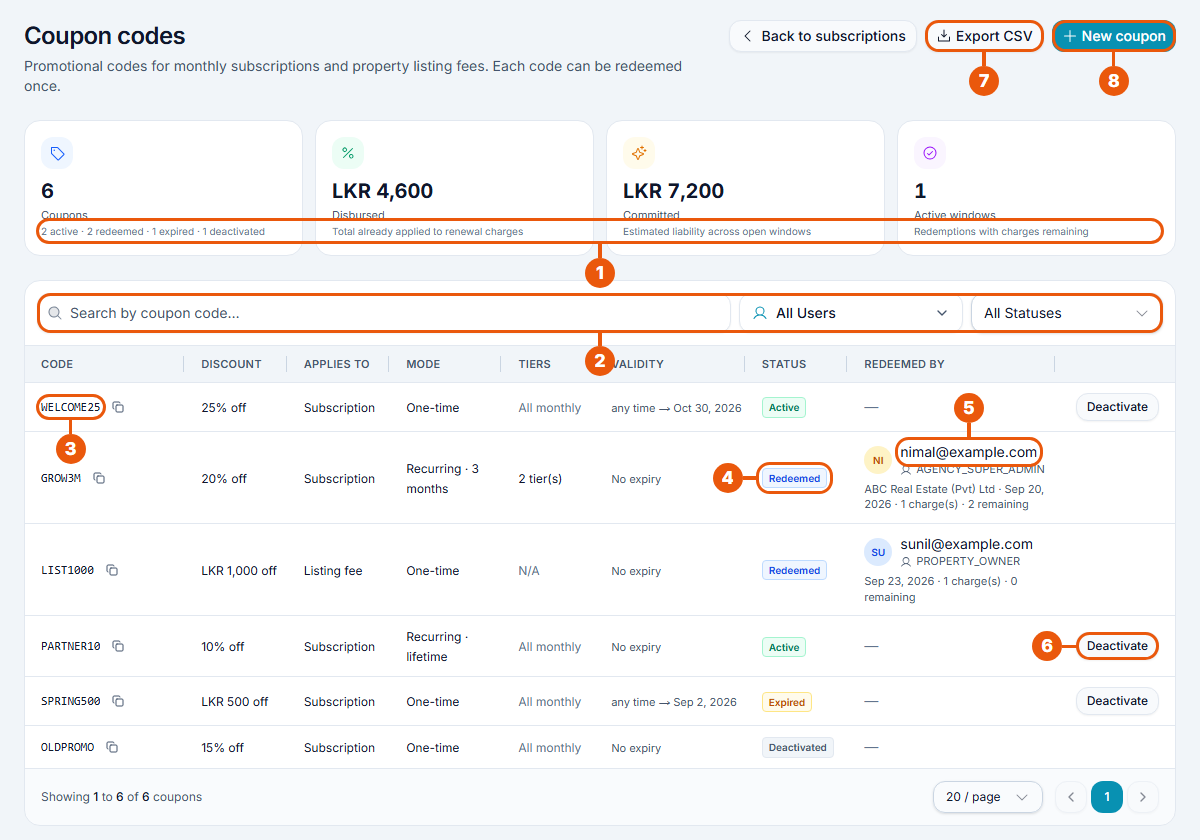
Summary:
Coupons: how many codes exist, and how many are active, redeemed, expired and deactivated.
Disbursed: the total discount already given on payments.
Committed: the discount still to come for coupons that run over several months (an estimate).
Active windows: coupons in use that still have discounted payments left.
Search and filters: search by code, or show one user's coupons or one status.
Code: click the small copy button beside it to copy the code.
Status: see the table below.
Redeemed by: who used the code, their agency, the date, and how many payments have been discounted and how many are left.
Deactivate: switch the code off.
Export CSV: download the list as a spreadsheet file.
New coupon: create a code.
Each row also shows the discount, what the code applies to (Subscription or Listing fee), the mode (how long the discount lasts), the plans (tiers) it works for, and the dates it is valid.
Statuses
Status
What it means
Active
The code can be used.
Redeemed
The code has been used. It can't be used again.
Expired
Its Valid until date has passed.
Deactivated
You switched it off.
Creating a coupon
Click New coupon.
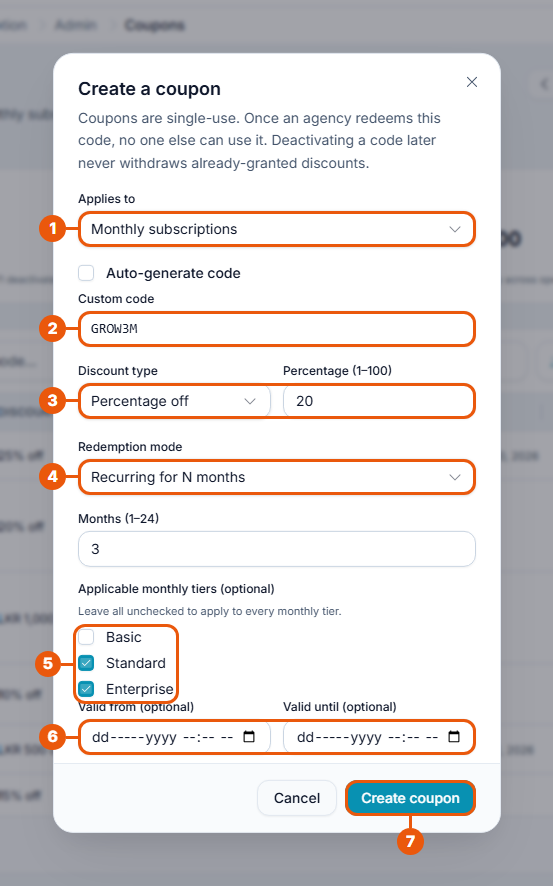
Applies to: Monthly subscriptions (agencies) or Property listing fees (Property Owners).
Code: leave Auto-generate code ticked to get a random code, or untick it and type your own. 4 to 32 characters: letters, numbers, hyphens and underscores.
Discount: Percentage off (1 to 100) or Fixed LKR off (at least LKR 1).
Redemption mode: how long the discount lasts. See below. For Recurring for N months, also enter the number of months (1 to 24).
Applicable monthly tiers (optional): tick the plans the code works for. Leave all unticked for every monthly plan.
Valid from and Valid until (optional): the dates the code can be used. Valid until must be later than Valid from.
Click Create coupon.
The window confirms Coupon created and shows the code. Copy it and send it to the agency or owner yourself: the website doesn't send it for you.
Redemption modes
Mode
The discount applies to
One-time (first charge only)
The first payment only.
Recurring for N months
The first payment and the following renewals, for the number of months you set.
Recurring forever (while monthly)
Every monthly payment, for as long as the agency stays on a monthly plan.
Rules to remember
One use only. Once anyone redeems a code, nobody else can use it. To give the same offer to several agencies, create one code for each.
A code can't be changed after it is created. If you made a mistake, deactivate it and create a new one.
Monthly plans only. Coupons never apply to yearly plans or to points.
Listing-fee coupons are always one-time and can't be limited to plans.
A fixed discount bigger than the price makes that payment free; it never goes below zero.
One coupon at a time. An agency can't add a second coupon while one is still running.
Switching a code off
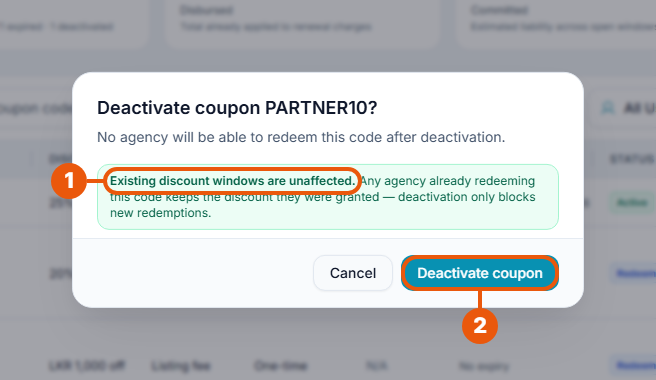
Click Deactivate on the code's row.
Existing discounts are not affected. An agency that has already used the code keeps its discount.
Click Deactivate coupon.
Nobody can use the code after this. A code that has already been Redeemed has no Deactivate button, because it can't be used again anyway.
Related articles
Redeeming a Coupon Code (what agencies see)
Was this article helpful?
If you still have questions, our support team is here to help.
Submit a Support TicketNot signed in? Sign in first
