Signing out closes your account on the device you're using. Always sign out when you use a shared or public computer.
On a computer
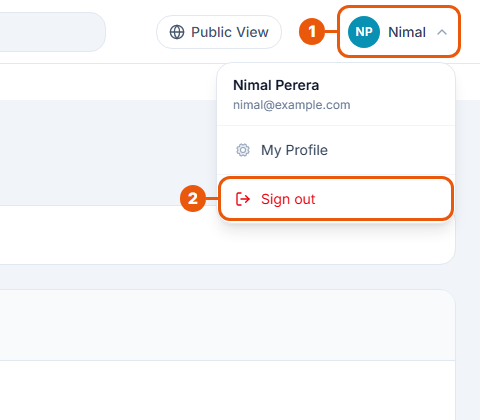
Click your name in the top-right corner of the page. A small menu opens.
Click Sign out.
You're taken back to the website, now signed out.
Or use the menu on the left. In your account area, Sign out is also at the very bottom of the menu on the left, under your name:
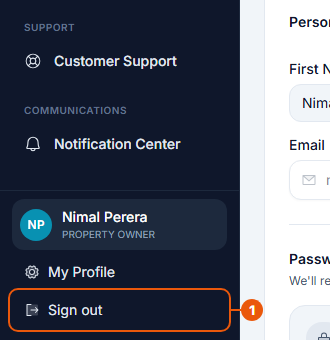
Click Sign out.
On a phone
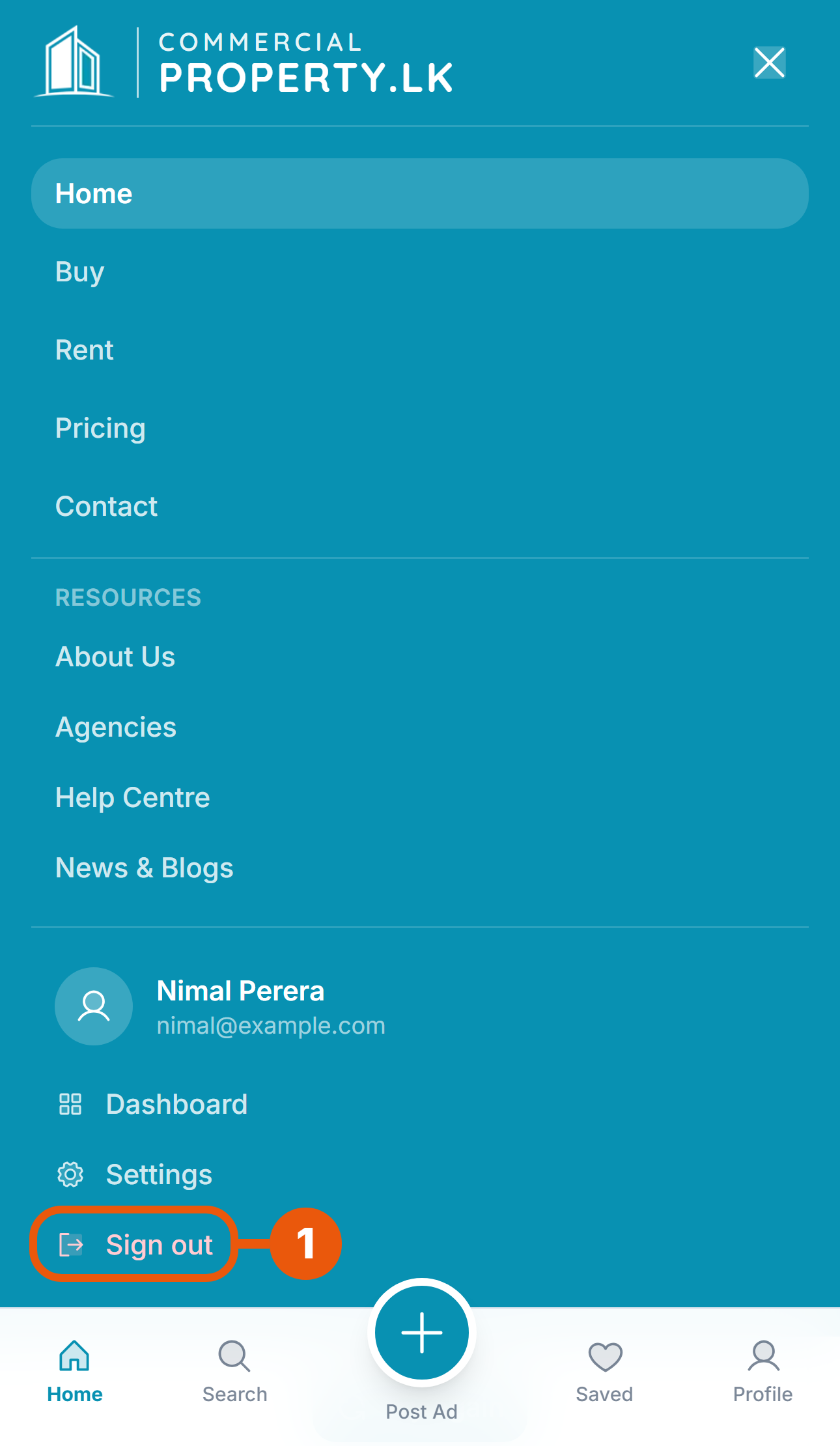
Tap ☰ at the top right of the website to open the menu.
Scroll down to the bottom of the menu. You'll see your name, then Dashboard and Settings.
Tap Sign out.
You're taken back to the website, now signed out.
When you're signed out automatically
You may be signed out without choosing to, for example:
After you upgrade your account type (for example, from Just Browsing to Property Owner), so your new account can be set up. Just sign in again.
If your agency manager or CommercialProperty.lk signs you out of your devices, for example for security reasons.
Signing out of other devices
Signed in on a device you no longer use, or see a session you don't recognise? You can sign out other devices from Settings → Security. See Security: Sign-ins and Devices.
Think someone else has used your account? Sign out of all other devices, then change your password straight away.
Related articles
Was this article helpful?
If you still have questions, our support team is here to help.
Submit a Support TicketNot signed in? Sign in first
