Sign in to manage your listings, reply to inquiries, see your favourites and change your settings.
How to sign in
Click Sign in at the top of any page on commercialproperty.lk. On a phone, tap ☰ first; Sign in is at the bottom of the menu.
The Welcome back page opens:
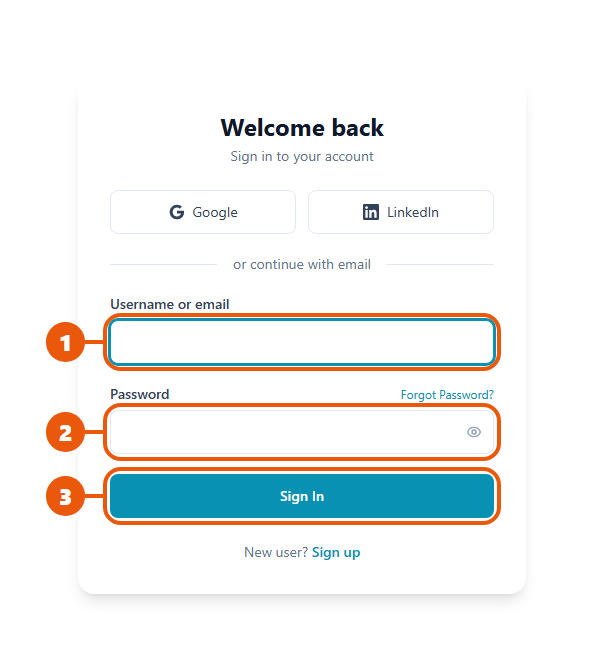
Enter your email address.
Enter your password. Click the eye icon to see what you've typed.
Click Sign In.
Other ways to sign in
Signed up with Google or LinkedIn? Click that button at the top. See Google or LinkedIn.
Forgotten your password? Click Forgot Password? See Forgot Password.
No account yet? Click Sign up.
Where you go after signing in
Your account
Where you land
Most accounts
Your Dashboard: a summary of your listings, views, inquiries and anything that needs your attention.
CommercialProperty.lk staff
Your main work list, for example the listings waiting to be checked or the payments waiting to be confirmed.
Didn't finish setting up your account? You'll be asked to complete the setup form first. See Completing Your Account Setup.
Staying signed in
You stay signed in on your device, so you don't need to sign in every time you visit.
On a shared or public computer, always sign out when you're finished.
Can't sign in?
What you see
What to do
The email or password is incorrect
Check your email for typing mistakes, check that Caps Lock is off, and try again. If you've forgotten your password, reset it.
Session expired
The sign-in page was open for too long. Go back to the website and click Sign in again.
I signed up with Google or LinkedIn and have no password
Use the Google or LinkedIn button instead of the email box.
My account has been suspended or deactivated
Contact us. Agency members should ask their agency manager first.
I was invited but never set a password
Open your invitation email. See Accepting an Invitation.
Some menu items are locked after signing in
Your agency needs to be verified first. See Why Verification Is Required.
Related articles
Previous Article
2.4 Signing Up or Signing In with Google or LinkedIn
Next Article
2.6 Forgot Password & Resetting Your Password
Was this article helpful?
If you still have questions, our support team is here to help.
Submit a Support TicketNot signed in? Sign in first
