After you confirm your email address, the Create your account form opens. This is where you choose your account type and add your details. Your email address is shown at the top, so you can check it's the right one.
Fill in the form
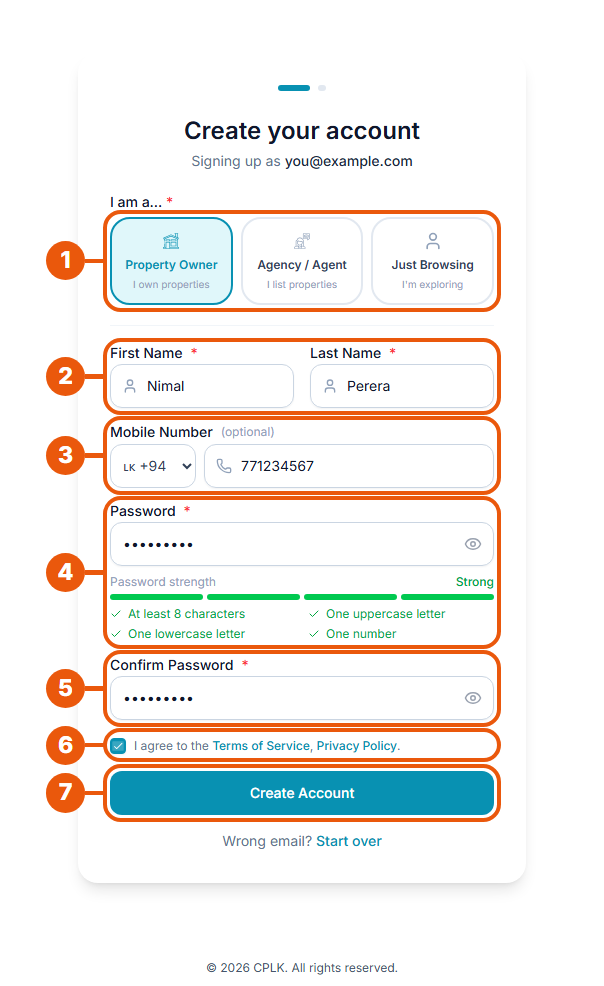
Choose your account type: Property Owner, Agency / Agent or Just Browsing. Not sure?
Enter your first name and last name.
Enter your mobile number (optional). Choose your country code, then type the number, for example 771234567.
Create a password. The ticks turn green as your password meets each rule.
Type the password again to confirm it.
Tick the box to agree to the Terms of Service and Privacy Policy.
Click Create Account. (For agencies, this button says Continue.)
Password rules
Your password must have:
at least 8 characters
at least one capital letter (A–Z)
at least one small letter (a–z)
at least one number (0–9)
The strength bar shows Weak, Medium or Strong as you type. Choose something you don't use on other websites.
Extra step for agencies
If you chose Agency / Agent, click Continue to open a second page for your agency's business details:
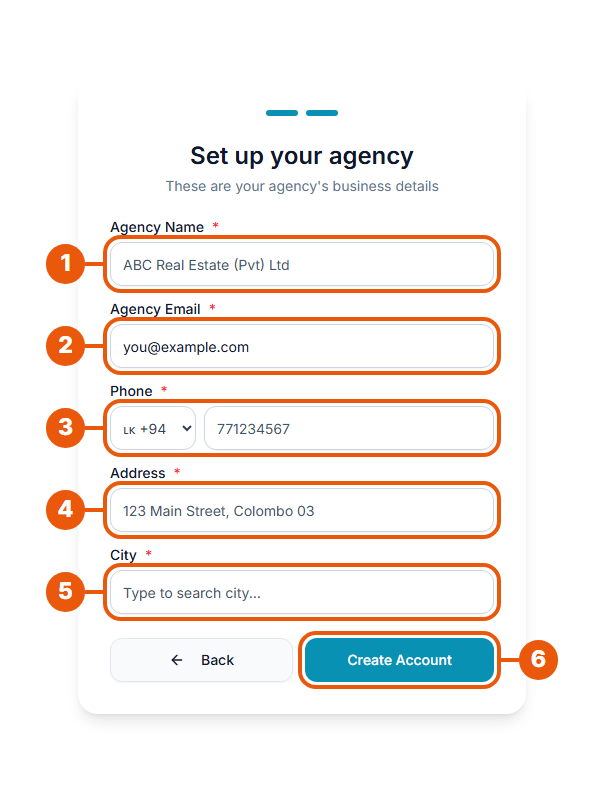
Agency Name: your registered business name.
Agency Email: your agency's main email address. It starts with your own email; change it if your agency uses a different one.
Phone: your agency's phone number.
Address: where your agency is based.
City: start typing and choose your city from the list.
Click Create Account.
Need to change your personal details? Click Back.
What happens next
Your account is created and you're taken straight to your Dashboard. You're now signed in.
Account type
What to do next
Just Browsing
Start searching and saving favourite properties.
Property Owner
Create your first listing.
Agency
Verify your agency by uploading its business registration certificate (see Why Verification Is Required), then choose a plan and invite your team. New agencies start on the free Explorer plan.
Common problems
Message
What it means
What to do
"Please select your account type to continue."
You haven't chosen an account type.
Click one of the three options under I am a….
"Passwords don't match"
The two passwords are different.
Type the same password in both boxes.
Password rule not ticked
Your password is missing something.
Check the password rules.
Agency name already exists
Another agency already uses this name.
Check the spelling, or contact us if it's your agency.
"Link invalid or expired"
The email link is too old.
Click Request a new verification link and start again.
Wrong email address shown at the top
You signed up with the wrong email.
Click Start over at the bottom of the form.
Related articles
Previous Article
2.2 Verifying Your Email Address
Next Article
2.4 Signing Up or Signing In with Google or LinkedIn
Was this article helpful?
If you still have questions, our support team is here to help.
Submit a Support TicketNot signed in? Sign in first
