After you enter your email address on the sign-up page, we send you an email with a link. Clicking the link proves the email address is yours, and lets you carry on creating your account.
Step 1: Check your email
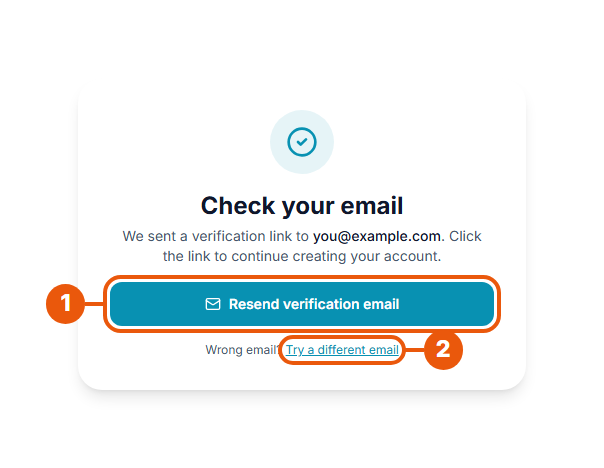
The sign-up page now asks you to check your email:
Open your email inbox and look for an email from CommercialProperty.lk.
No email?
Click Resend verification email to get a new one. You can resend once every 60 seconds.
Typed the wrong email? Click Try a different email and start again.
Step 2: Open the email and click the button
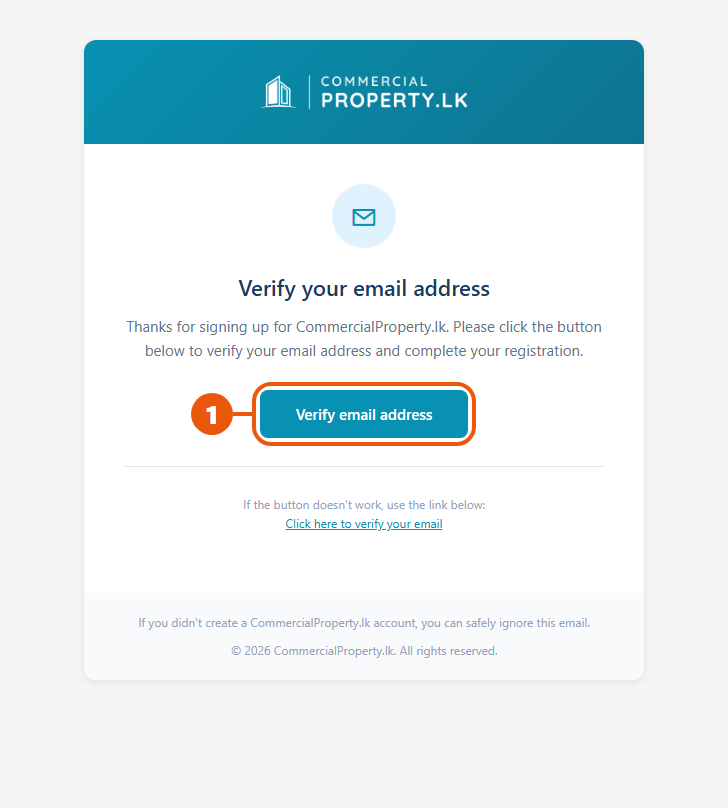
The email is titled Verify your email address.
Click Verify email address.
If the button doesn't work, click the Click here to verify your email link below it.
The link only works for a limited time. The email tells you how long.
Step 3: Confirm on the website
A page opens on the CommercialProperty.lk website:
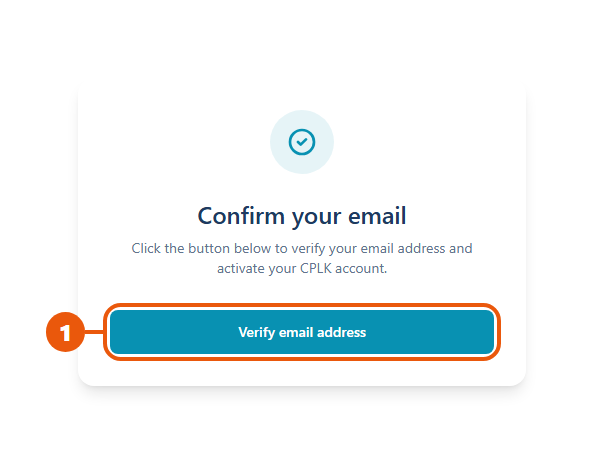
Click Verify email address.
Your email is now confirmed. You're taken to the account setup form, where you choose your account type and add your details.
If the form doesn't open automatically, follow the button on the screen.
➡️ Continue with Completing Your Account Setup.
If the link has expired
Links stop working after a while, and an older link stops working when you ask for a new one. If that happens, you'll see this:
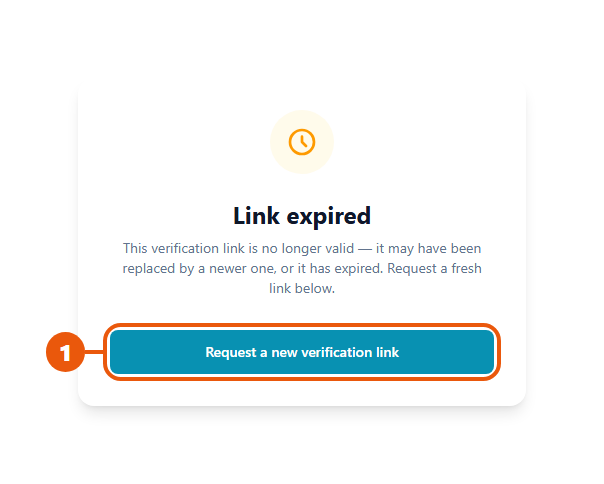
Click Request a new verification link.
Then enter your email address again on the sign-up page. We'll send you a fresh link.
Tip: always use the newest email we sent you.
Didn't get the email?
Wait a minute or two. Emails can take a short while to arrive.
Check your spam or junk folder, and any "Promotions" or "Updates" tabs.
Check the email address. If it's wrong, click Try a different email.
Resend the email with Resend verification email.
Still nothing? Contact us and we'll help.
Related articles
Was this article helpful?
If you still have questions, our support team is here to help.
Submit a Support TicketNot signed in? Sign in first
