2.4 Signing Up or Signing In with Google or LinkedIn
You can use your Google or LinkedIn account instead of creating a separate password for CommercialProperty.lk. You don't need to confirm your email address, because Google or LinkedIn has already done that.
Signing up for the first time
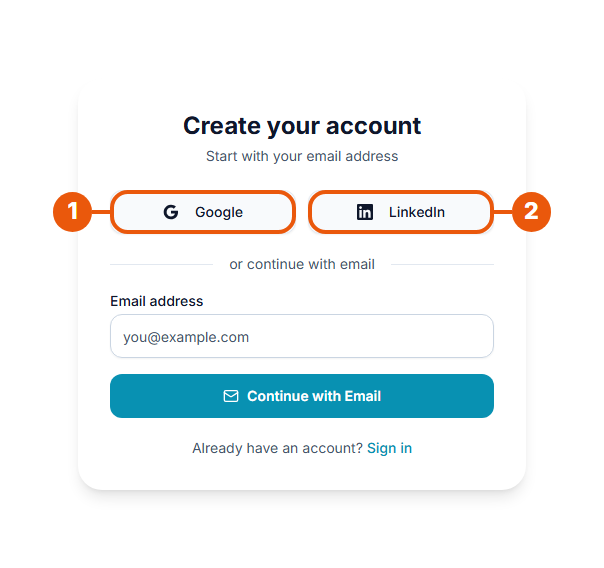
Click Sign up at the top of the website.
Choose how to continue:
Google
LinkedIn
Sign in to your Google or LinkedIn account, if asked, and allow CommercialProperty.lk to use your name and email address.
You're brought back to CommercialProperty.lk to complete your setup.
Completing your setup
The first time you sign in with Google or LinkedIn, a short form asks you to:
Choose your account type: Property Owner, Agency / Agent or Just Browsing. Not sure?
Check your details: your name (and mobile number, if you want to add it).
Agencies only: add your agency's business details on the next page. See Extra step for agencies.
You don't need to create a password. When you're done, your Dashboard opens.
Signing in next time
Click Sign in at the top of the website.
Click Google or LinkedIn. Use the same one you signed up with.
You're signed in and taken to your Dashboard.
Already have an account with the same email?
If you created an account with your email and password, and later click Google or LinkedIn with the same email address, you'll be asked to confirm that you want to connect the two. Follow the steps on the screen. You may be asked to confirm by email or by entering your CommercialProperty.lk password.
After that, you can sign in either way.
Good to know
Use the same Google or LinkedIn account every time. A different one may create a separate account.
If you lose access to your Google or LinkedIn account, contact us so we can help you get back into your CommercialProperty.lk account.
Your name comes from Google or LinkedIn. You can change it later in Settings → Profile.
Related articles
Was this article helpful?
If you still have questions, our support team is here to help.
Submit a Support TicketNot signed in? Sign in first
