The home page of CommercialProperty.lk is the quickest way to start looking for a property. You don't need an account to search or to contact an advertiser.
Start a search
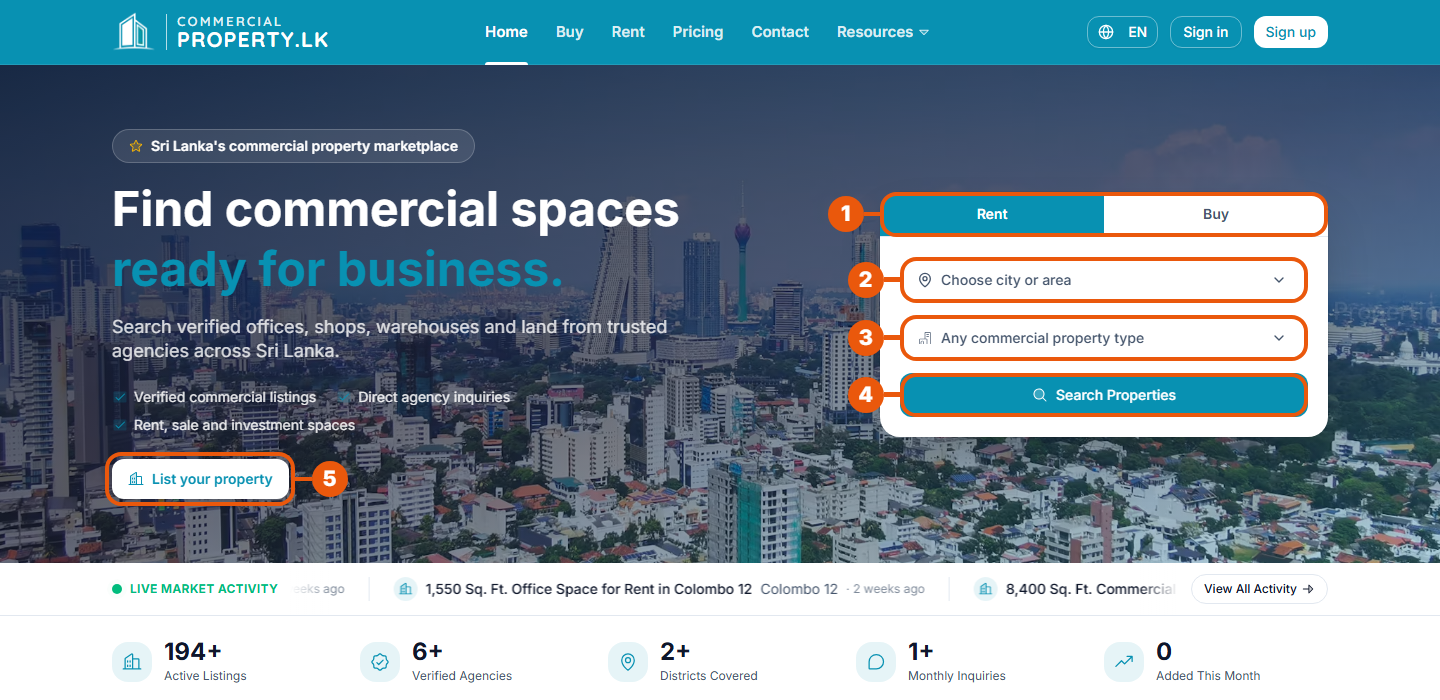
Rent or Buy: choose whether you want to rent or to buy.
Choose city or area: pick where you want the property.
Any commercial property type: pick the kind of property, such as an office or a warehouse. Leave it as it is to see all types.
Search Properties: see the matching listings.
List your property: advertise your own property. See Before You List: What You Need.
Below the search box, a moving line shows the newest listings, and a row of numbers shows how many listings and verified agencies are on the website.
What else is on the home page
Scroll down to find these sections:
Section
What it is for
Featured Properties
A selection of listings from verified agencies.
Browse by Category
Jump straight to one property type, such as Office Space or Restaurant.
Find Commercial Spaces by Area
Search by area, with a map. See below.
Recently Published Spaces
The newest listings.
Verified Agencies
Agencies whose identity has been checked. Click one to see its listings.
Ready to List Your Property?
Start advertising, or contact support.
Why Advertise on CommercialProperty.lk?
The benefits for advertisers.
Listings promoted as Homepage Sponsored are shown in their own section when there are any. See Promotion Types Explained.
Finding properties by area
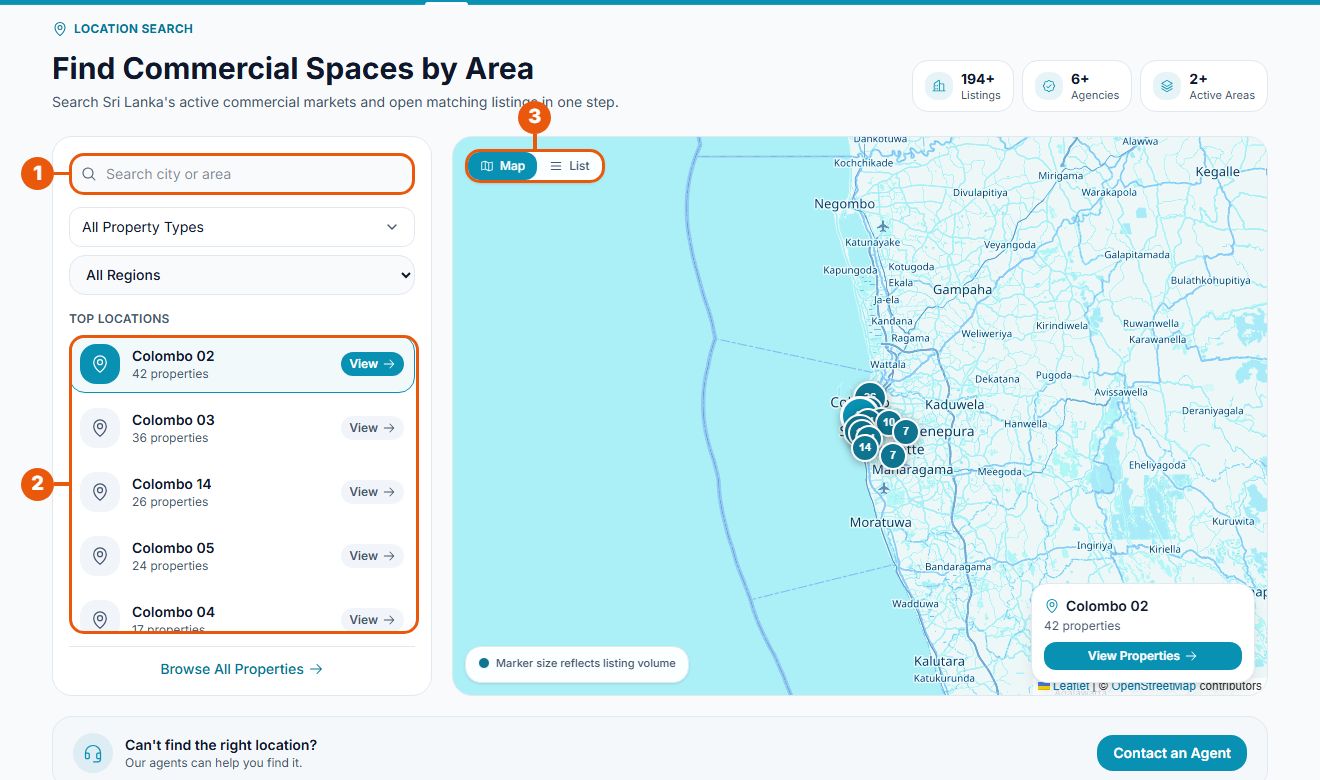
Search city or area: type a place name. You can also narrow the list by property type or region.
Top locations: the areas with the most listings. Click View to see the listings in that area.
Map or List: see the areas on a map or as a list. On the map, a bigger circle means more listings.
Reading a property card
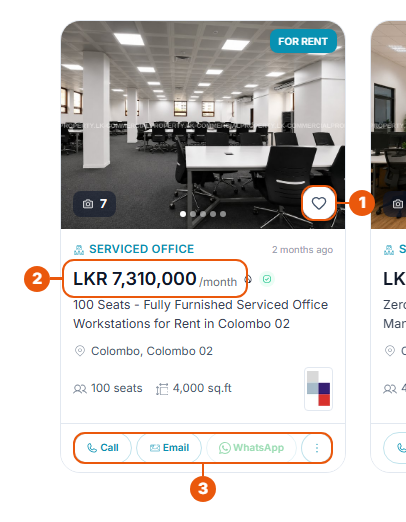
Listings appear as cards all over the website.
Heart: save the property to your favourites. You need to be signed in.
Price: a small green tick beside the price means the listing is Verified.
Call, Email, WhatsApp: contact the advertiser straight from the card. The three dots open more choices.
Click the photo or the title to open the full listing.
The card also shows the property type, how long ago it was listed, the location, the size, and the advertiser's logo. A label on the photo shows For Rent or For Sale, and Rented or Sold once the deal is done.
The menu at the top
Home, Buy, Rent, Pricing, Contact and Resources are on every page. Resources leads to About Us, the Help Centre and News & Blogs. On the right you can change the language, sign in or sign up.
Related articles
Was this article helpful?
If you still have questions, our support team is here to help.
Submit a Support TicketNot signed in? Sign in first
