10.2 Searching and Filtering Properties
The Properties page lists every property on the website. Use the filters to narrow the list to what you need.
Opening the Properties page
Click Buy or Rent in the top menu; or
search from the home page. See The Home Page.
The search tools
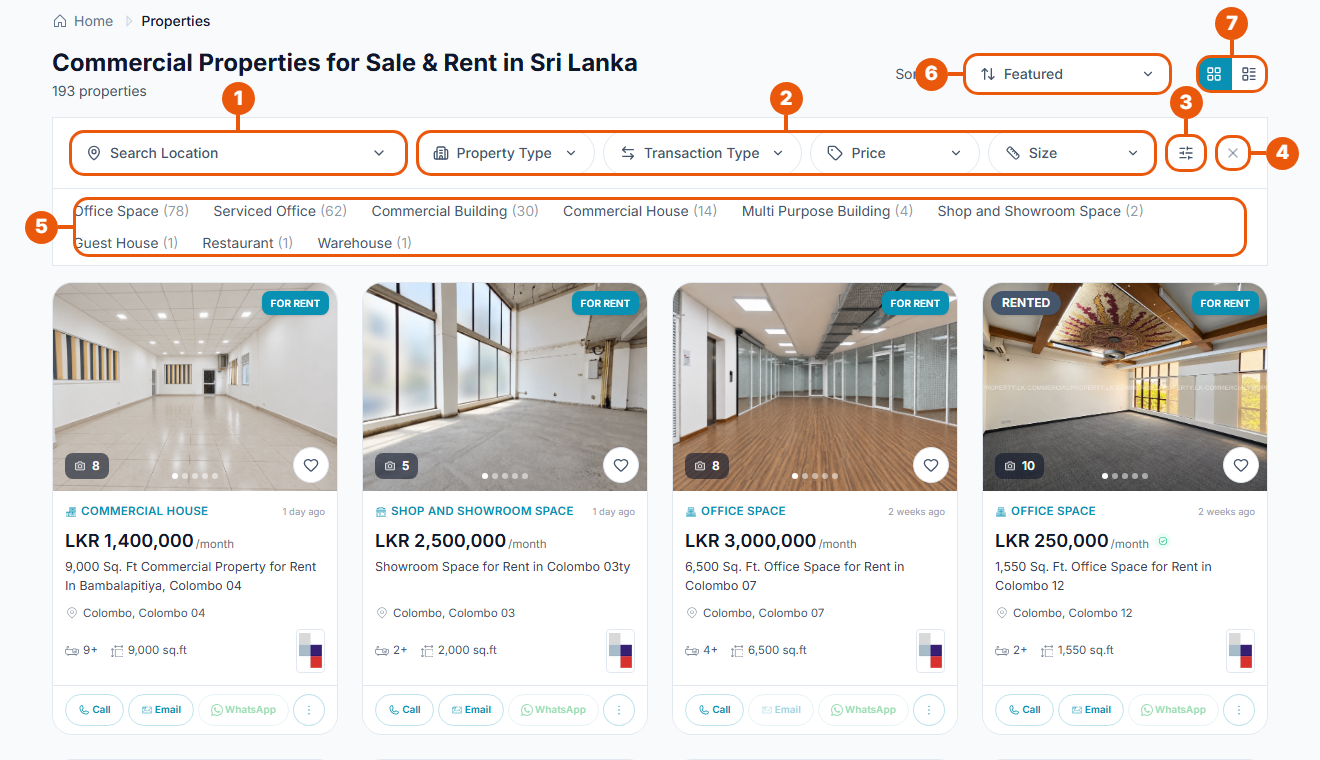
Search Location: pick a city or area. The number beside each place shows how many listings it has.
Main filters: Property Type, Transaction Type (rent or buy), Price and Size. For Price and Size, type the lowest and highest values, then click Apply.
More Filters: extra filters. See below.
Clear: remove every filter and start again.
Property type shortcuts: click a type to see only those listings. The number shows how many there are.
Sort by: change the order of the results.
View: switch between a grid of cards and a list.
The number under the page title tells you how many properties match.
More filters
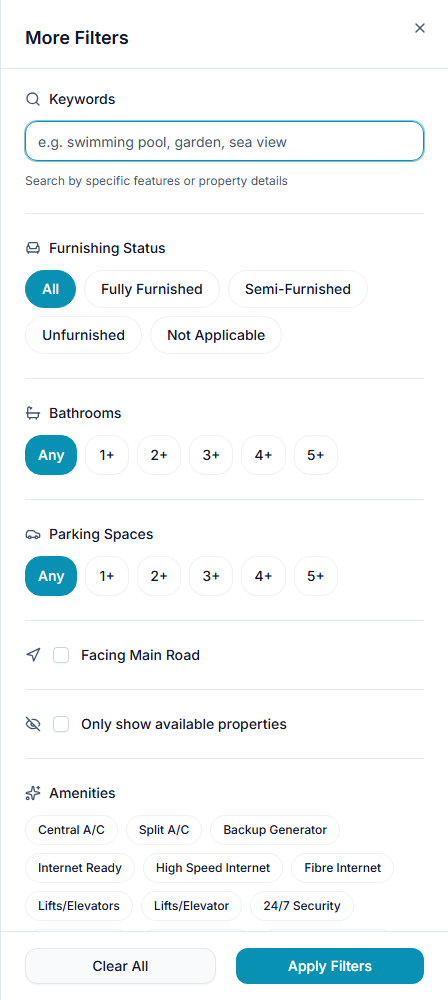
Click the More Filters button to open this panel.
Keywords: words that should appear in the listing, such as "sea view".
Furnishing Status: fully furnished, semi-furnished or unfurnished.
Bathrooms and Parking Spaces: the fewest you need.
Facing Main Road: only properties on a main road.
Only show available properties: leave out properties already sold or rented.
Amenities: things the property must have, such as a backup generator or lifts.
Click Apply Filters to see the results, or Clear All to reset the panel.
Sorting the results
Choice
What you see first
Featured
Promoted listings, then the rest. This is the usual order.
Newest First
The most recently listed properties.
Price: Low to High
The cheapest properties.
Price: High to Low
The most expensive properties.
Most Viewed
The properties most people have looked at.
Promoted listings carry a Featured or Boosted label on the photo. See Promotion Types Explained.
Pages for a property type or area
When you choose a property type or an area, the page title changes to match, for example Office Space for Rent in Colombo.
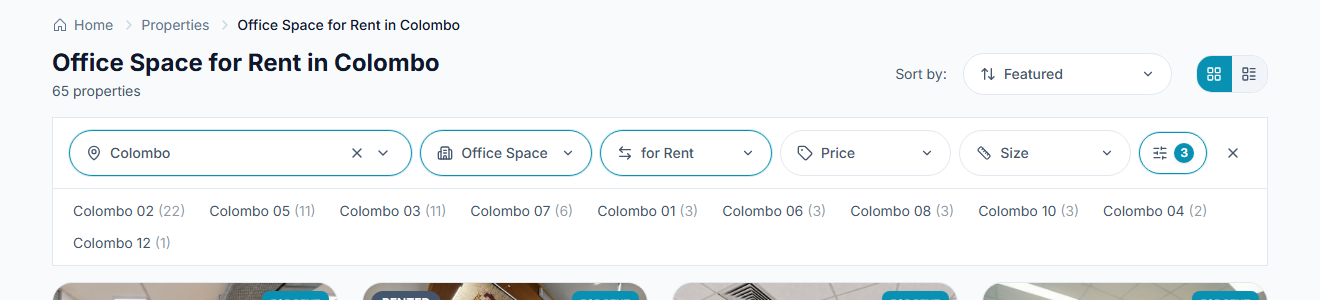
These pages work the same way as the main Properties page. At the bottom you'll find a short description of that type or area and answers to common questions.
If nothing matches
You'll see a message asking you to adjust your filters. Click Clear filters, or remove filters one at a time until results appear.
On a phone
The filters are behind a single Filters button, and Sort is beside it. Everything else works the same way.
Related articles
Was this article helpful?
If you still have questions, our support team is here to help.
Submit a Support TicketNot signed in? Sign in first
