Your Dashboard is the first page you see after signing in. It gives you a quick summary of your account and shows anything that needs your attention. You can always get back to it by clicking Dashboard at the top of the side menu.
What you see depends on your account type. Find your account type below.
The names and numbers in these pictures are examples.
Agency Super Admins and Agency Admins
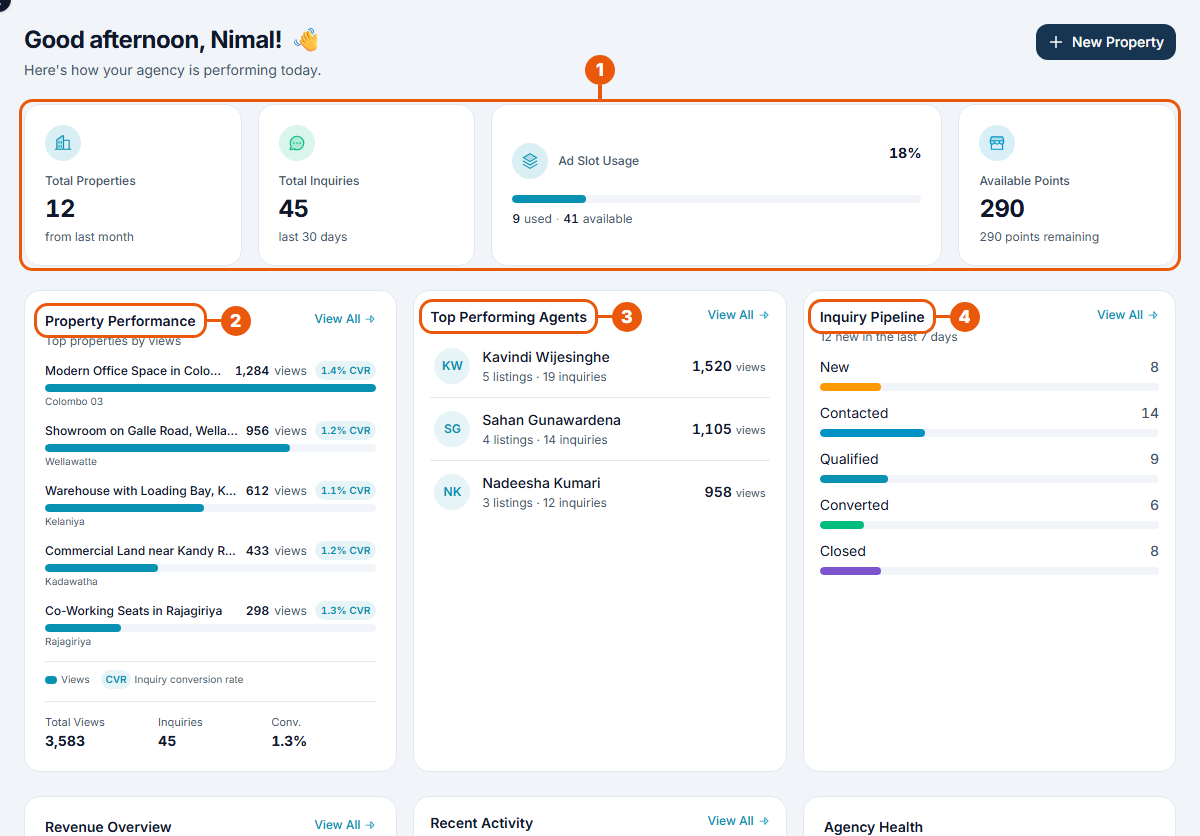
Summary cards: the agency's total properties, total inquiries, ad slot usage (how many of your plan's listing places are in use) and available points.
Property Performance: the agency's most-viewed listings.
Top Performing Agents: which agents' listings get the most views and inquiries.
Inquiry Pipeline: how many inquiries are New, Contacted, Qualified, Converted or Closed.
Scroll down for revenue, recent activity and an overall agency health summary.
New agencies: "Finish setting up your account"
A new agency sees a checklist at the top of the Dashboard until it's ready to advertise:
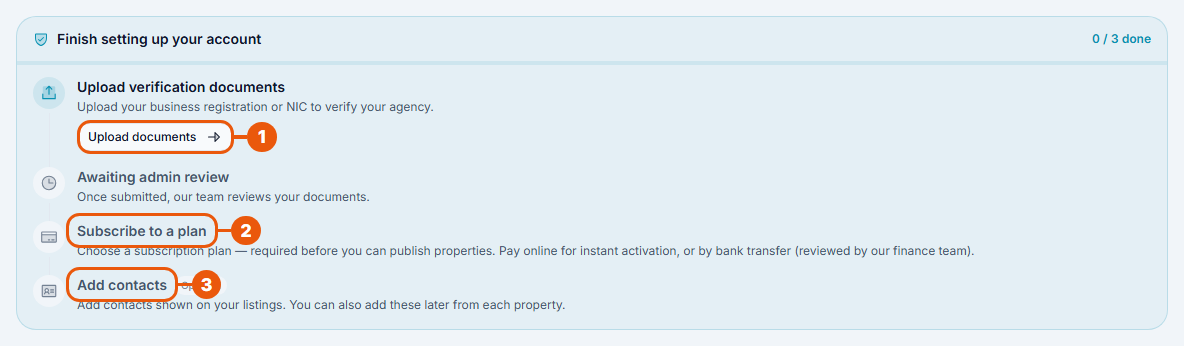
Upload verification documents: click Upload documents to send your business registration certificate. Our team then reviews them ("Awaiting admin review").
Subscribe to a plan: you need a paid plan (or the free trial) before you can publish listings. New agencies start on the free Explorer plan.
Add contacts (optional): the people whose phone numbers and emails appear on your listings.
The counter at the top right (for example 0 / 3 done) shows your progress. The checklist disappears once everything is done.
Agents
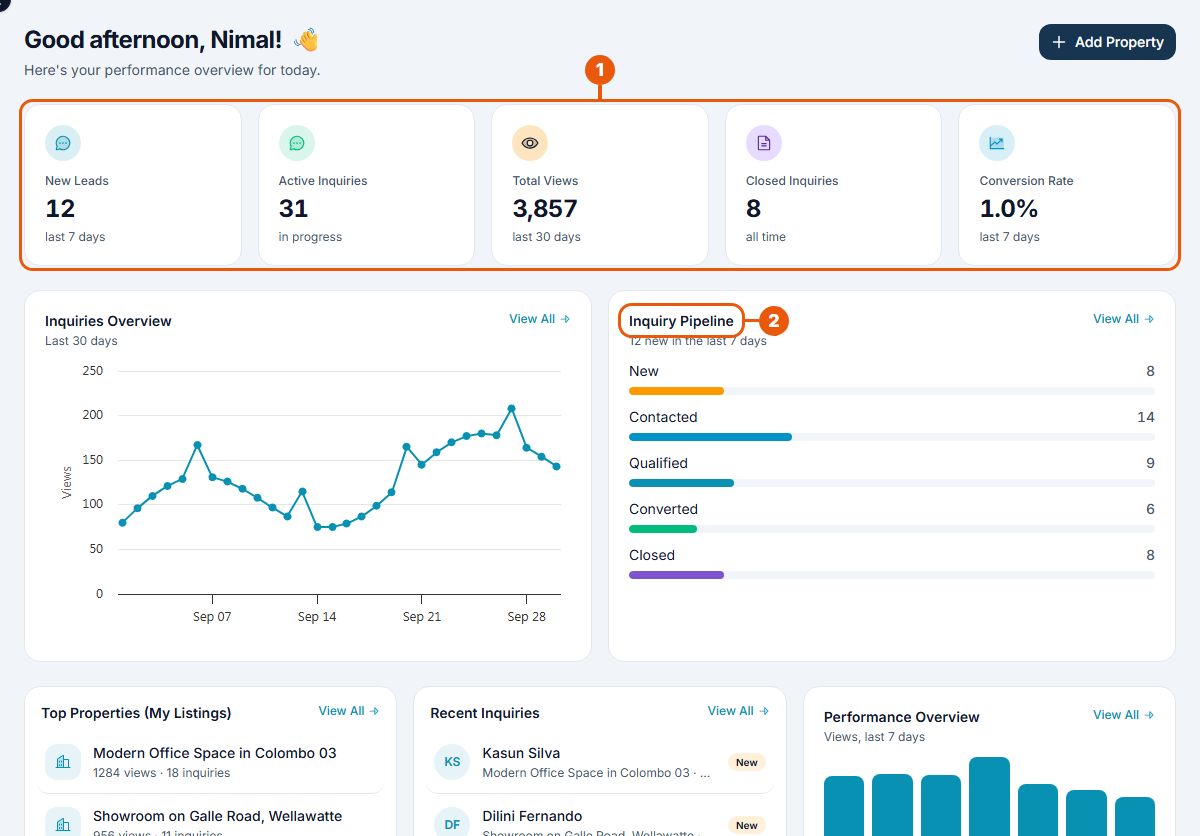
Summary cards: your new leads, active and closed inquiries, total views, and conversion rate (the share of inquiries that turned into a deal).
Inquiry Pipeline: your inquiries by status.
You'll also see a chart of the last 30 days, your top listings, your recent inquiries, and a quick Add Property button.
Property Owners
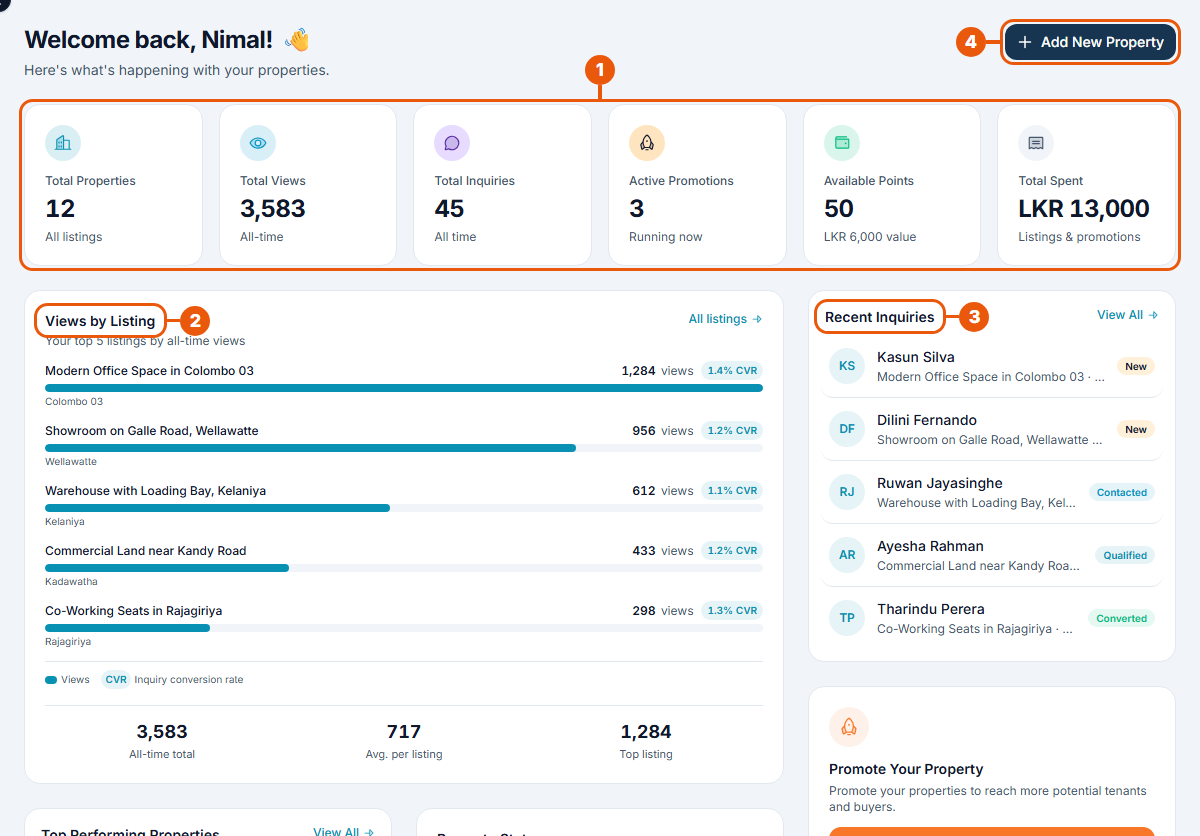
Summary cards: your total properties, total views, total inquiries, active promotions, available points, and how much you've spent.
Views by Listing: your five most-viewed listings, so you can see which ones people are interested in.
Recent Inquiries: the latest messages from interested people, with their status (for example New or Contacted). Click View All to see them all.
Add New Property: start a new listing.
Scroll down for your top-performing properties, a summary of your listings' status, recent payments, and a shortcut to promote your listings.
Just Browsing (Property Viewers)
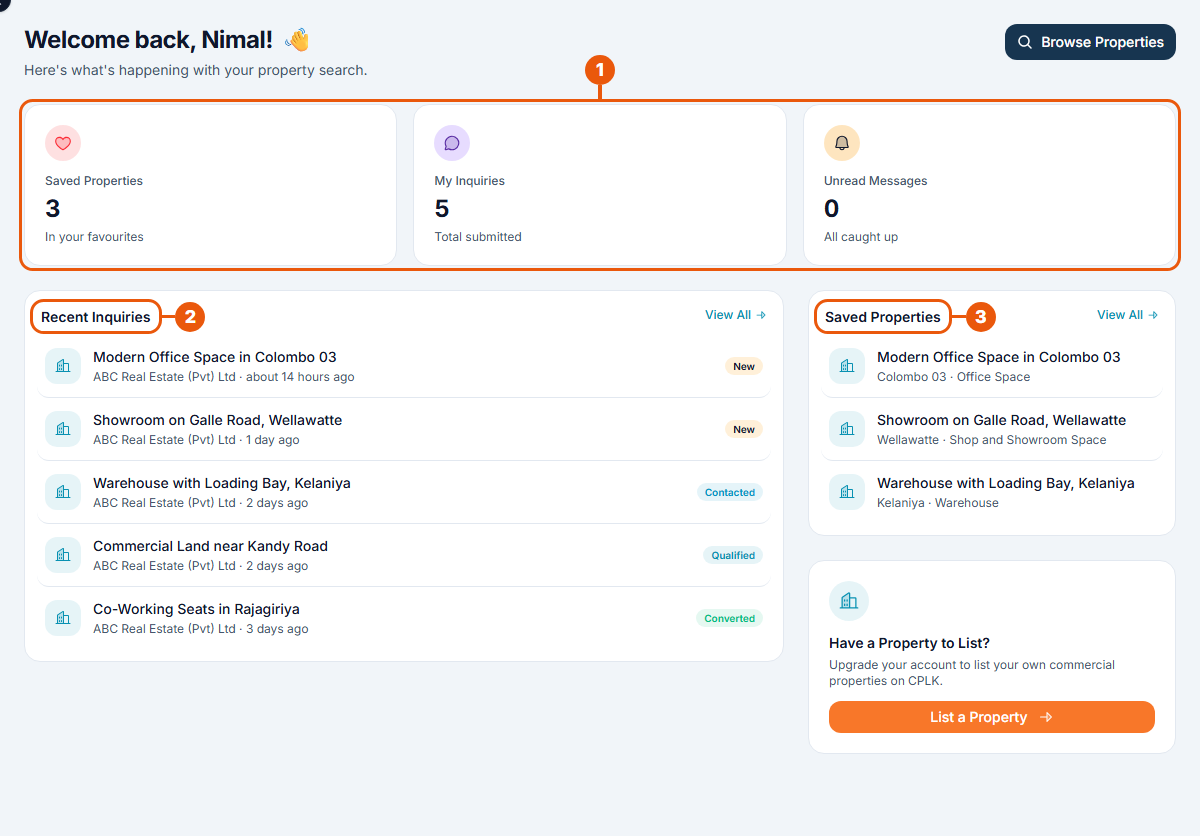
Summary cards: how many properties you've saved, how many inquiries you've sent, and any unread replies.
Recent Inquiries: the properties you've asked about and the status of each inquiry.
Saved Properties: the properties in your favourites.
Want to advertise your own property? Click List a Property to upgrade your account. See Upgrading Your Account Type.
CommercialProperty.lk staff
Staff Dashboards show the work waiting for them, for example listings to approve, payments to check or support requests. Some staff roles go straight to their main work list when they sign in.
Related articles
Was this article helpful?
If you still have questions, our support team is here to help.
Submit a Support TicketNot signed in? Sign in first
