8.8 Moving a Listing to Another Team Member
In an agency, each listing belongs to one team member. The Agency Super Admin can move a listing to someone else, for example when an agent leaves or when work is shared out again.
Who can do this
Only the Agency Super Admin. Property Owner listings can't be moved.
What changes
The chosen team member becomes the listing's owner. It appears in their listings list.
Their main contact details are put on the listing automatically, so new inquiries reach them.
The listing's status doesn't change, and it stays on the website.
How to move a listing
Open All Properties and open the listing.
Click More actions, then Assign to another user.
Choose the new owner:
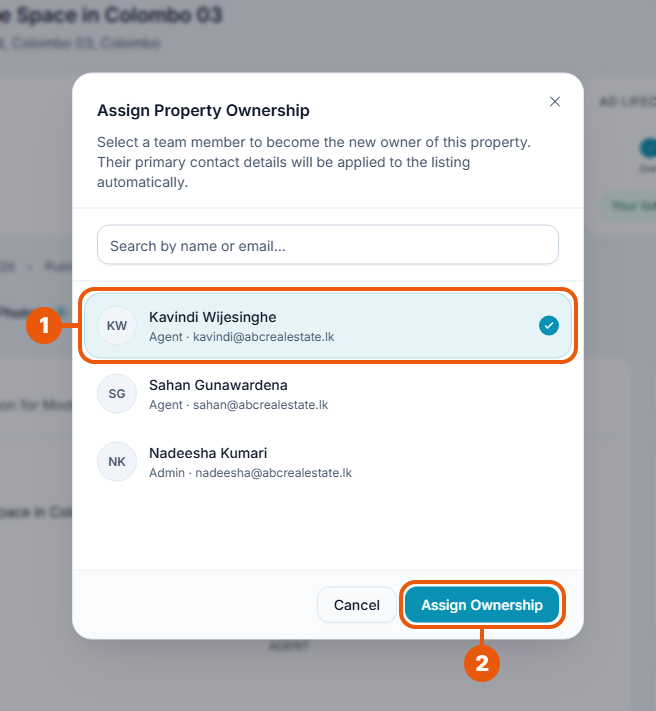
Click the team member who should own the listing. Use the search box to find them by name or email.
Click Assign Ownership.
The Owner shown on the listing's page changes to the new team member.
Good to know
Tell the new owner. They'll be the one visitors contact from now on.
If a team member is leaving, move their listings first so inquiries keep reaching someone. See Managing Agency Members.
Related articles
Was this article helpful?
If you still have questions, our support team is here to help.
Submit a Support TicketNot signed in? Sign in first
