You can change a listing's details, photos and contacts after you create it. What happens next depends on the listing's status, so check the table below before you start.
Important: Editing a listing that is already on the website takes it off the website until it is approved again.
What happens when you edit
Listing status
Can you edit it?
What happens
Draft
Yes
Nothing else changes. Send it for review when you're ready.
Rejected
Yes
Fix the problem and send it again. See Handling Rejected Listings.
Pending Approval (agency listing)
Yes
The listing goes back to Draft and leaves the review queue. You must send it again.
Pending (Property Owner listing)
No
Wait for the review to finish.
On the website (Agency Approved, Approved or Verified)
Yes, with a warning
The listing comes off the website, goes back to Draft and must be approved again.
Sold or Rented
No
The listing can no longer be changed.
Expired, Permanently Rejected, or waiting for a payment or refund
No
The listing can no longer be changed, or is locked until the payment step is finished.
Who can edit a listing that is on the website
Agency listings: only the Agency Super Admin. Agents and Agency Admins see a note asking them to contact their Agency Super Admin.
Property Owner listings: the Property Owner.
How to edit a listing
Open All Properties (or My Properties) and open the listing.
Click More actions, then Edit Property. You can also click the Edit button on the listing's row in the list.
If the listing is on the website or waiting for review, a warning appears. Read it, then choose to continue or cancel.
The listing form opens with your details filled in. Change what you need in any step.
Go to the last step, tick the two confirmation boxes, and send the listing for review.
For help with each step of the form, see The Listing Form: Overview, Drafts and Saving.
Editing a listing that is on the website
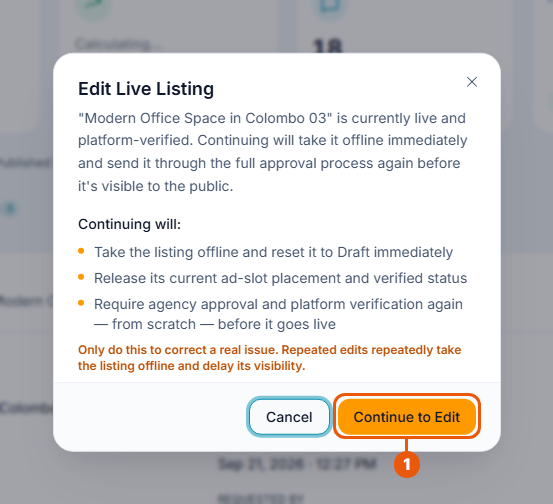
When you click Edit Property on a live listing, this warning appears.
If you continue:
the listing comes off the website straight away and goes back to Draft;
it loses its Verified status;
its ad slot is freed;
any promotion running on it is cancelled;
it must be approved again from the start before it returns to the website.
Click Continue to Edit only if you're sure. Click Cancel to leave the listing as it is.
Tip: Collect all your changes and make them in one go. Each edit takes the listing offline until it is approved again.
Changes that don't need an edit
You don't need to edit the listing to:
mark it as Available Soon, Sold or Rented. See Marking a Listing as Available, Sold or Rented;
take it off the website for a while. See Taking a Listing Off the Website and Putting It Back.
Neither of these sends the listing back for review.
Related articles
Previous Article
8.2 The Listing Page in Your Account
Next Article
8.4 Taking a Listing Off the Website and Putting It Back
Was this article helpful?
If you still have questions, our support team is here to help.
Submit a Support TicketNot signed in? Sign in first
