The Properties page shows every listing you look after in one place. Use it to check a listing's status, find a listing quickly, and open it to make changes.
Opening the list
Click All Properties (or My Properties) in the side menu.
Agents see their own listings.
Agency Admins and Agency Super Admins see every listing in the agency.
Property Owners see their own listings.
What's on the page
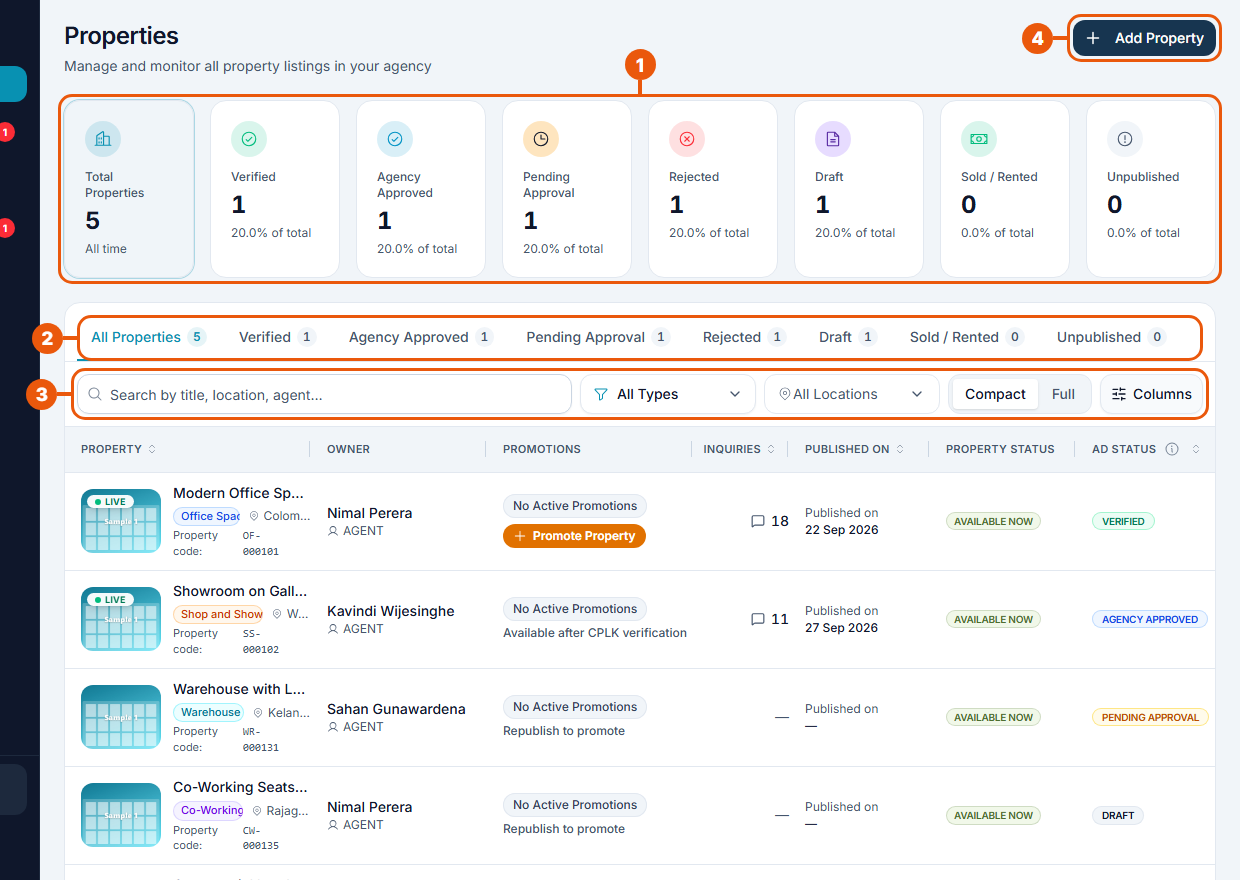
Summary cards: how many listings you have in total and in each status.
Tabs: show only one group of listings. The number beside each tab is how many it holds.
Search and filters: find a listing by its title, location or agent, or narrow the list by property type or location.
Add Property: start a new listing. See The Listing Form: Overview, Drafts and Saving.
The tabs
Tab
What it shows
All Properties
Every listing
Verified
Listings that passed the final check by CommercialProperty.lk
Agency Approved
Listings approved by the agency and already on the website
Pending Approval
Listings waiting for a reviewer
Rejected
Listings sent back for changes
Draft
Listings you haven't sent for review yet
Sold / Rented
Listings marked as sold or rented
Unpublished
Listings taken off the website
For what each status means, see Listing Statuses Explained.
What each row tells you
Column
What it shows
Property
Photo, title, property type, location and property code. A green Live label means the listing is on the website.
Owner
The team member the listing belongs to. Agents and Property Owners don't see this column.
Promotions
Any promotion running on the listing, or a Promote Property button if it can be promoted.
Inquiries
How many people have contacted you about the listing.
Published on
The date the listing went on the website.
Property status
Available Now, Available Soon, Sold or Rented.
Ad status
Where the listing is in the review process, for example Draft, Pending Approval or Verified.
Click a column heading with small arrows beside it to sort the list by that column.
Choosing which columns you see
Compact shows the main columns only.
Full shows every column.
Columns lets you pick the columns yourself.
The buttons on each row
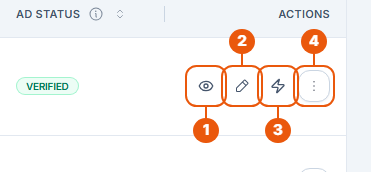
At the end of each row, under Actions:
View: open the listing's page.
Edit: open the listing form to change it.
Promote: give the listing more attention on the website.
More: other actions, such as Publish, Unpublish or Delete.
You only see the buttons that fit the listing. For example, Promote appears only on a Verified listing that is on the website.
On a narrow screen, scroll the table sideways to reach the Actions column.
Related articles
Was this article helpful?
If you still have questions, our support team is here to help.
Submit a Support TicketNot signed in? Sign in first
