12.5 Downgrading and Scheduling Plan Changes
This article covers two things you arrange in advance: moving to a smaller plan, and paying early for your next month.
Part 1: Moving to a smaller plan
How a downgrade works
A downgrade does not happen straight away. It takes effect when your current period ends.
Until then you keep your current plan, ad slots and points.
You pay for the new plan now. This payment covers your first period on the smaller plan.
Nothing is refunded for the plan you are leaving.
If nothing is due, the window says Nothing to pay today and you only confirm.
If nothing is due, the window says Nothing to pay today and you only confirm.
Moving from yearly to monthly on the same plan also counts as a downgrade.
What happens to your listings
The smaller plan has fewer ad slots. If you have more listings on the website than the new plan allows, the extra ones are taken off the website automatically on the day the downgrade takes effect.
Those listings are not deleted and keep their approved or Verified status.
You can put one back whenever you have a free ad slot.
To choose for yourself which listings stay, unpublish the ones you don't need before the downgrade date. See Ad Slot Management and Bulk Unpublishing.
How to schedule a downgrade
Click Subscription & Points in the side menu and scroll to Choose a Plan.
Click Schedule Downgrade under the smaller plan.
Check the details and pay:
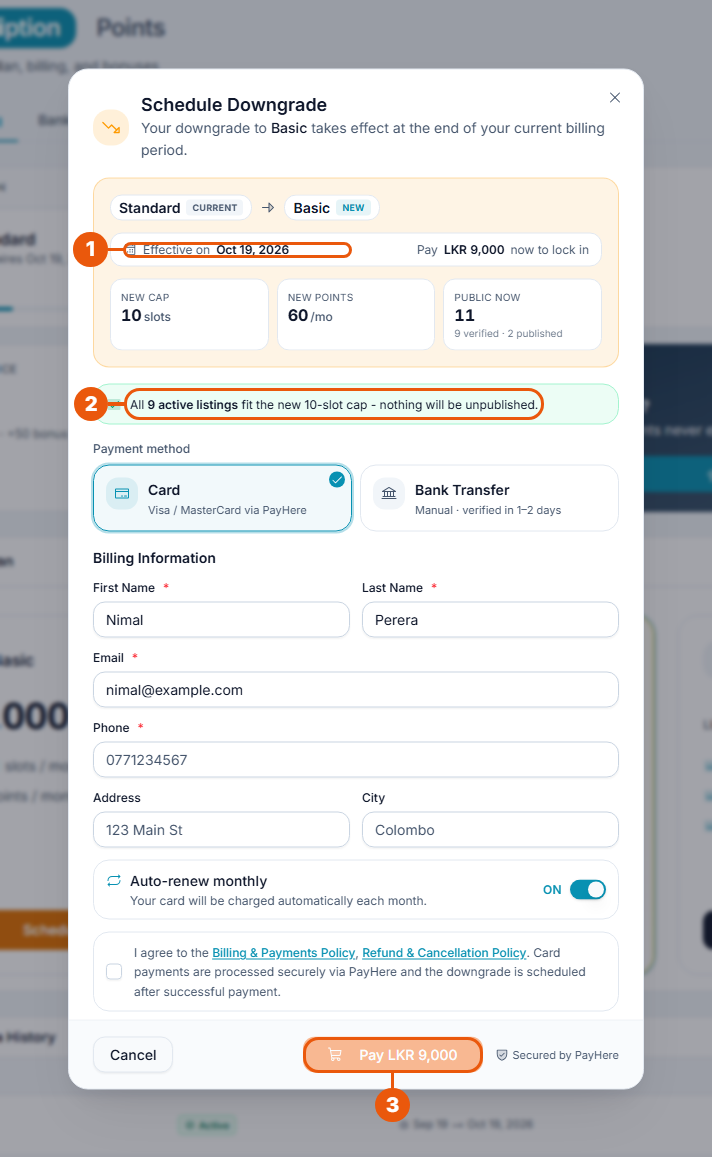
Effective on: the day the smaller plan starts. Beside it is the amount to pay now. Below are the new plan's ad slots and points, and how many listings you have on the website today.
Listings note: green means all your listings fit. Otherwise it says how many will be taken off the website.
Choose Card or Bank Transfer, tick the agreement box and click Pay LKR ….
After you schedule it
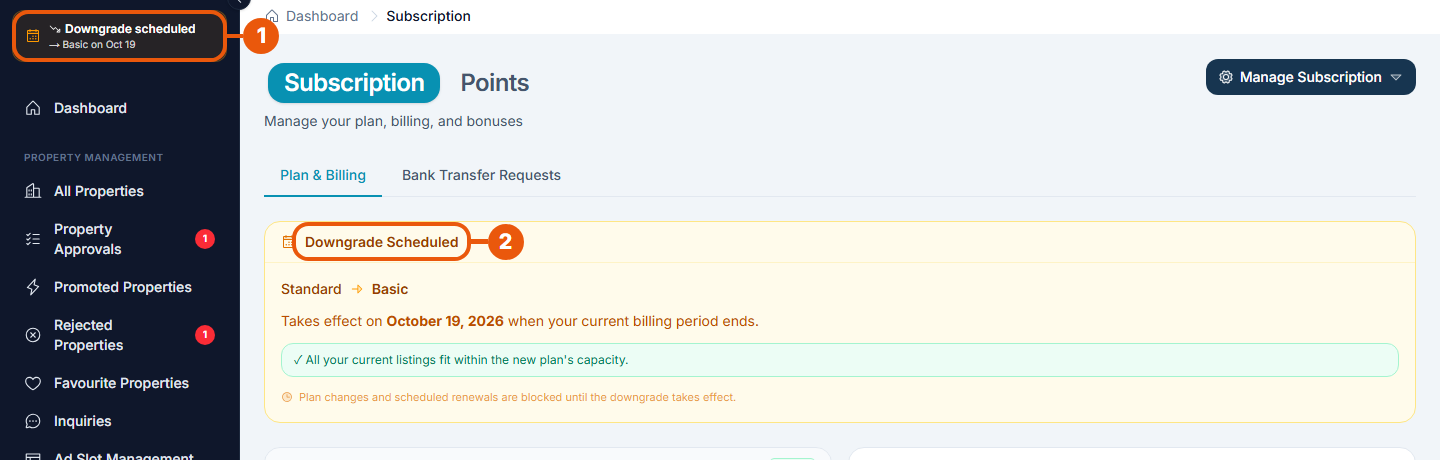
A Downgrade scheduled note appears at the top of the side menu.
The Downgrade Scheduled notice shows the two plans, the date, and whether your listings fit.
Until the downgrade takes effect, you can't upgrade, change plan again or pre-pay the next period.
There is no button to cancel a scheduled downgrade. If you change your mind, contact support before the date. See Raising a Support Ticket.
Part 2: Paying early for your next month
If you pay monthly and renew by hand, you can pay for the next month before the current one ends. Your plan then carries on without a break.
How to do it
Click Schedule Now in the Next Payment box, or Manage Subscription, then Schedule next period.
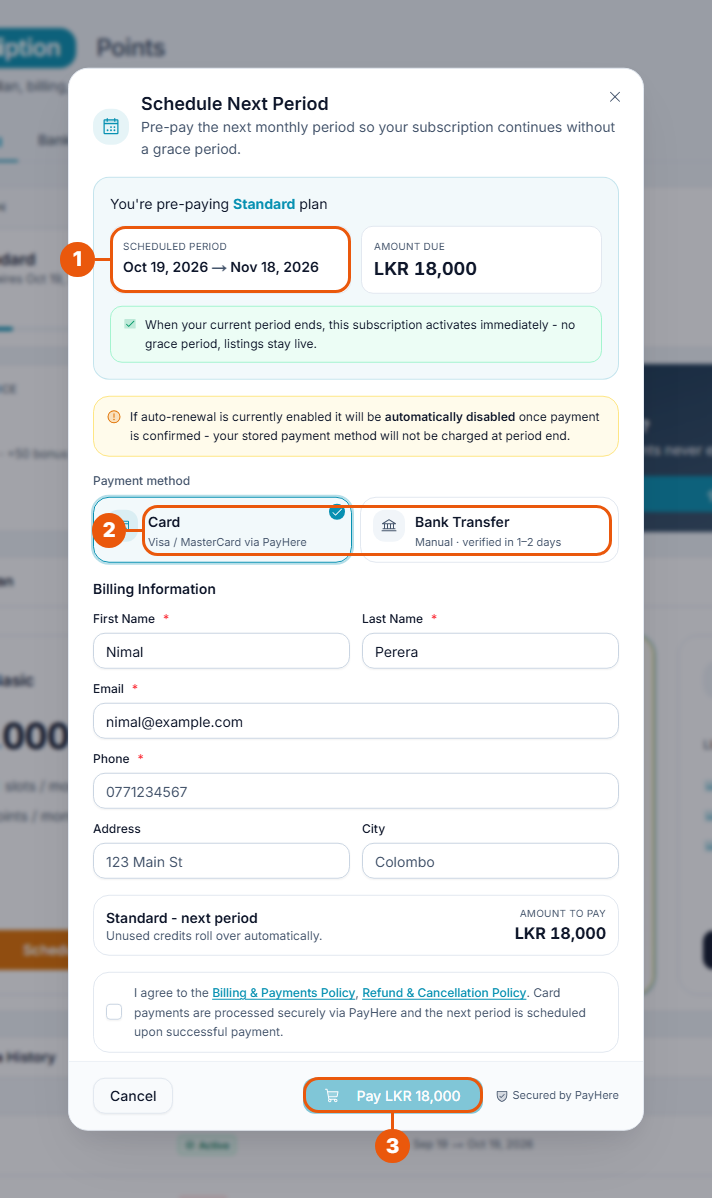
Scheduled period: the dates the payment covers, with the amount due beside it.
Choose Card or Bank Transfer.
Tick the agreement box and click Pay LKR ….
If automatic renewal was on, it is switched off once this payment is confirmed, so you aren't charged twice.
After you pay
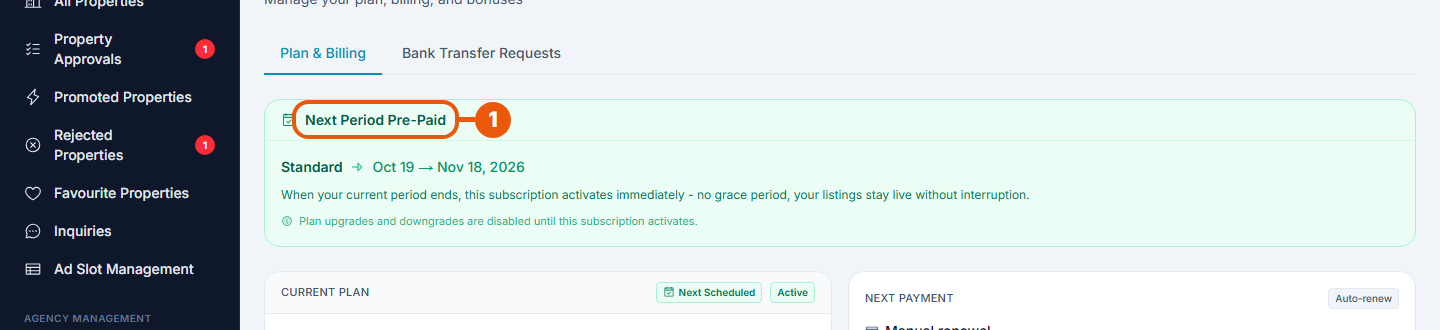
The Next Period Pre-Paid notice shows the plan and the dates. When your current period ends, the next one starts immediately, and your listings stay on the website.
Points you haven't used are carried over.
While the next period is pre-paid, you can't upgrade or downgrade. There is no button to undo it; contact support if you need to.
Paying early is offered only on a monthly paid plan, and not while a downgrade is scheduled.
Related articles
Was this article helpful?
If you still have questions, our support team is here to help.
Submit a Support TicketNot signed in? Sign in first
