5.3 Quick Start: Agency Super Admins
This guide is for the person who runs an agency's account. As the Agency Super Admin you set up the agency, pay for its plan, manage the team, and approve the team's listings.
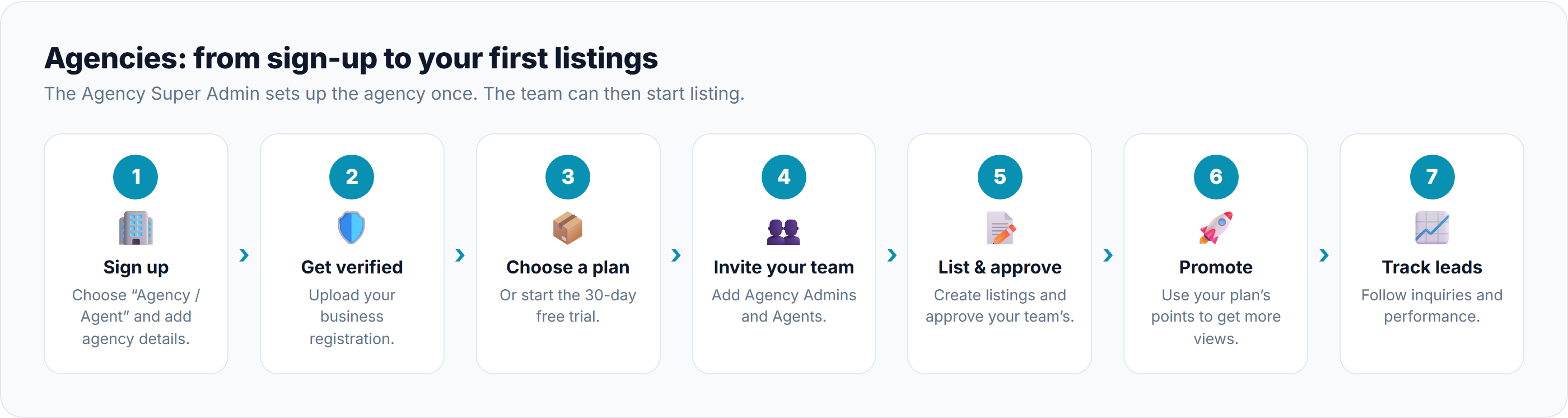
Setting up your agency
Step
What to do
Learn more
1. Sign up
Click Sign up, confirm your email, choose Agency / Agent, and enter your agency's details.
Creating an Account, Completing Your Account Setup
2. Get verified
Upload your business registration certificate. Most pages stay locked 🔒 until we approve it (usually 1–2 business days).
Why Verification Is Required, Submitting Verification Documents
3. Choose a plan
New agencies start on the free Explorer plan, which can't publish listings. Choose a paid plan, or start the 30-day free trial.
Subscription Plans Explained, Starting a Free Trial, Subscribing to a Plan
4. Invite your team
Add your Agency Admins and Agents. Each one gets an invitation by email.
Your Dashboard shows a Finish setting up your account checklist until these are done. See Your Dashboard.
Also worth doing early:
Complete your agency profile (logo, description, contact details). It appears on your public agency page. See Managing Your Agency Profile.
Add contacts: the people whose phone numbers and emails appear on listings. See Managing Listing Contacts.
Day-to-day work
Step
What to do
Learn more
5. List and approve
Create listings yourself, and approve or reject the listings your team sends you in Property Approvals. Approved listings go live; our team then adds the CPLK Verified badge.
How Agency Listings Are Approved, Reviewing & Approving Listings
6. Promote
Use your plan's monthly points to show listings higher up or on the home page.
7. Track leads
Follow inquiries, pass them to the right agent, and watch your agency's performance.
Managing Incoming Inquiries, Agency Performance Analytics
Things only you can do
Task
Where
Learn more
Approve the team's listings
Property Approvals
Reviewing & Approving Listings
Free up listing places
Ad Slot Management
Add, remove or change team members
Agency Members
Change or renew the plan, buy points
Subscription & Points
Renewals & Auto-Renewal, Topping Up Points
See payments and receipts
Transactions
Invoices & Transaction History
Good to know
Ad slots are the number of listings your plan lets you have live at the same time. If they're all used, unpublish a listing or upgrade your plan.
If your plan runs out, your listings are taken off the website after a short grace period. See Expiry and Grace Period.
Previous Article
5.2 Quick Start: Property Owners
Next Article
5.4 Quick Start: Agency Admins and Agents
Was this article helpful?
If you still have questions, our support team is here to help.
Submit a Support TicketNot signed in? Sign in first
